Knowledge base
1000 FAQs, 500 tutorials and instructional videos. Here, there are only solutions!
This guide explains how to connect the desktop app eM Client (desktop application on macOS / Windows) to an email address hosted by Infomaniak.
Preamble
- The various services offered by Infomaniak are all compatible with the corresponding standard protocols (IMAP/SMTP for email, for example), therefore if you encounter a problem with third-party software, contact its publisher or a Partner and consult the support policy as well as article 11.9 of the Infomaniak Terms of Service.
Add the email address to the application
Prerequisites
- Create the email address in my kSuite or a Mail Service / kSuite.
- Create a password for the email address on the device you are going to configure.
- Check that the Mail Service is configured optimally.
To configure the messaging application:
- Open the application and choose the desired mode, then click on Next:

- Enter the email address to be linked, then click on the Start button next to the field:

- Enter the email address password, then click on Continue next to the field:

- Check the box and click on Yes:

- Check and complete the missing information:

- Choose the desired mode, then click on Next:

- There you go, your email address is now configured in the application:

Recommended settings
- Incoming IMAP server =
mail.infomaniak.com - IMAP port =
993(with SSL) - Outgoing SMTP server =
mail.infomaniak.com - SMTP port & encryption protocol and command/method to activate this protocol:
587+ STARTTLS - Username = full & complete email address ( ? )
- Password = the one generated for the email address you want to access
- Authentication required for sending emails:
- It is activated in the SMTP settings of your application.
- Check "use the same parameters as the incoming server" or, depending on the software/email clients, enter a username (= full & complete email address) and the generated password.
Refer to this other guide if you are looking for information about other compatible email ports and protocols (SSL / TLS for example).
In case of problem
Check that the Mail Service is configured optimally.
It is not necessary to contact Infomaniak Support if your email address works well outside the application. The most common error concerns the use of an incorrect password. Refer to the solutions given in this other guide regarding email in general.
Link to this FAQ:
Has this FAQ been helpful?
This guide explains how to connect the desktop app Thunderbird (desktop application on macOS / Windows / Linux) to an email address hosted by Infomaniak.
Preamble
- The various services offered by Infomaniak are all compatible with the corresponding standard protocols (IMAP/SMTP for email, for example), therefore if you encounter a problem with third-party software, contact its publisher or a Partner and consult the support policy as well as article 11.9 of the Infomaniak TOS.
Add the email address to the application
Prerequisites
- Create the email address in my kSuite or a Mail Service / kSuite.
- Create a password for the email address for the device you are going to configure.
- Check that the Mail Service is configured optimally.
To configure the email application:
- Download the latest version of Thunderbird.
- Open the application.
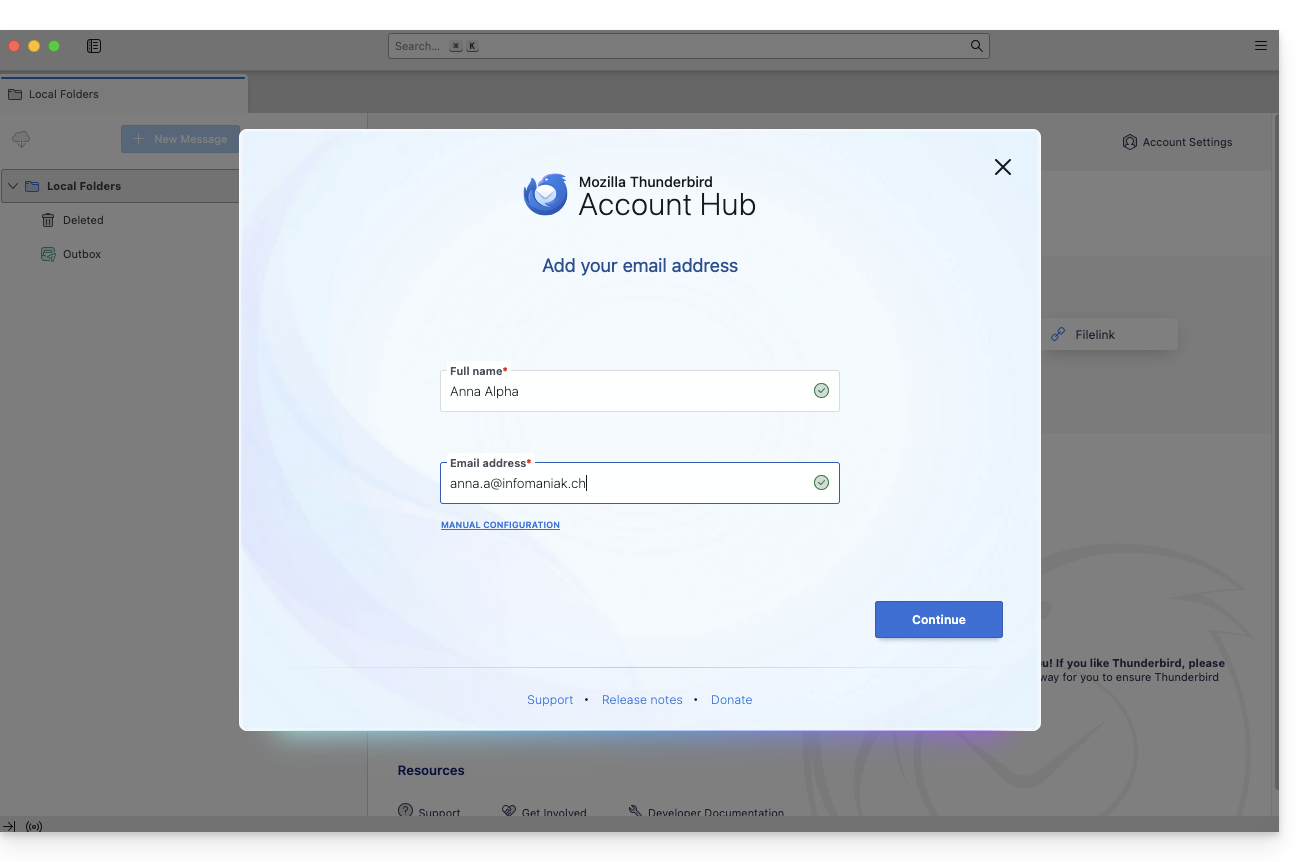
- Enter your account information and click on Continue:
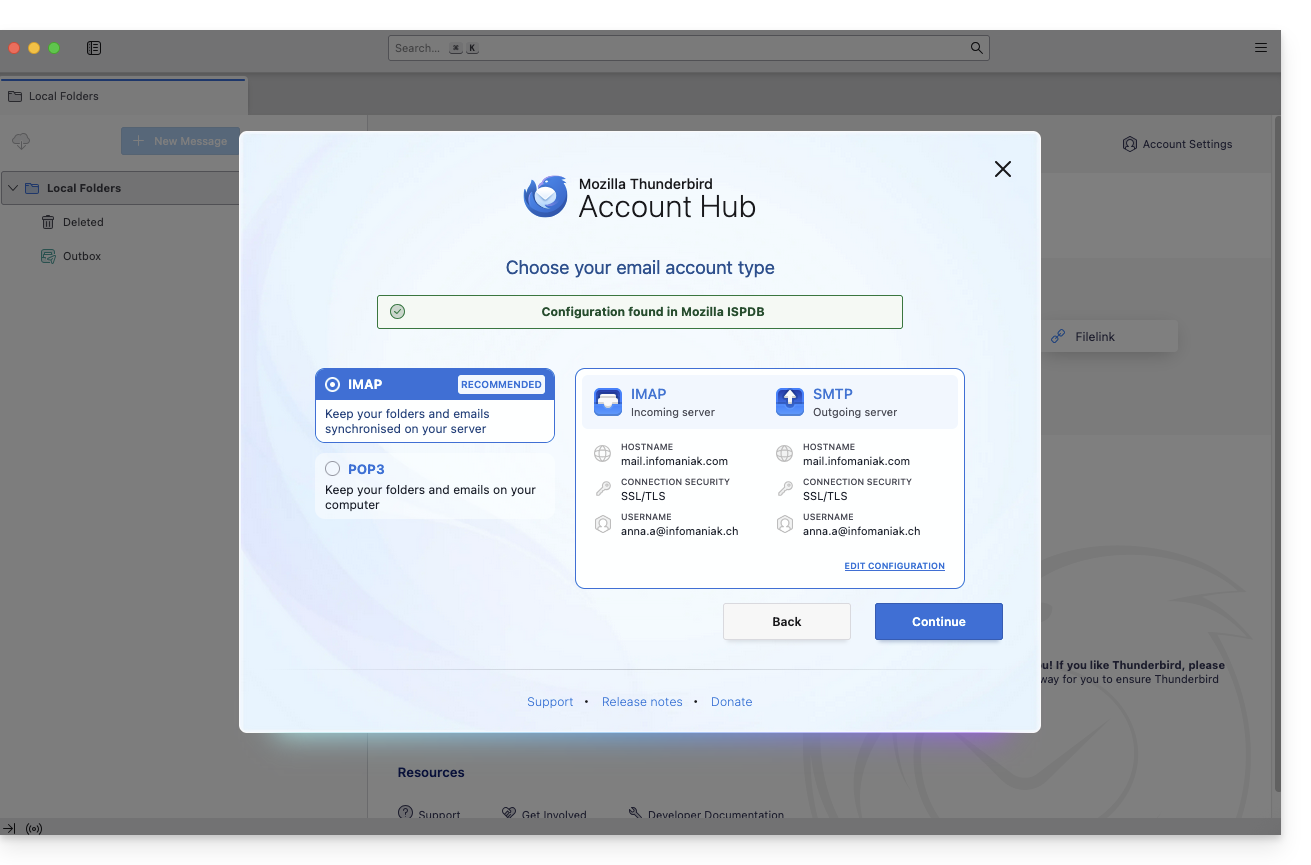
- Stay in IMAP and click on Continue:
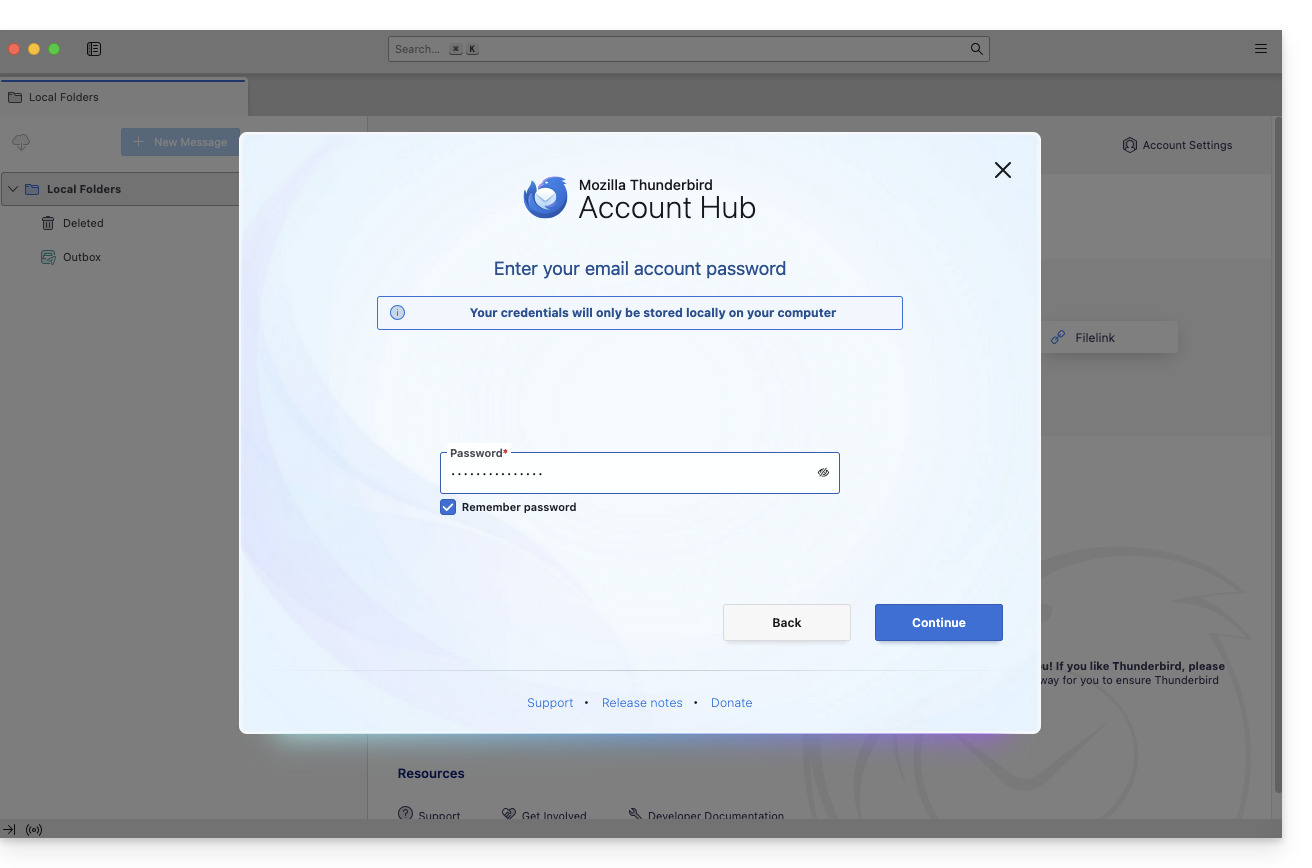
- Enter your password and click on Continue:
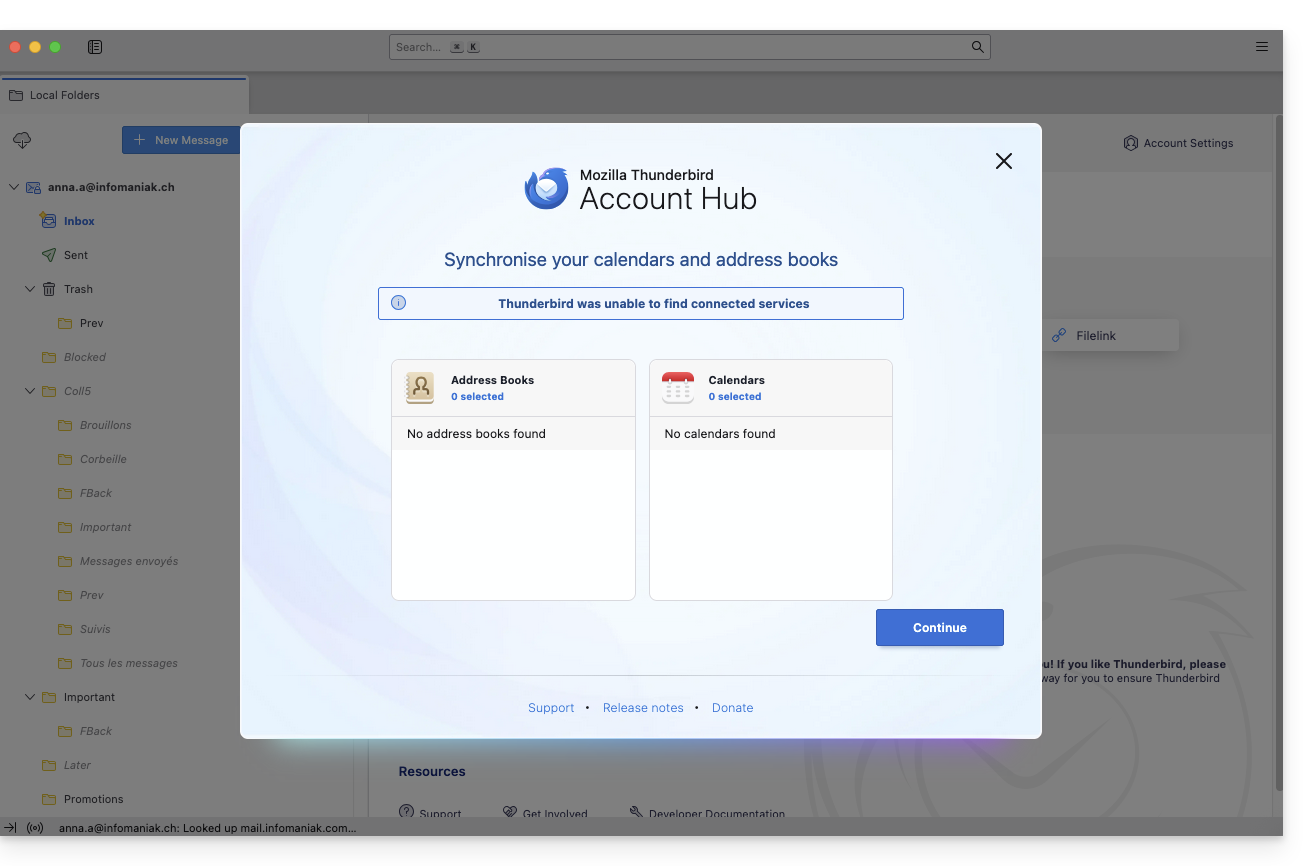
- Click on Continue:
- The summary of your registration is displayed, click on Finish to add the address (or configure other services from there):
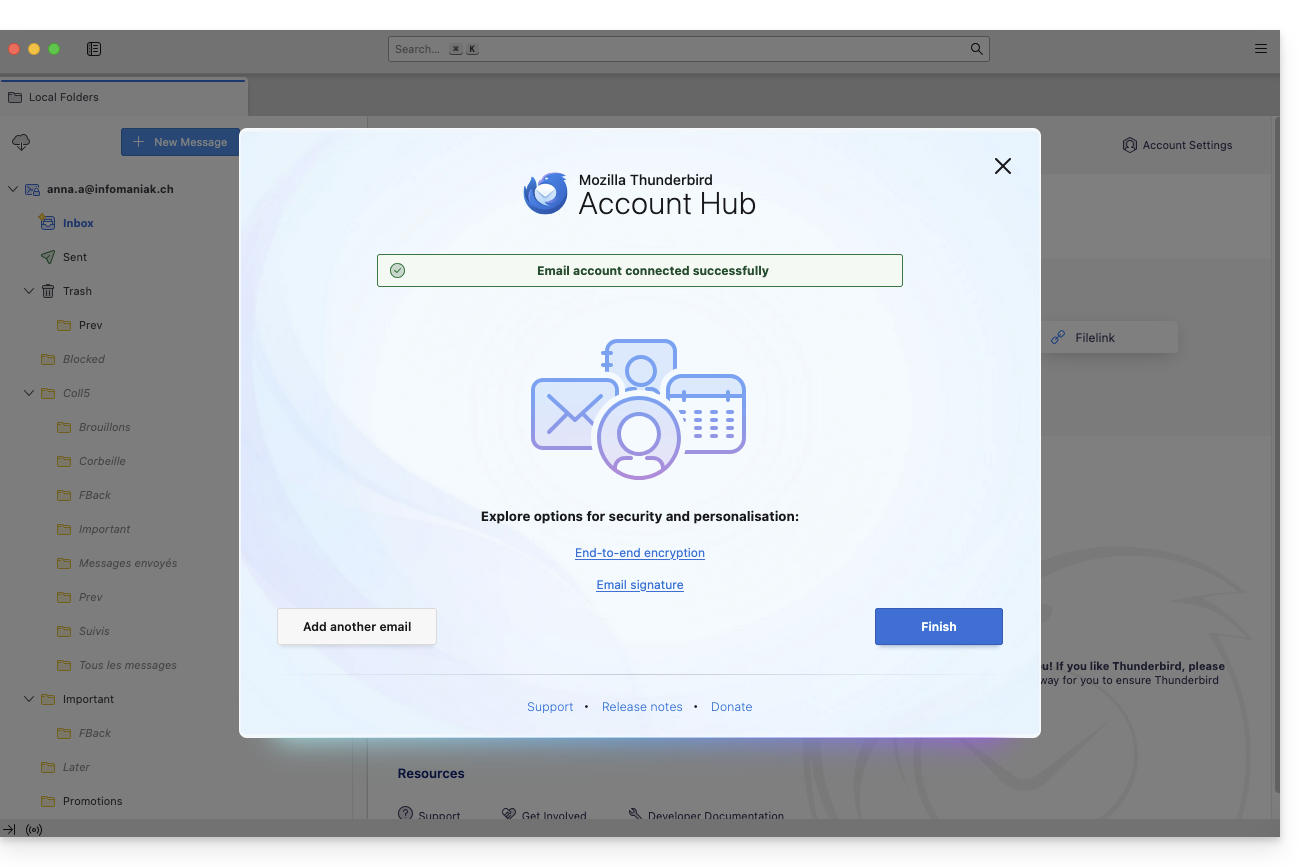
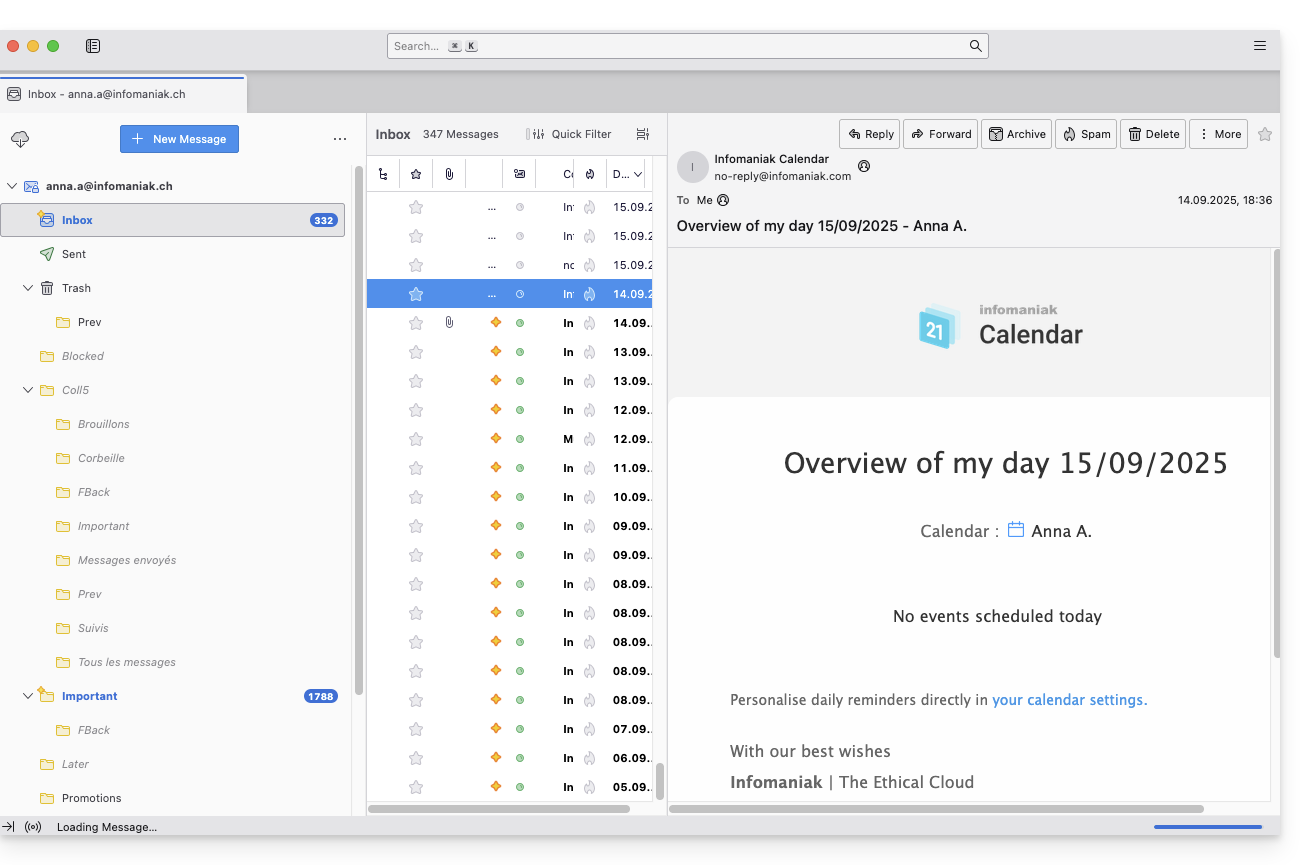
- There you go, your email address is now configured in the application:
Recommended settings
- Incoming IMAP server =
mail.infomaniak.com - IMAP port =
993(with SSL) - Outgoing SMTP server =
mail.infomaniak.com - SMTP port & encryption protocol and command/method to activate this protocol:
587+ STARTTLS - Username = full & complete email address ( ? )
- Password = the one generated for the email address you want to check
- Authentication required to send emails:
- It is activated in the SMTP settings of your application.
- Check "use the same parameters as the incoming server" or depending on the software/email clients, enter a username (= full & complete email address) and the generated password.
Refer to this other guide if you are looking for information about other mail ports and protocols compatible (SSL / TLS for example).
In case of problem
Check that the Mail Service is configured optimally.
It is not necessary to contact Infomaniak Support if your email address works well outside the application. The most common error concerns the use of an incorrect password. The troubleshooting guides help you resolve any potential issues:
- Refer to the solutions given in this other guide regarding email in general.
- This other guide is more specifically about Thunderbird.
… and if Thunderbird no longer works since a change of email password, refer to this other guide.
Link to this FAQ:
Has this FAQ been helpful?
This guide explains how to access your Infomaniak address books and Infomaniak calendars / agendas from your devices.
Refer to this other guide if you are looking for information on synchronizing your emails.
Preamble
- The Web app Contacts (management of your Infomaniak address books for all your professional and personal contacts) and the Web app Calendar (management of your Infomaniak calendars / agendas for all your events and appointments) can be synchronized so that their content (hosted on Infomaniak servers) appears on your personal devices.
- If your current contacts & calendars are not yet managed within these Infomaniak applications, you will need to import your data first so that the synchronization can work subsequently.
- The suggested calendars can also be synchronized with your mobile and desktop devices.
- The birthday calendar (calendar that displays the birthdates of your contacts when the date is entered in their address book entry) is only visible through the Web app and cannot be synchronized with CalDAV tools.
Synchronize contacts & calendars (CardDAV/CalDAV)
Click here to open the Infomaniak assistant that allows you to configure the synchronization of your devices (macOS, Windows, Linux, Android, iOS) and common software (Outlook, Microsoft 365, Thunderbird, Apple Mail, eM Client, etc.).
Specific guides
| OS | Application to synchronize |
| Outlook via CalDav Synchronizer ( Windows) | |
| Contacts & Calendars ( macOS) | |
| Contacts & Calendars ( iOS: iPhone, iPad, etc.) | |
| Contacts & Calendars via kSync ( Android: Huawei, Samsung, Sony, etc.) | |
| Google Calendar via kSync | |
| Mozilla Thunderbird |
You can also transform the Infomaniak Web app Calendar or Contacts into an application to use on your device.
Link to this FAQ:
Has this FAQ been helpful?
This guide explains how to connect the native Android messaging app to an email address hosted by Infomaniak.
Preamble
- Instead of the manual configuration below, it is recommended to use the app Infomaniak Mail (Android).
- The various services offered by Infomaniak are all compatible with the corresponding standard protocols (IMAP/SMTP for email, for example), therefore if you encounter a problem with third-party software, contact its publisher or a Partner and consult the support policy as well as article 11.9 of the Infomaniak Terms of Service.
Manually add the email address to the application
Prerequisites
- Create the email address in my kSuite or a Mail Service / kSuite.
- Create a password for the email address on the device you are going to configure.
- Check that the Mail Service is configured optimally.
To configure the messaging app:
- Open the native messaging app on your device.
- Click on Add an account.
- Select Other as the email type.
- Enter your email address.
- Select the Personal IMAP type.
- Check and complete the missing information.
- Complete the procedure.
- Your email address is now configured in the app on your device.
Recommended settings
- Incoming IMAP server =
mail.infomaniak.com - IMAP port =
993(with SSL) - Outgoing SMTP server =
mail.infomaniak.com - SMTP port & encryption protocol and command/method to activate this protocol:
587+ STARTTLS - Username = full & complete email address ( ? )
- Password = the one generated for the email address you want to access
- Authentication required for sending emails:
- It is activated in the SMTP settings of your application.
- Check "use the same parameters as the incoming server" or, depending on the software/email clients, enter a username (= full & complete email address) and the generated password.
Refer to this other guide if you are looking for information about other compatible messaging ports and protocols (SSL / TLS for example).
In case of a problem
Check that the Mail Service is configured optimally.
There is no need to contact Infomaniak Support if your email address works well outside the application. The most common error concerns the use of an incorrect password. The troubleshooting guides help you resolve any potential issues:
- Refer to the solutions provided in this other guide regarding email in general
- … and if your application no longer works at the sending level (disconnected or missing SMTP server, for example) or after changing your email password, refer to this other guide.
Link to this FAQ:
Has this FAQ been helpful?
This guide explains how to connect the desktop app New Outlook (desktop application on Windows, replacing Windows Mail) to an email address hosted by Infomaniak.
Preamble
- Although the emails themselves remain stored on the Infomaniak server, the experience in New Outlook is very integrated with the Microsoft cloud:
- Some information from your account may be used by Microsoft for centralized management and better synchronization experience.
- If you wish to have full and local control over your emails, consider using third-party email software/clients (such as Thunderbird for example) that allow for more direct storage.
- The various services offered by Infomaniak are all compatible with the corresponding standard protocols (IMAP/SMTP for email, for example), therefore if you encounter a problem with third-party software, contact its publisher or a Partner and consult the support policy as well as article 11.9 of the Infomaniak Terms of Service.
Add the email address to the application
Prerequisites
- Create the email address within my kSuite or a Mail Service / kSuite.
- Create a password for the email address on the device you are going to configure.
- Check that the Mail Service is configured optimally.
The password created for the email address must meet the detailed criteria at the bottom of this guide.
To configure the email application:
- Open the application.
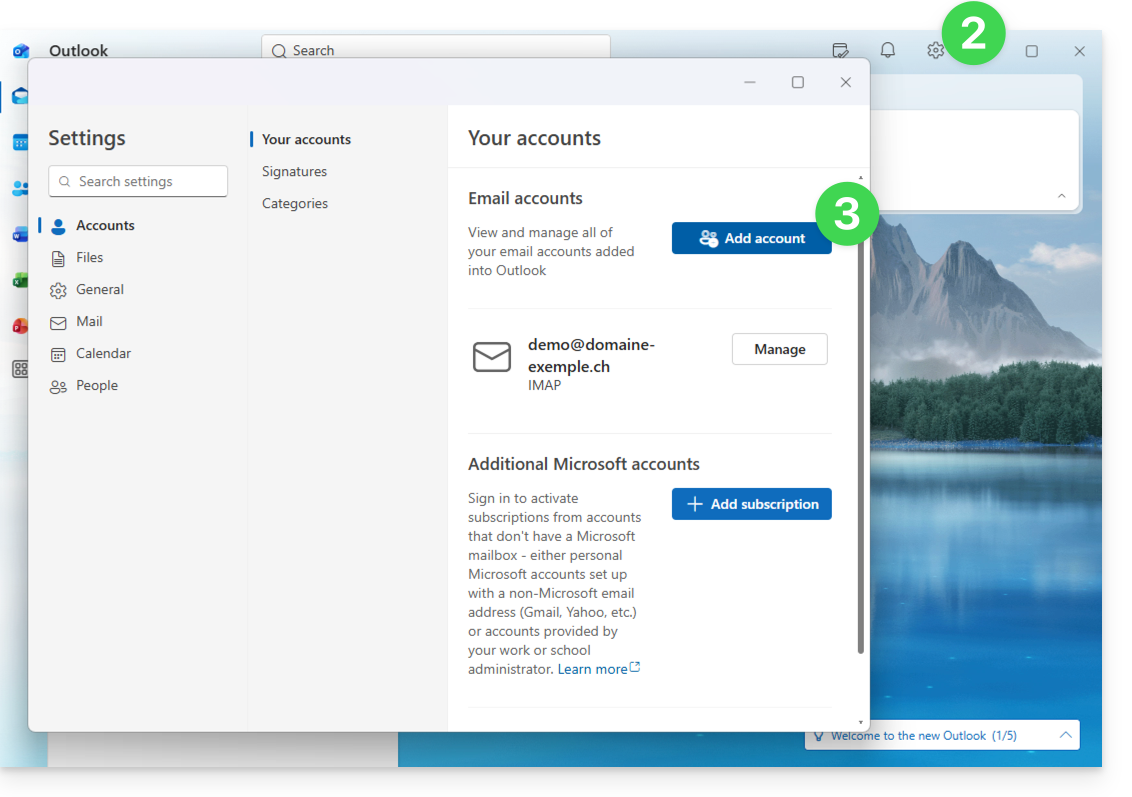
- If necessary, click on the gear icon in the top right corner (otherwise, skip to step 4).
- Click on Add an account:
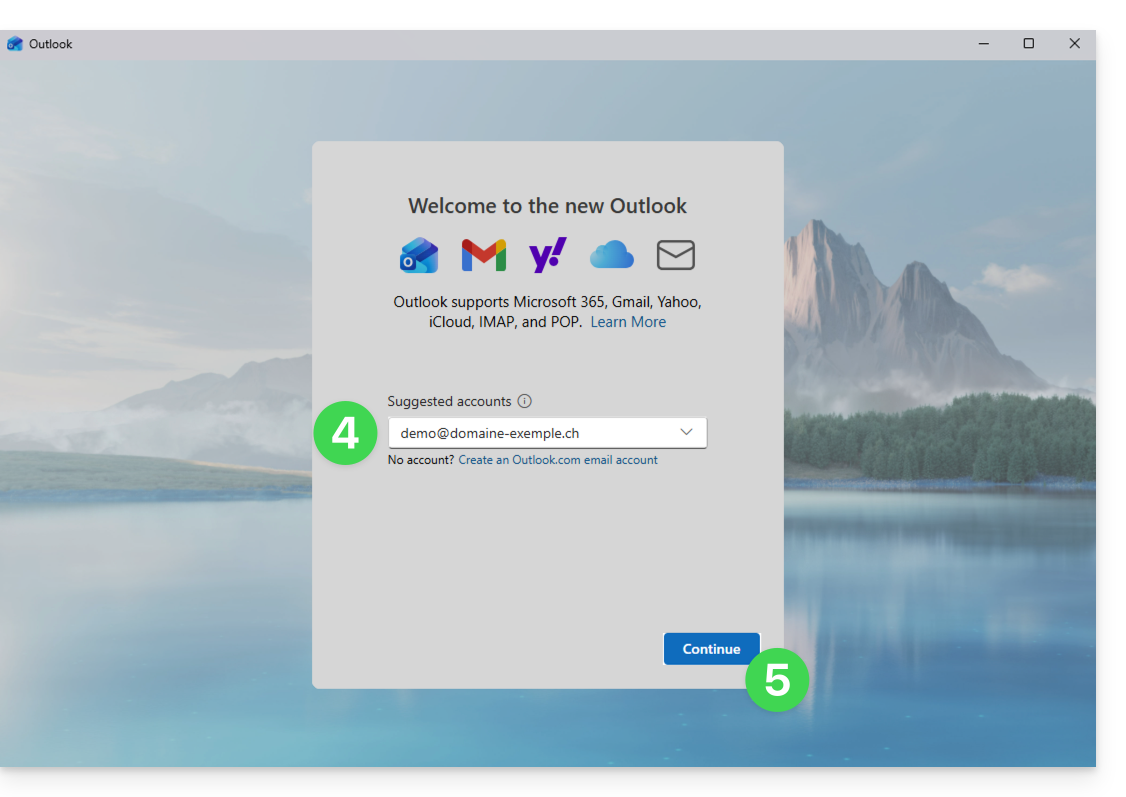
- Enter the email address to be linked.
- Click on Continue:
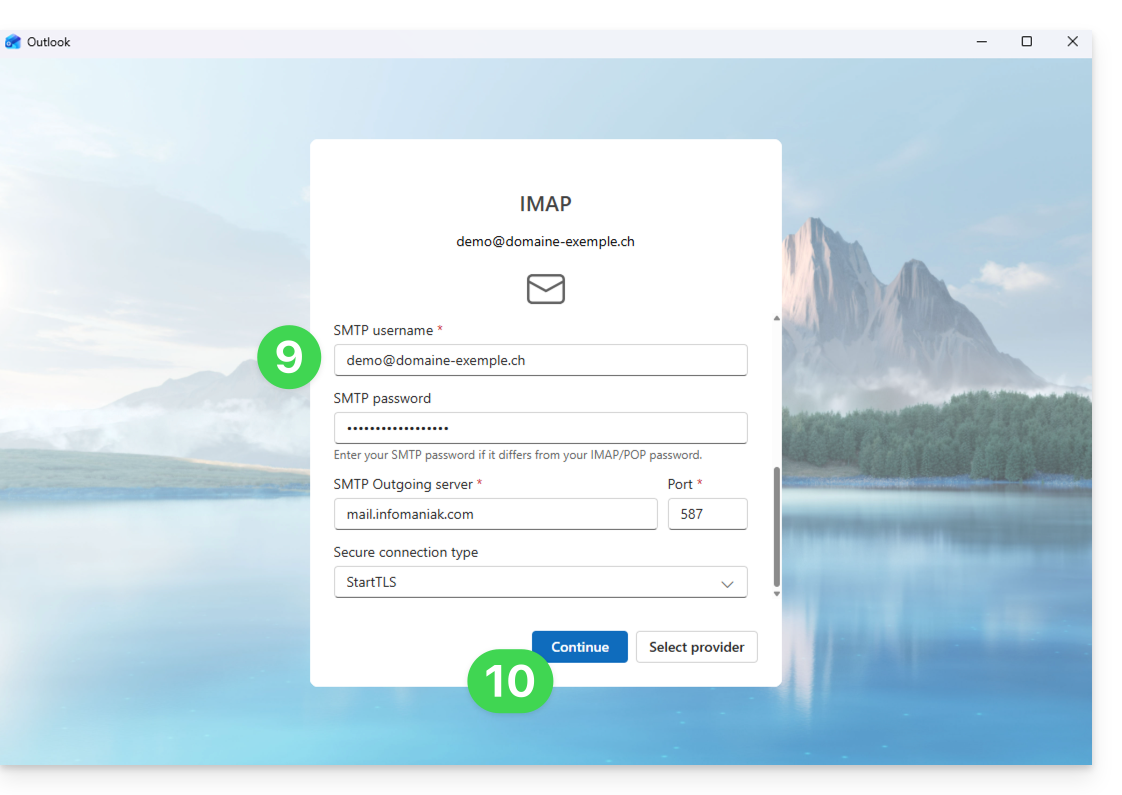
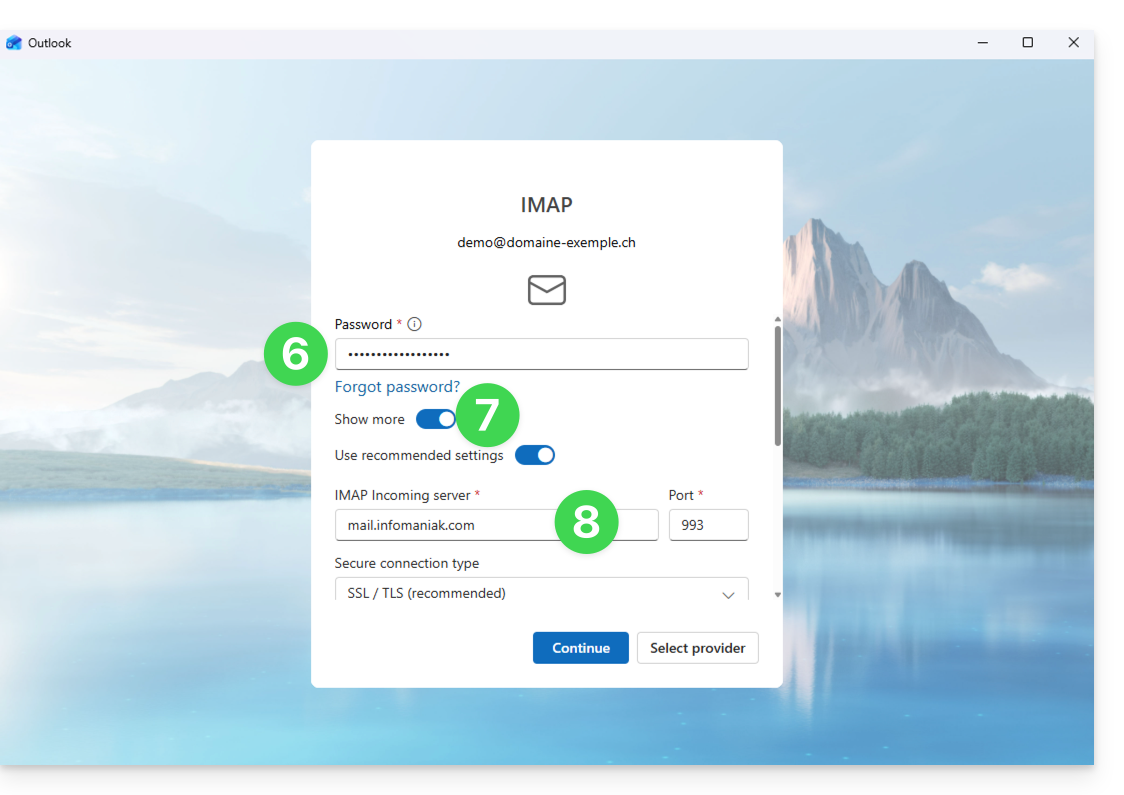
- Enter the password for the email address.
- Click on the See more button.
- Scroll down the page with the elevator, then check and complete the missing information.
- Click on Continue:
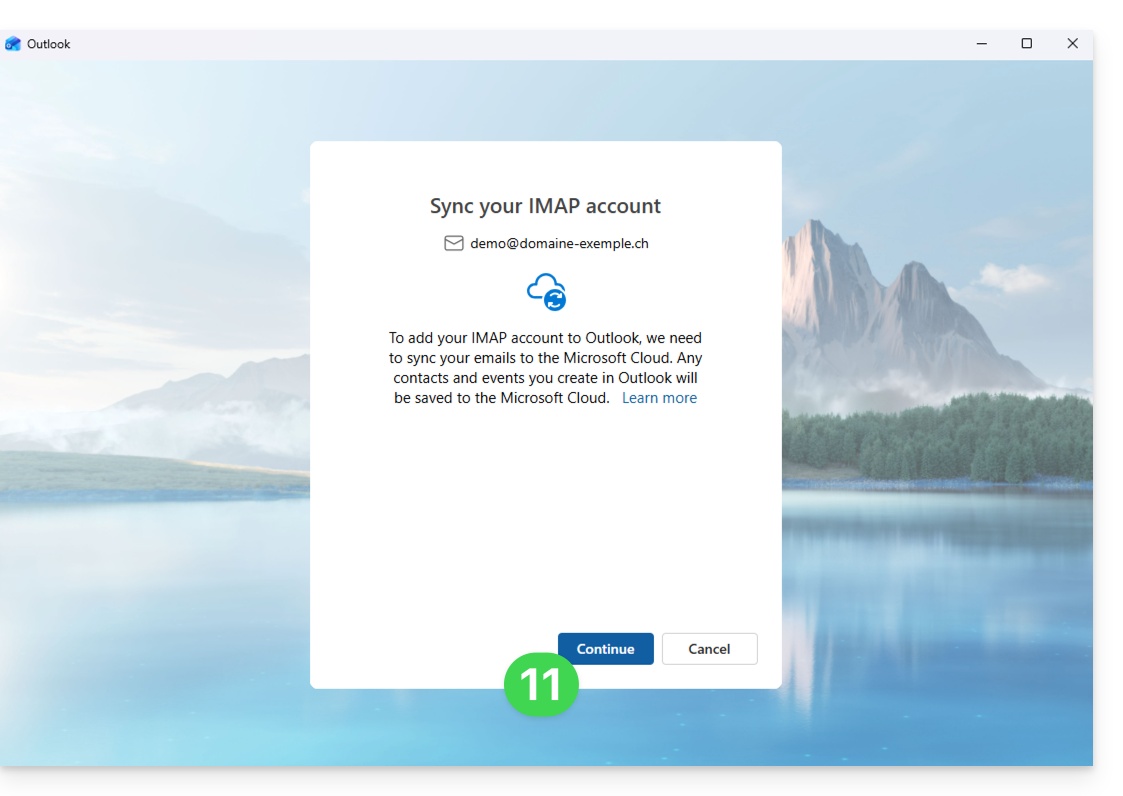
- Take note of and go through the different Microsoft information windows:
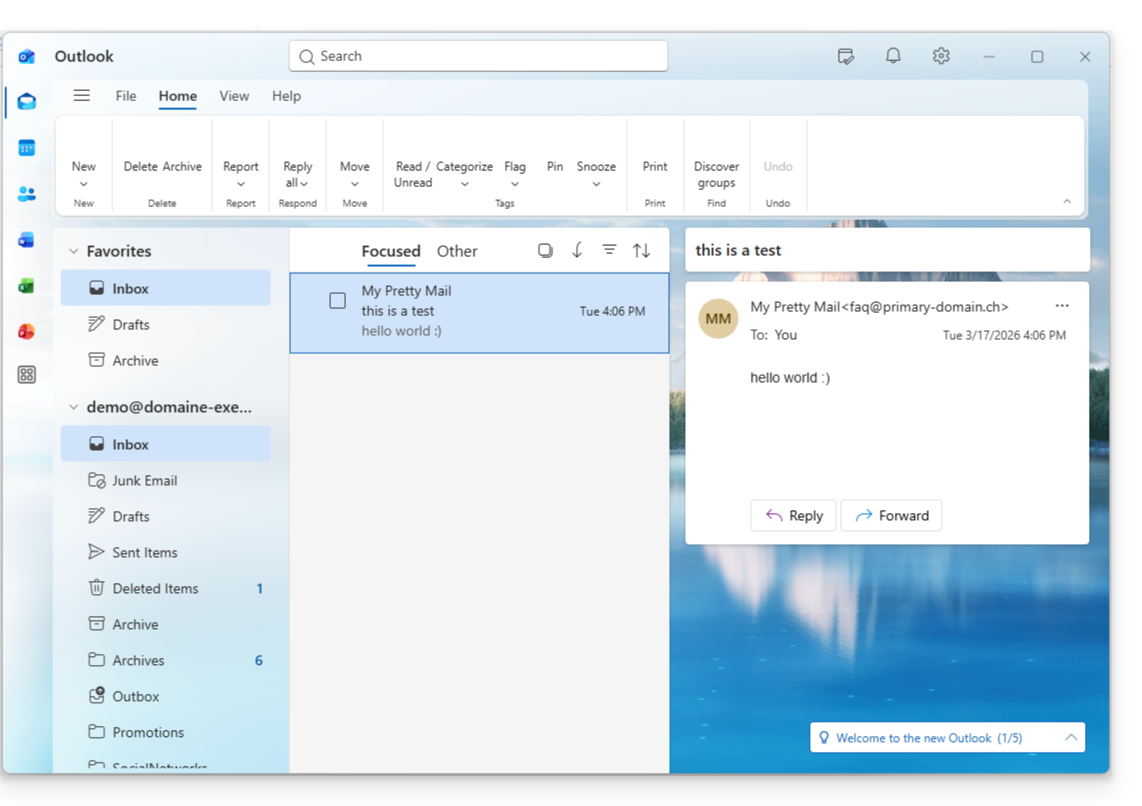
- There you go, your email address is now configured in the application:
Recommended settings
- Incoming IMAP server =
mail.infomaniak.com - IMAP port =
993(with SSL) - Outgoing SMTP server =
mail.infomaniak.com - SMTP port & encryption protocol and command/method to activate this protocol:
587+ STARTTLS - Username = the complete & full email address ( ? )
- Password = the one generated for the email address you want to access (it must meet the detailed criteria at the bottom of this guide)
- Authentication required for sending emails:
- It is activated in the SMTP settings of your application.
- Check "use the same parameters as the incoming server" or depending on the software/email clients, re-enter a username (= complete & full email address) and the generated password.
Refer to this other guide if you are looking for information about other messaging ports and protocols compatible (SSL / TLS for example).
In case of problem
A solution that seems to work is the combination of these 2 situations:
- Being logged in to your Windows session with a Microsoft account (not just a local account).
- Having added the email address to connect to Windows to this version of Outlook.
Create a new password by letting it be generated randomly but also checking that it meets these criteria imposed by Microsoft:
| Allowed characters |
|
| Forbidden characters |
|
| Password length | 16 characters MAXIMUM |
Check that the Mail Service is configured optimally.
The troubleshooting guides help you resolve any potential issues:
- Become familiar with the solutions provided in this other guide regarding email in general.
- This other guide is more specifically about Outlook.
… and if your Outlook is no longer working since a change in your email password, become familiar with this other guide.
Link to this FAQ:
Has this FAQ been helpful?
This guide explains how to connect the desktop app Apple Mail (desktop application on macOS) to an email address hosted by Infomaniak.
Preamble
- Instead of the manual configuration below, it is recommended to use the .mobileconfig configuration profiles offered by Apple.
- The various services offered by Infomaniak are all compatible with the corresponding standard protocols (IMAP/SMTP for email, for example), therefore if you encounter a problem with third-party software, contact its publisher or a Partner and consult the support policy as well as article 11.9 of the Infomaniak Terms of Service.
Manually add the email address to the application
Prerequisites
- Create the email address in my kSuite or a Mail Service / kSuite.
- Create a password for the email address for the device you are going to configure.
- Check that the Mail Service is configured optimally.
To configure the email application:
- Open the application.
- If you have already configured an address, click on the Mail menu then Add an account:
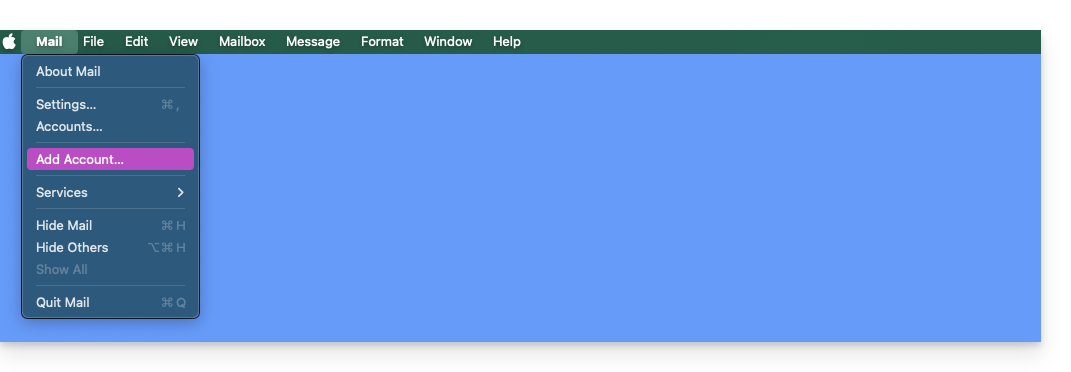
- If you have already configured an address, click on the Mail menu then Add an account:
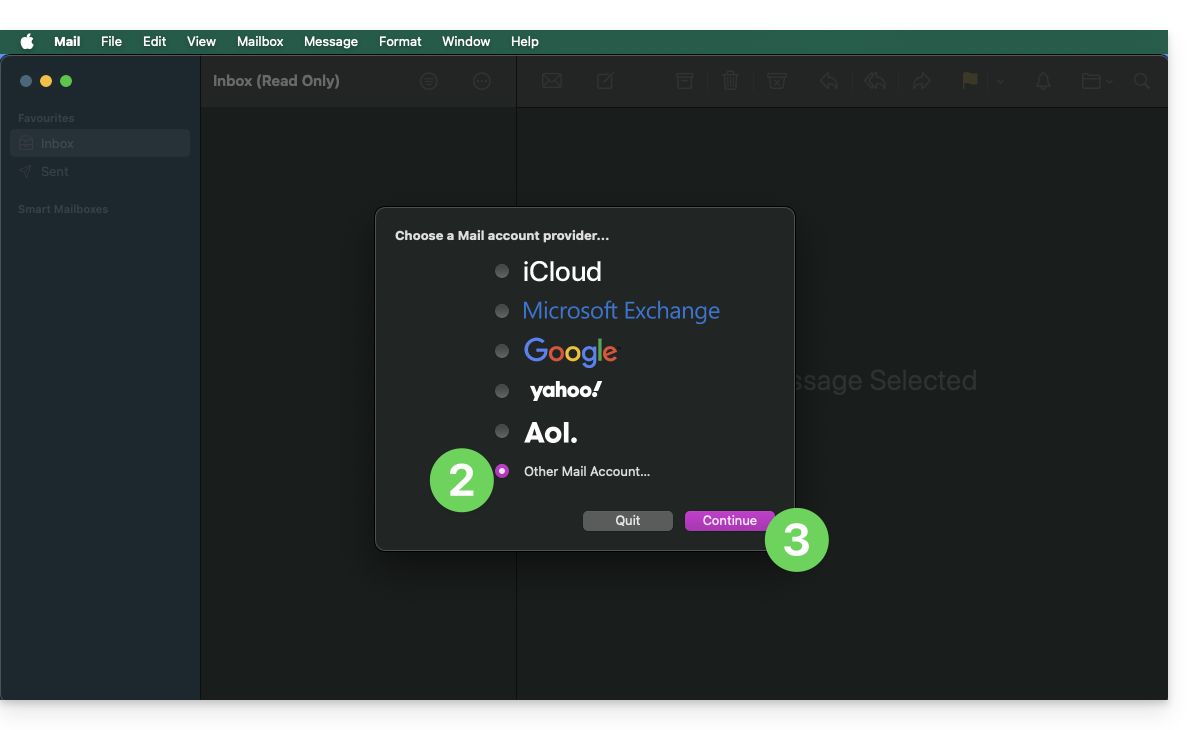
- Click on Other account.
- Click on Continue:
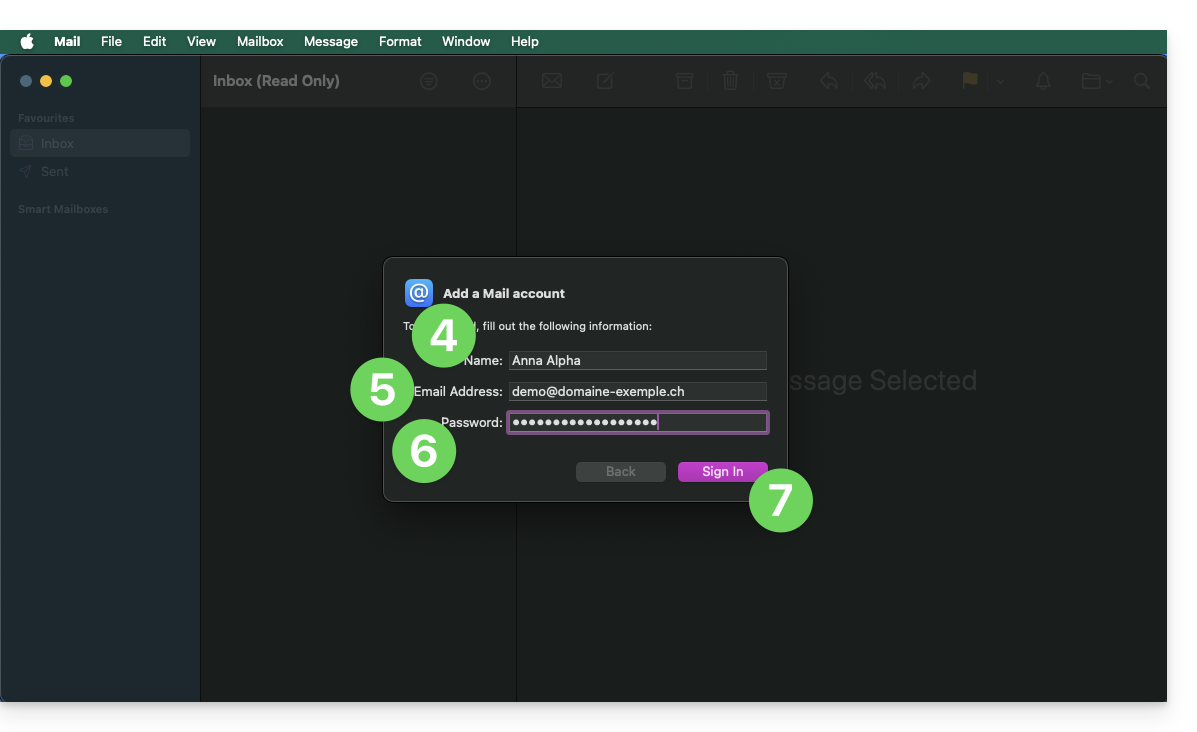
- Enter the account name.
- Enter the email address to be linked.
- Paste the email address password generated on the Infomaniak Manager.
- Click on the blue Log in button:
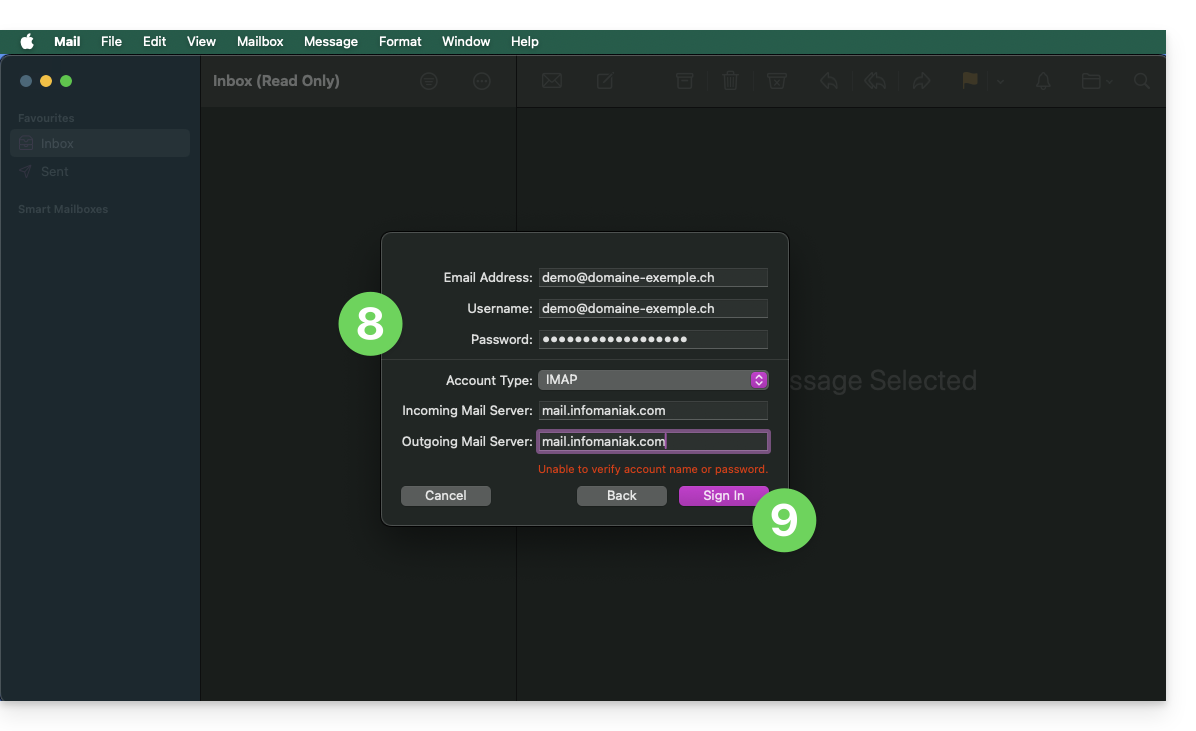
- Check and complete the missing information.
- Click on Log in:
- Press the button to validate:
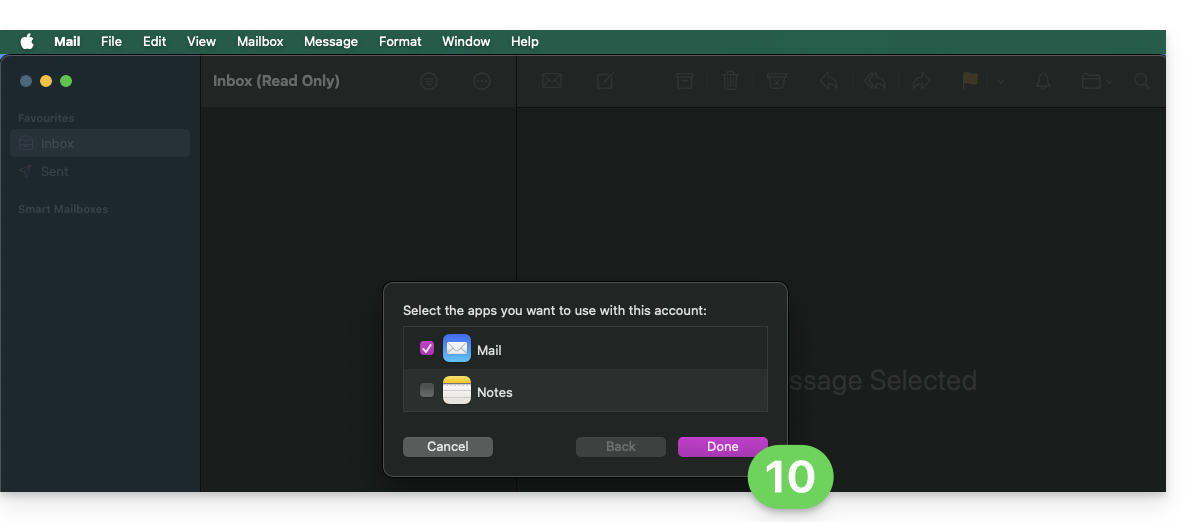
- There you go, your email address is now configured in the application:
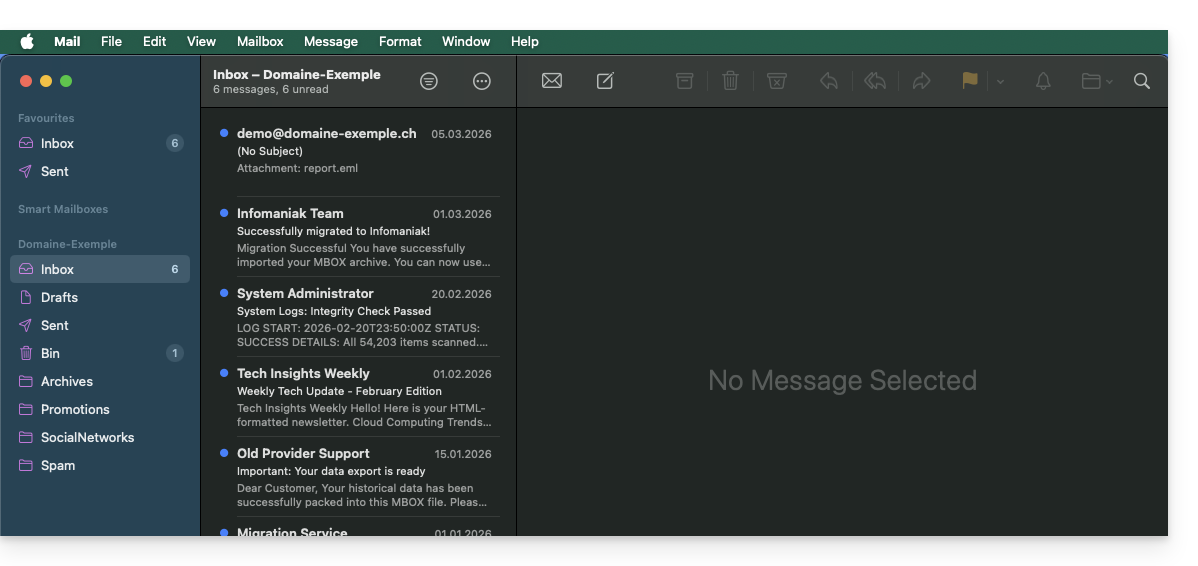
Recommended settings
- Incoming IMAP server =
mail.infomaniak.com - IMAP port =
993(with SSL) - Outgoing SMTP server =
mail.infomaniak.com - SMTP port & encryption protocol and command/method to activate this protocol:
587+ STARTTLS - Username = full & complete email address ( ? )
- Password = the one generated for the email address you want to access
- Authentication required for sending emails:
- It is activated in the SMTP settings of your application.
- Check "use the same parameters as the incoming server" or depending on the software/email clients, re-enter a username (= full & complete email address) and the generated password.
Refer to this other guide if you are looking for information about other compatible email ports and protocols (SSL / TLS for example).
In case of a problem
There is no need to contact Infomaniak Support if your email address works well outside the application. The most common error concerns the use of an incorrect password. The tool offered within Apple Mail can indicate this to you: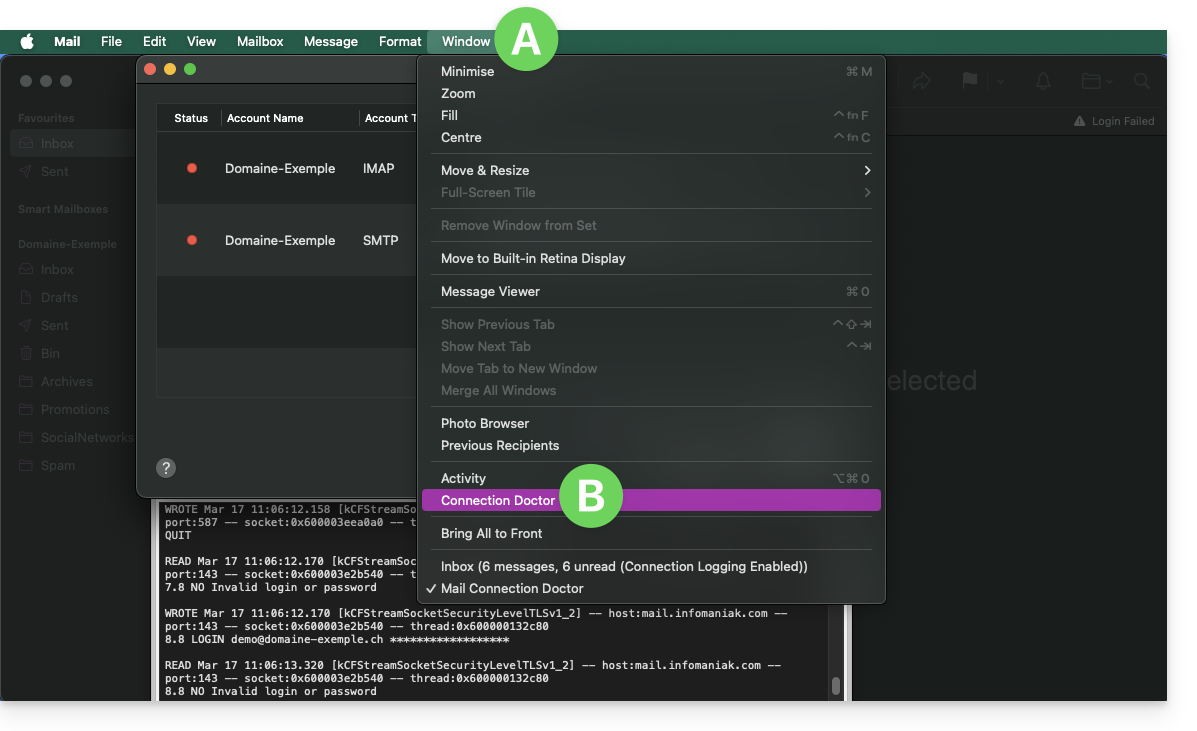
Create a new password from the Mail Service and reconfigure your account on the email application.
The troubleshooting guides help you resolve any potential issues:
- Refer to the solutions provided in this other guide regarding email in general.
- Delete any Apple configuration profiles linked to your Infomaniak email before reconfiguring.
And if your Apple Mail no longer works since a change of email password, refer to this other guide.
Link to this FAQ:
Has this FAQ been helpful?
This guide explains how to access kDrive files locally on your hard drive via the desktop app kDrive (desktop application on macOS / Windows / Linux), as well as files from the kDrive Web app (online service ksuite.infomaniak.com/kdrive).
Prerequisites
- Install the kDrive desktop app on your device.
View kDrive files
Once the kDrive application is installed and launched:
- Perform a left-click on the app icon in the notification area of your computer (top right on macOS, bottom right on Windows and a double left-click in the taskbar on Linux).
- Click on the action menu ⋮ at the top right.
- Click on Open kDrive Web to access the files stored on the kDrive server:
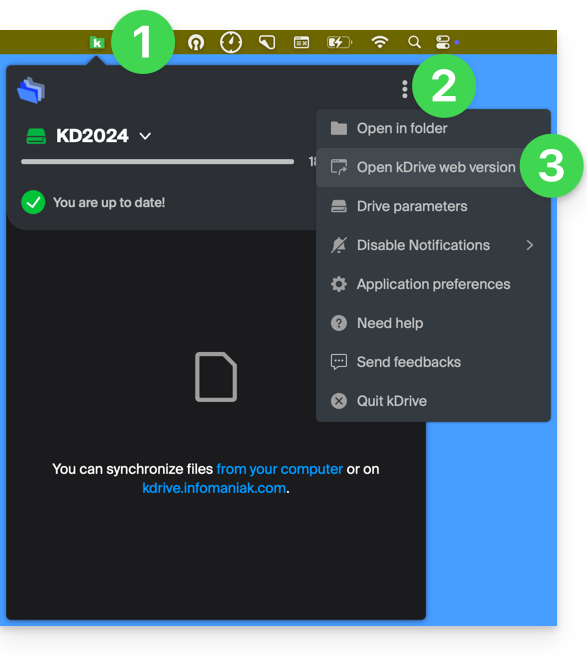
- Click on the item above to open the folder on your computer containing your kDrive files, physically present or virtually present (depending on whether Lite Sync is enabled).
If your files are not all present / synchronized, refer to this other guide.
Link to this FAQ:
Has this FAQ been helpful?
Thank you for choosing to customize your account with Custom Brand!
Preamble
- As an option with any Infomaniak offer or already included withkSuite Enterprise, discover this customization tool to make your web addresses unique, add a logo or an image slideshow to your login page for your Infomaniak Organization.
- The Web Redirection tool will no longer be usable on your domain after activating Custom Brand on it.
Custom Brand customization guides
Prerequisites
- Have a domain name with Infomaniak (transfer it if necessary).
- Its extension must be among those supported by Custom Brand.
- Note that this also works with a subdomain.
- Configure the domain to use Infomaniak's DNS servers.
Then, to use Custom Brand: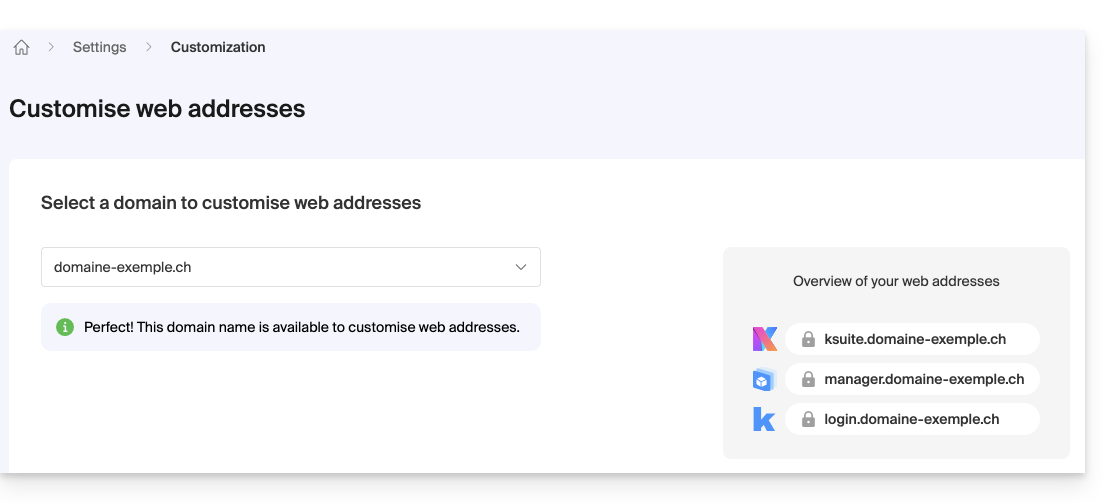
- Get started with Custom Brand: customize the URLs & interface
- Troubleshoot an issue:
Customize your web addresses with your domain
| Access to … | without Custom Brand | with Custom Brand |
|---|---|---|
| kSuite | ksuite.infomaniak.com | ksuite.domain.xyz |
| Manager | manager.infomaniak.com | manager.domain.xyz |
| emails ( Mail) | mail.infomaniak.com | mail.domain.xyz |
| calendars / agendas | calendar.infomaniak.com | calendar.domain.xyz |
| contacts | contacts.infomaniak.com | contacts.domain.xyz |
| kDrive | kdrive.infomaniak.com | kdrive.domain.xyz |
| video conferences kMeet | kmeet.infomaniak.com | kmeet.domain.xyz |
| Euria | euria.infomaniak.com | euria.domain.xyz |
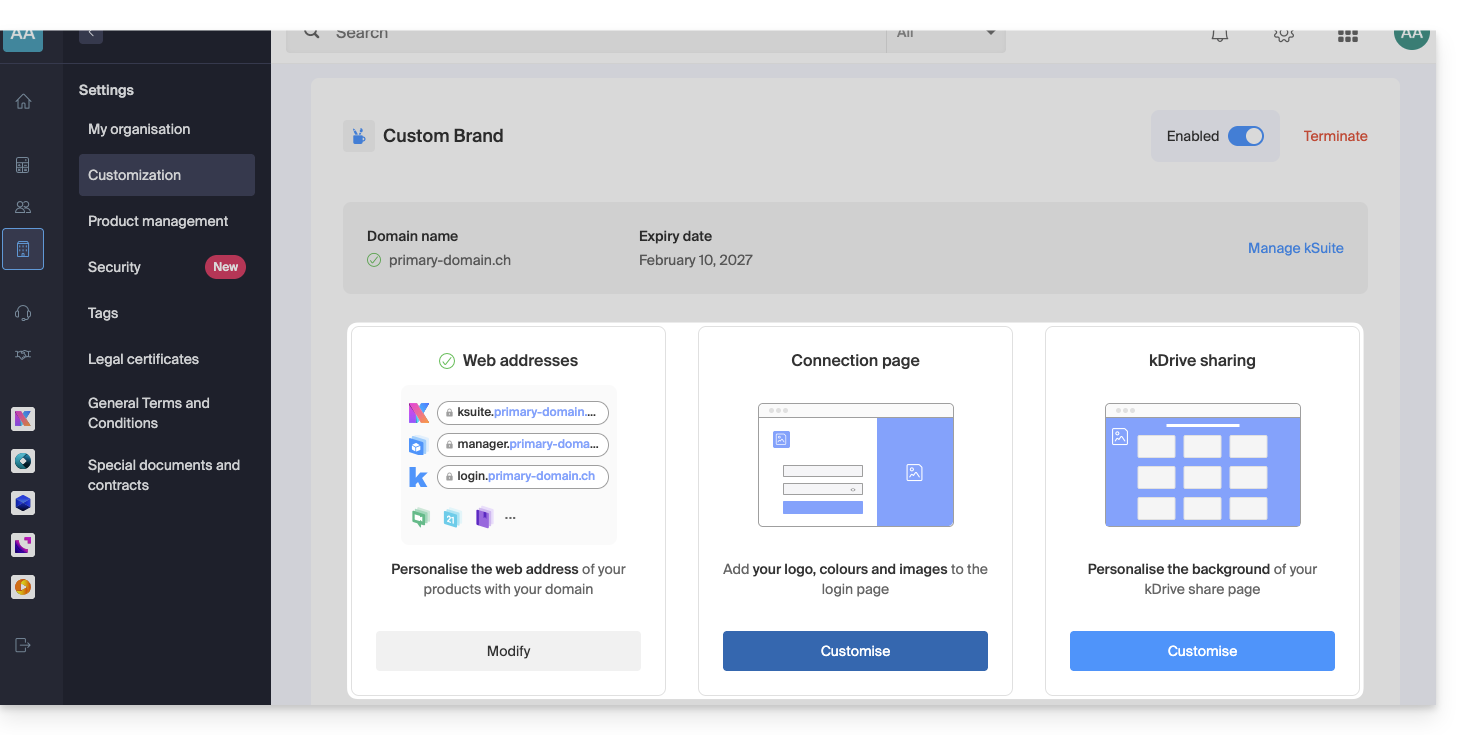
Customize your Organization's interface
The following interface options are modifiable from the my kSuite settings:
- Add your logo to your Organization's interface.
- Add a panorama of 3 images on the login page.
- Modify the text and button color of the login page.
- Customize kDrive shares (see this other guide).
Link to this FAQ:
Has this FAQ been helpful?
This guide details the customization options for the Infomaniak Organization, including custom URLs (Custom Brand addresses) for the Manager and kSuite tools such as kDrive or Euria.
Custom Brand is a service already included with kSuite Enterprise.
Creating custom URLs
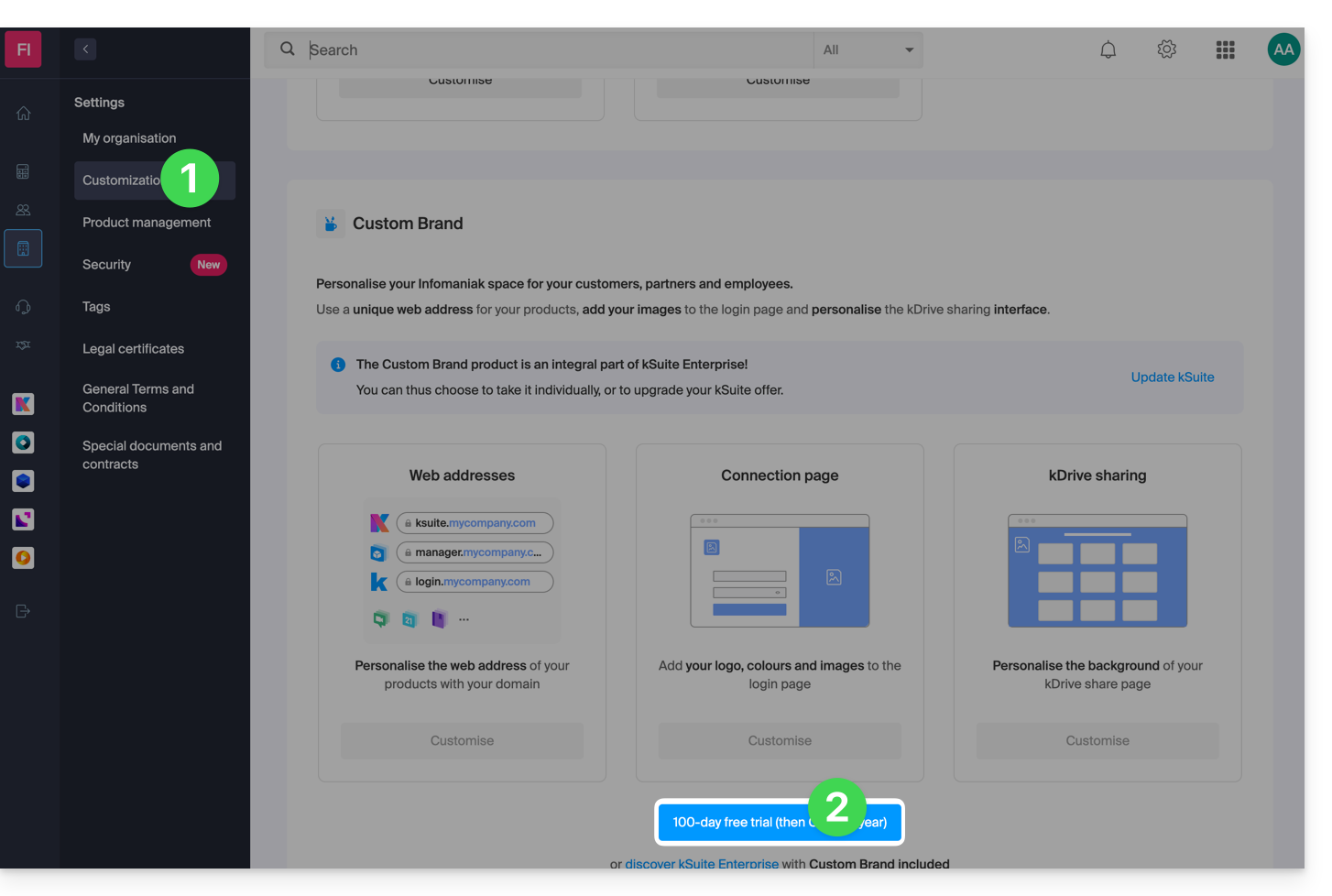
To obtain Custom Brand:
- Click here to access Custom Brand on the Infomaniak Manager (need help?).
- Click the blue Try for Free button (in the Custom Brand section)
- Enter the domain name to use in your custom web address:
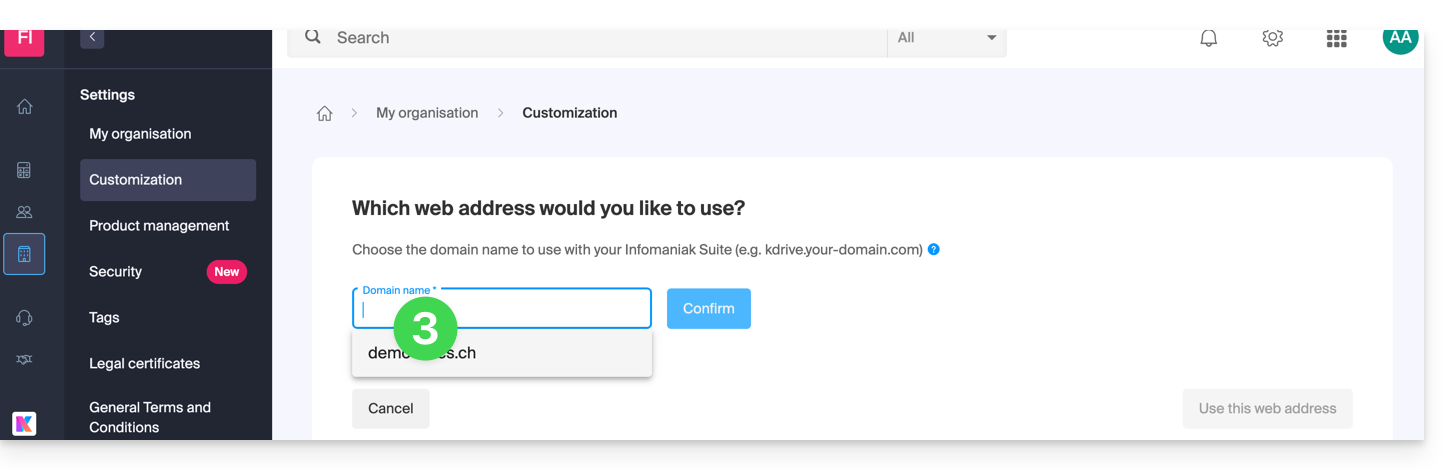
- If you do not yet have a domain name, you will be able to order one at this step.
- If your domain name is already used for another service, you will be able to choose another one, or use a subdomain (example:
my.domain.xyz).
- When choosing the domain name, the interface will present examples of custom web addresses (example: manager.domain.xyz).
- Click the blue “This web address suits me” button or select another domain name or subdomain until you find a custom web address that suits you.
- Preparing custom web addresses may take a few minutes; a confirmation email will be sent to the account owner's email address.
To disable access via custom URLs:
- Click the blue Disable button at the top right of the Custom Brand section:
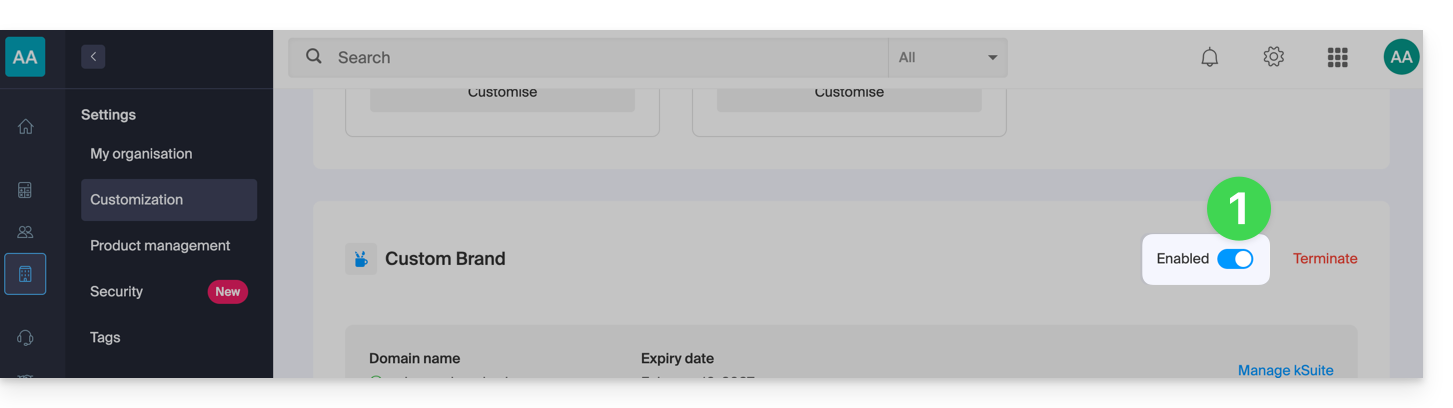
- You can reactivate the addresses later using the same button.
- You can also remove this service completely.
Customizing the interface
In addition to customizing the web addresses of your Infomaniak products, you can add a logo. You can also customize your login page via a slideshow of 3 images:
- Click here to access Custom Brand on the Infomaniak Manager (need help?).
- Click the blue Customize button (in the Custom Brand section):
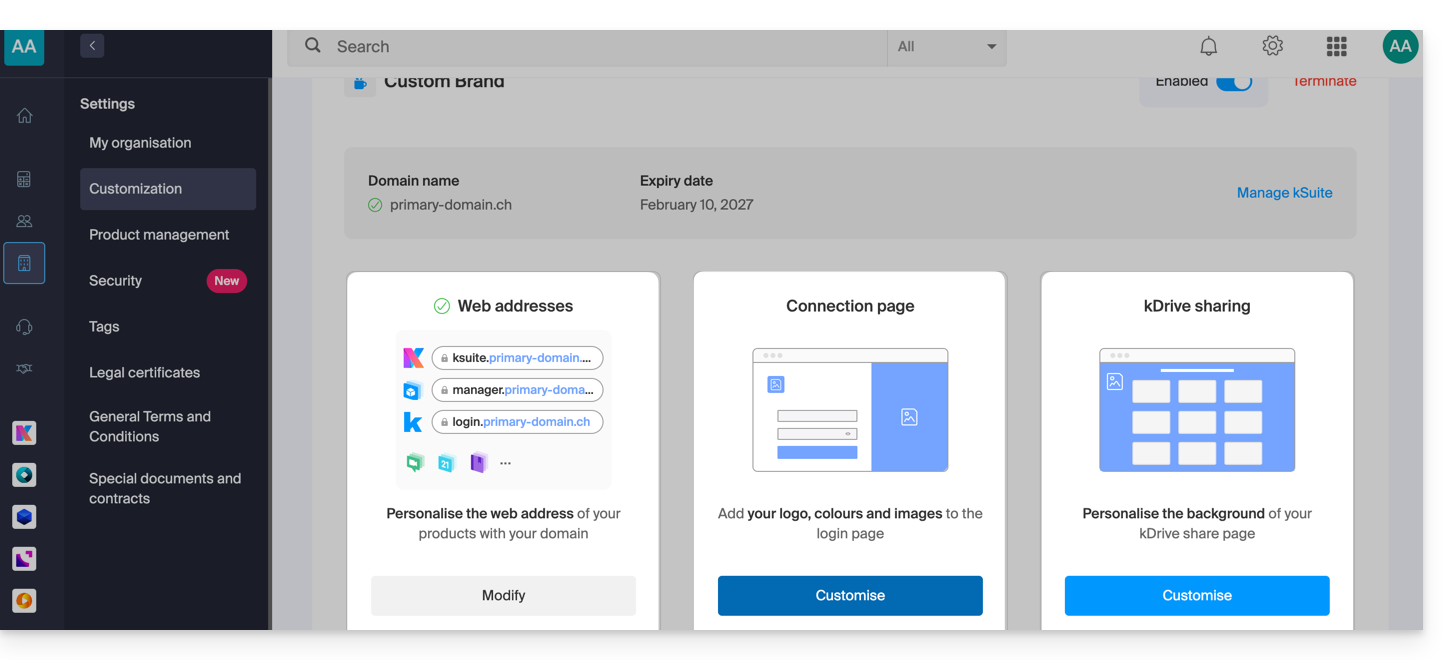
- Upload an image or click Select an image to add it as a logo.
- Resize the image with the tool if it exceeds the maximum size of 270 x 70 pixels.
- The tool allows you to preview how your logo will look on a dark or light theme.
- Click on Validate.
- To customize your login page, click on the blue Next button on the far right.
- From the two color selection fields, choose the color of the text and login buttons.
- Drag and drop or click on Select an image to create a slideshow of 3 images to the right of the login page (images must be at least 865 x 1200 pixels).
- Click on Add then on Finish to save the changes.
Link to this FAQ:
Has this FAQ been helpful?
This guide explains how to start an online meeting with kMeet, Infomaniak's ethical free video conferencing solution.
Preamble
- There is no limit to the number of participants with paid my kSuite offers.
- Participants can write in a common chat, annotate a screen share and even control a remote device.
- To create a meeting room in advance and invite participants by creating an associated event in the Infomaniak calendar, refer to this other guide.
- It is also possible to share the video stream within a Video Streaming Broadcast (for example, to avoid depending on the connection to kMeet).
Create a virtual meeting room
To do this:
- Start kMeet via kmeet.infomaniak.com or from one of the applications for computers or mobile devices.
- Start a new meeting:
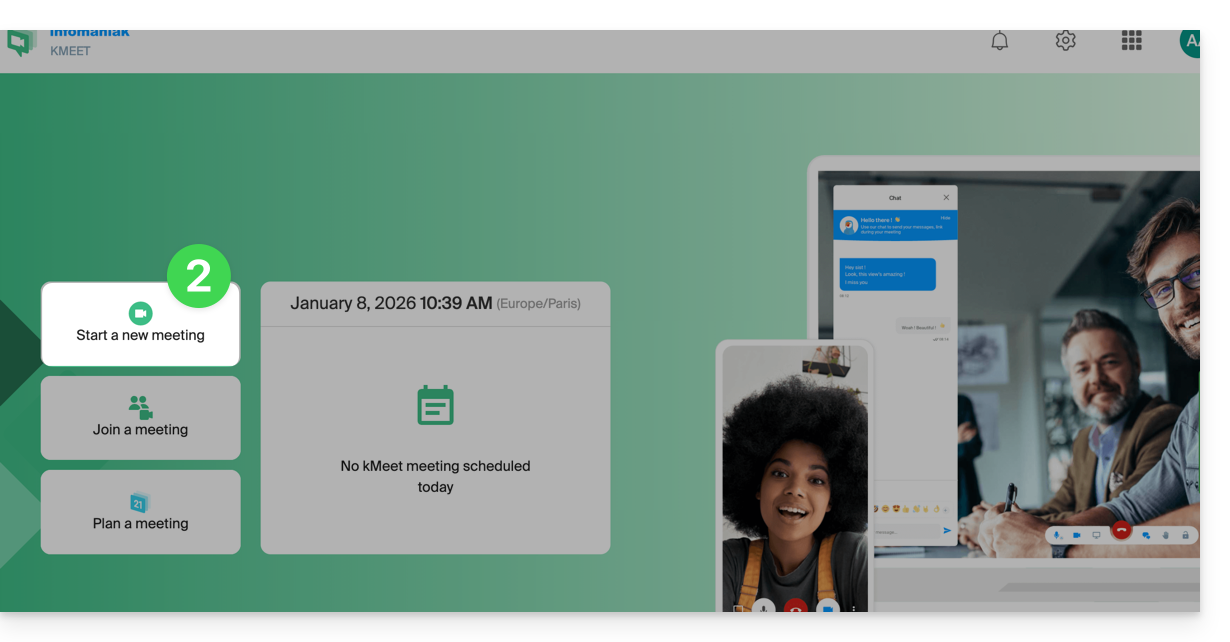
- Specify a name for your meeting room.
- Allow access to your webcam and microphone from your browser or from the application (click here if you encounter any issues).
- Enter a pseudonym or your first and last name.
- If necessary, enable participant control, a password or a custom encryption key.
- Click on Join the meeting.
- Share the room link to invite participants to join you:
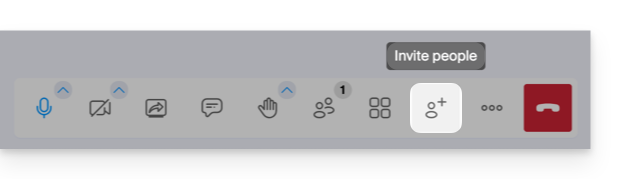
Link to this FAQ:
Has this FAQ been helpful?
This guide allows you to quickly discover the essential functions of Euria, the artificial intelligence at your disposal within kSuite, particularly powerful for summarizing discussions on the app kChat.
Preamble
- Euria can help you perform all kinds of calculations, translations, provide information on various subjects, and answer your questions.
- Refer to this other guide regarding the model used and the responsibilities of each party.
- As soon as a new user is added, they receive a welcome message from Euria.
- Refer to this other guide regarding the possibilities of discussion with the AI in kChat.
Automatically summarize a kChat message
To get the summary of a kChat message:
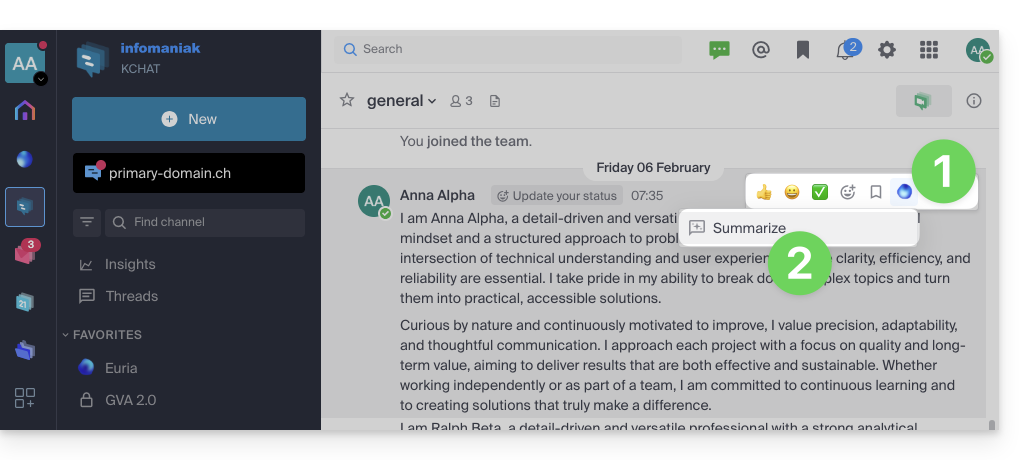
- Hover over the message and select the Euria actions icon in the top right.
- Click on Summarize the discussion thread:
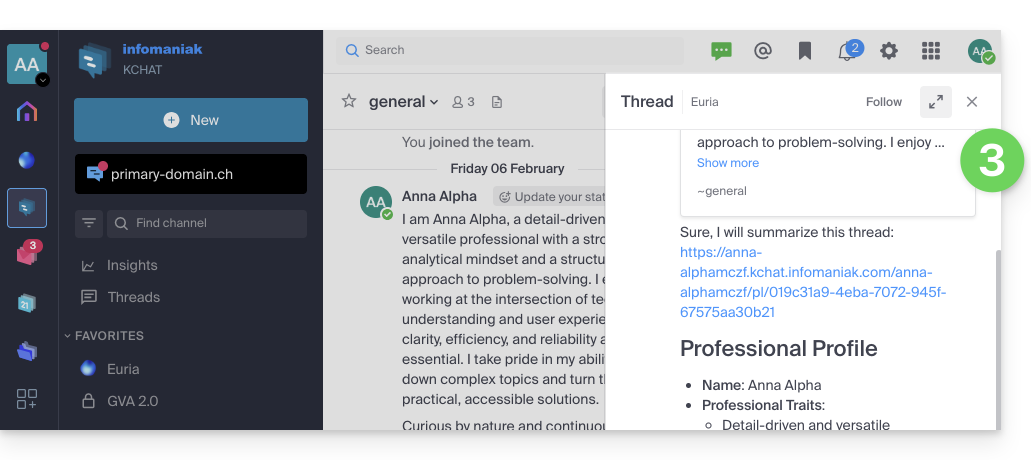
- Get the summary, generated by Euria in the right sidebar:
Link to this FAQ:
Has this FAQ been helpful?
This guide details the limitations specific to the my kSuite offer and the advantages of the my kSuite+ offer.
my kSuite limits only
The my kSuite offer imposes certain limits that my kSuite+ does not…
Mail, contacts & calendars
- Disk space limited to 20 GB of storage for emails.
- No advanced mode in message sorting rules.
- "my kSuite" signature imposed.
- No email sharing link.
- 1 address book, 1 calendar.
- Backup retention (30 days) of emails; retrievable by changing the offer.
kDrive
- 1 kDrive drop box.
- 25 kDrive sharing links (and without duration settings, password…).
- Retention of previous versions of your files: 30 versions over 30 days (60 over 120 days for my kSuite+, some of which are permanent).
- 30-day trash (60 for my kSuite+).
- No statistics.
- No editing/signing of PDF files.
Limitation of my kSuite & my kSuite+ offers
Click on the links below to find out the details:
- Offer limited to one address per account (linked to a European phone number).
- Obligation to indicate a valid mobile phone number to confirm registration.
- Limited number of daily email sends, email redirections and unique recipients per message.
- No possibility to create aliases for your email.
- No customizable email signature.
- Email hold and scheduled sending: restricted features (no customization) on my kSuite and customizable with my kSuite+.
- 15 GB of Cloud storage with my kSuite, 1/2/6/12 TB with my kSuite+.
- Registration only possible for individuals residing in OECD member countries (official list), including:
- Germany
- Australia
- Austria
- Belgium
- Canada
- Chile
- Colombia
- South Korea
- Costa Rica
- Denmark
- Spain
- Estonia
- United States
- Finland
- France
- Greece
- Guadeloupe
- French Guiana
- Hungary
- Ireland
- Iceland
- Israel
- Italy
- Japan
- Latvia
- Lithuania
- Luxembourg
- Martinique
- Mayotte
- Mexico
- Monaco
- New Caledonia
- New Zealand
- Norway
- Netherlands
- Poland
- French Polynesia
- Portugal
- Czech Republic
- Réunion
- United Kingdom
- Saint Barthélemy
- Saint Martin
- Saint Pierre and Miquelon
- Slovakia
- Slovenia
- Sweden
- Switzerland
- French Southern Territories
- Turkey
- Wallis and Futuna
my kSuite+ offer
The my kSuite+ offer allows you to send more messages per day to a larger number of unique recipients at once.
To help you identify the my kSuite / kSuite offer most suited to your needs, refer to this other guide.
For sending emails to a large number of recipients, there is a Newsletter tool.
Link to this FAQ:
Has this FAQ been helpful?
This guide explains how to manage a calendar and its events within the mobile app Google Calendar (app for iOS/Android smartphone or tablet) and/or the web app Calendar Infomaniak (online service ksuite.infomaniak.com/calendar) while keeping all data fully synchronized thanks to the mobile app Infomaniak kSync (app for Android smartphone or tablet).
Preamble
- Refer to this other guide if you only want to display a read-only Infomaniak calendar on Google Calendar (web & mobile app).
- The reverse is also possible if you only want to display a read-only Google calendar on the web app Calendar Infomaniak (online service ksuite.infomaniak.com/calendar).
- The procedure below allows you to edit the calendar events on both sides but only on the mobile version of the Google Calendar app.
- The various services offered by Infomaniak are all compatible with the corresponding standard protocols (CalDAV/CardDAV for contacts & calendars, for example), therefore if you encounter a problem with third-party software, contact its publisher or a Partner and consult the support policy as well as section 11.9 of the Infomaniak Terms of Service.
Synchronize the Infomaniak calendar and the mobile device
Prerequisites
- Download the Android mobile app Google Calendar.
- Download the mobile app Infomaniak kSync (app for Android smartphone or tablet) here:

- The kSync application is also available on F-droid.
- Install kSync.
Then, launch the kSync app on your Android device, a step-by-step assistant will help you configure the application according to your needs:
- Decide whether you want to synchronize tasks.
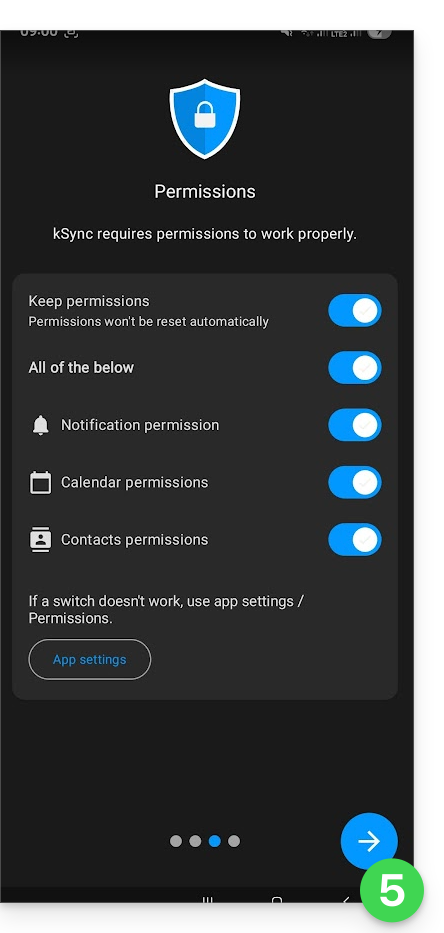
- Allow kSync to access the required items on the device, primarily the calendar.
- Allow the application to run in the background for better synchronization (uses more battery); settings are also possible within the app itself:
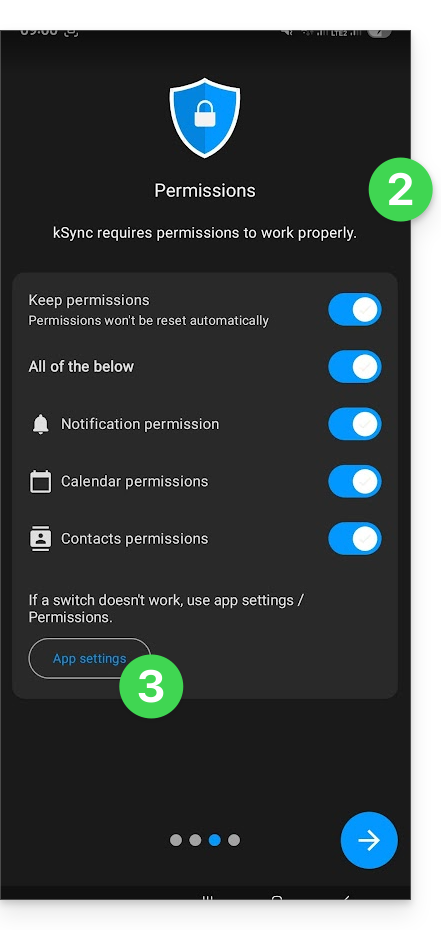
- The main thing is to grant access rights to the services you need to synchronize:
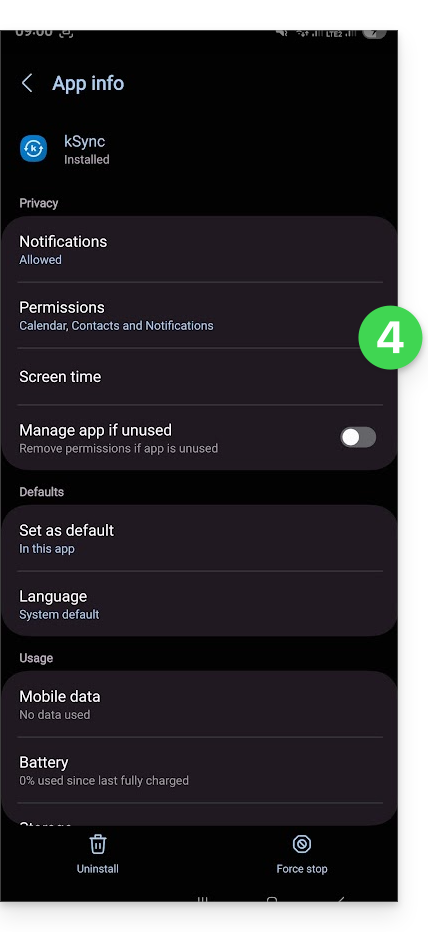
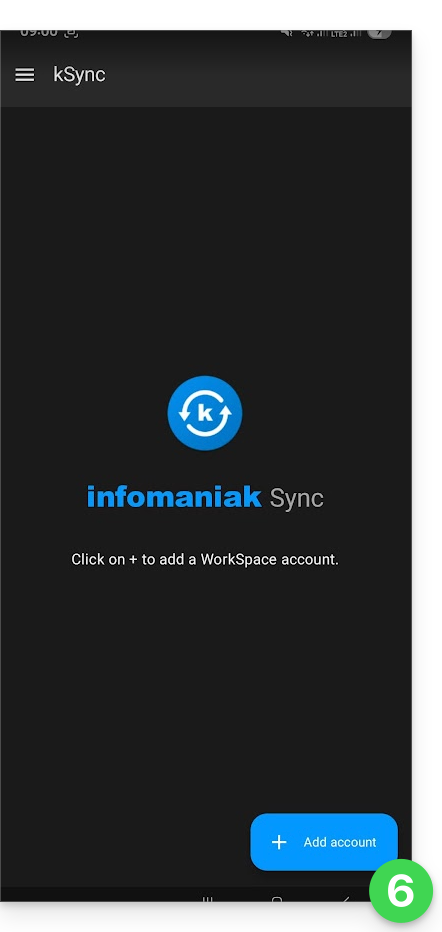
- Go back to the kSync app and continue the configuration:
- Tap to add an Infomaniak user account (the one you use to log in to your Infomaniak services):
- For example, on the web app Calendar, the user menu at the top right informs you of the login email used.
- It is then possible to access the calendars of the Organization to which the current user is attached:
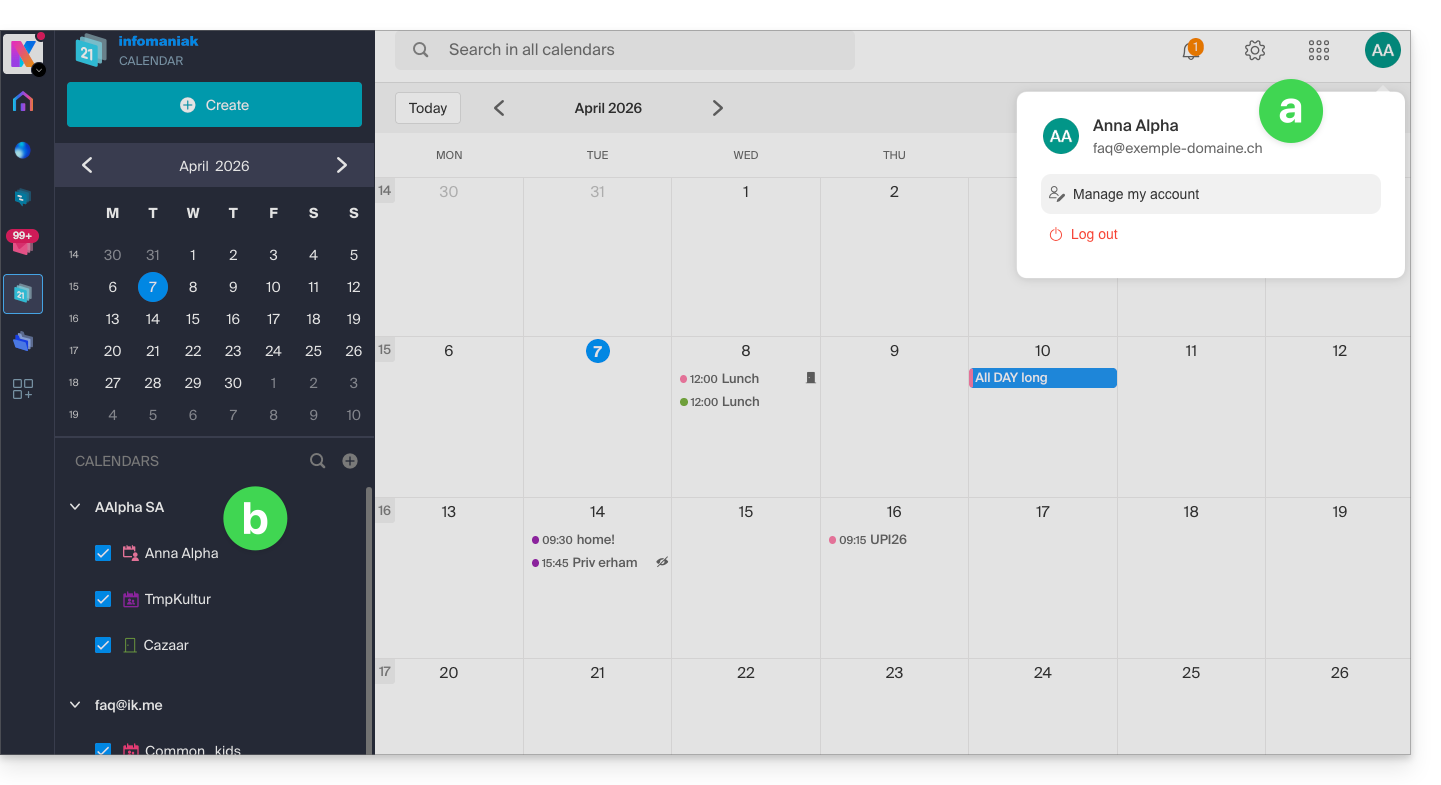
- These are the data that will be synchronized on your device when you log in to the same Infomaniak account on kSync...
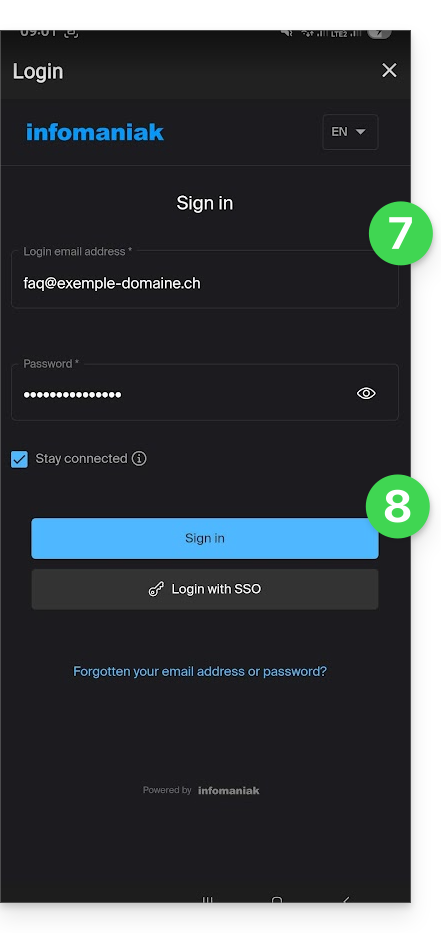
- Enter your Infomaniak login credentials (see point a above).
- Tap the button to log in:
- Perform the double authentication steps as during your usual logins.
- Once logged in to kSync, activate the calendars (from those displayed, which are those linked to your Infomaniak account) to synchronize from the CALDAV tab:
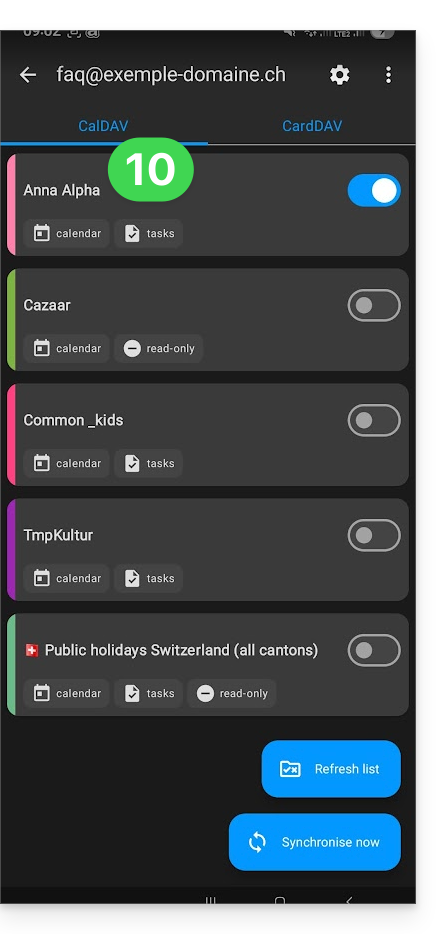
- Start the synchronization with the button located at the bottom right.
Automatic synchronization of the native calendar
- At this stage, it is the native application of your Android device (Samsung Calendar for example on Samsung brand devices) that will be synchronized and display the events of your Infomaniak calendar (sometimes you need to activate the account on the application in question):
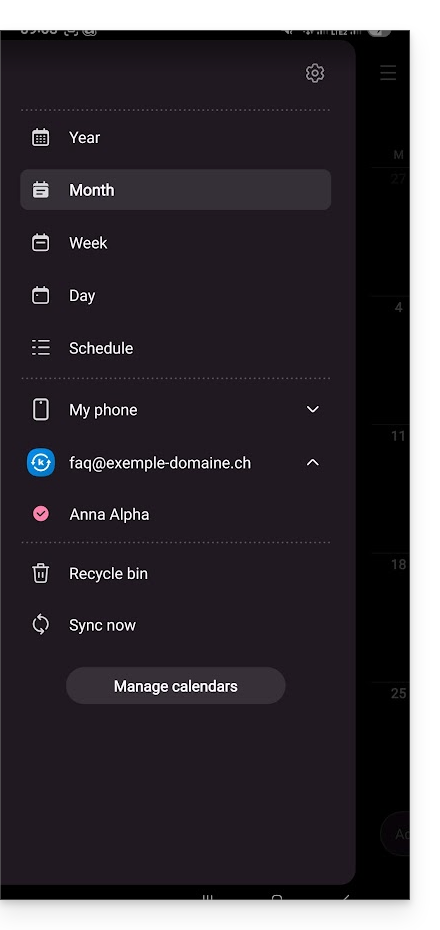
- An event added and/or modified on one or the other of the interfaces will be automatically synchronized everywhere:
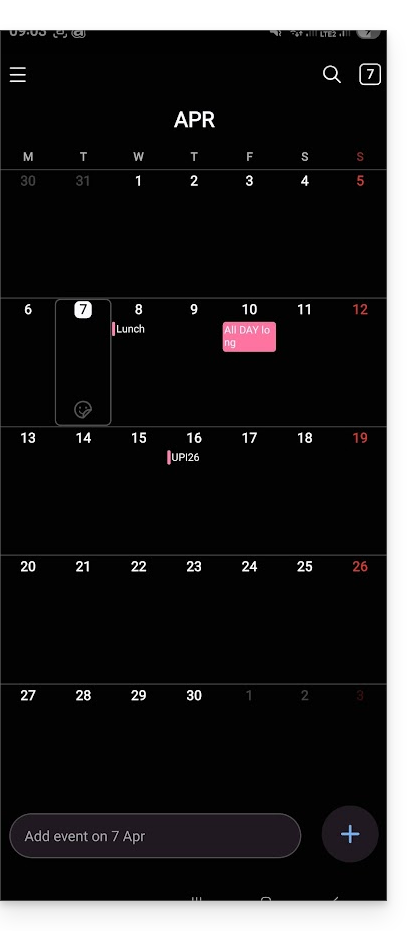
Enable the calendar on Google Calendar
To find your Infomaniak calendar on Google Calendar and be able to edit its events:
- Open Google Calendar on your Android device.
- Press the three horizontal line menu button ☰ at the top left of the interface:
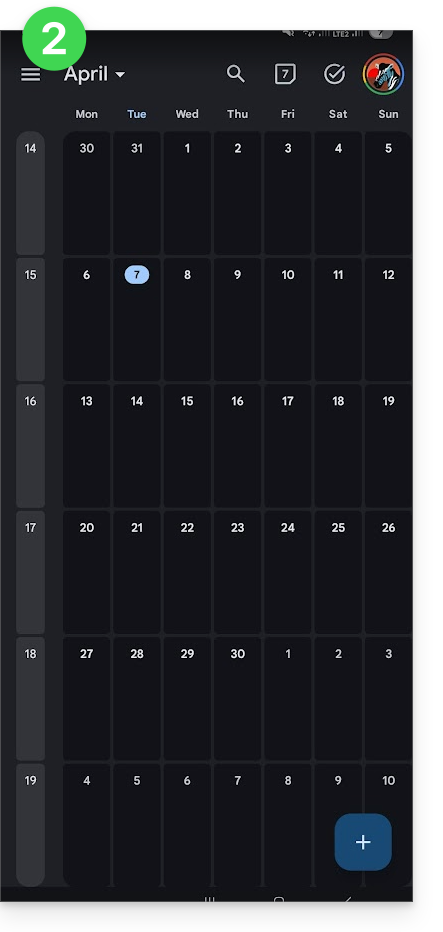
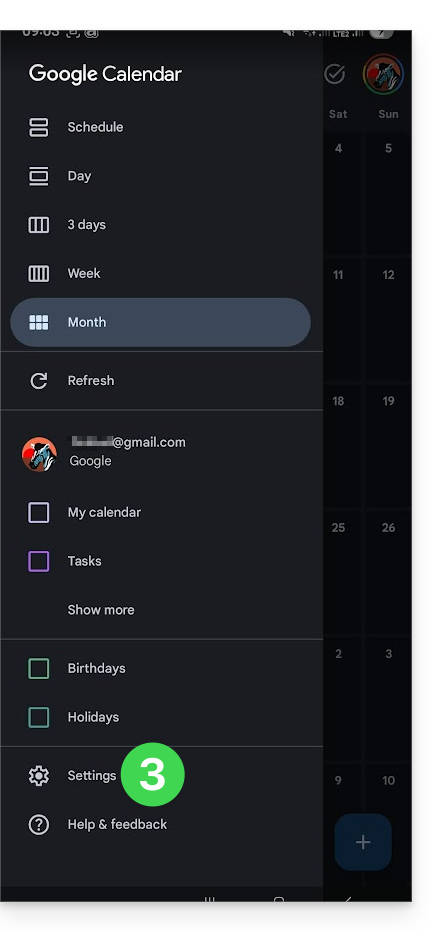
- Press Settings at the bottom of the menu:
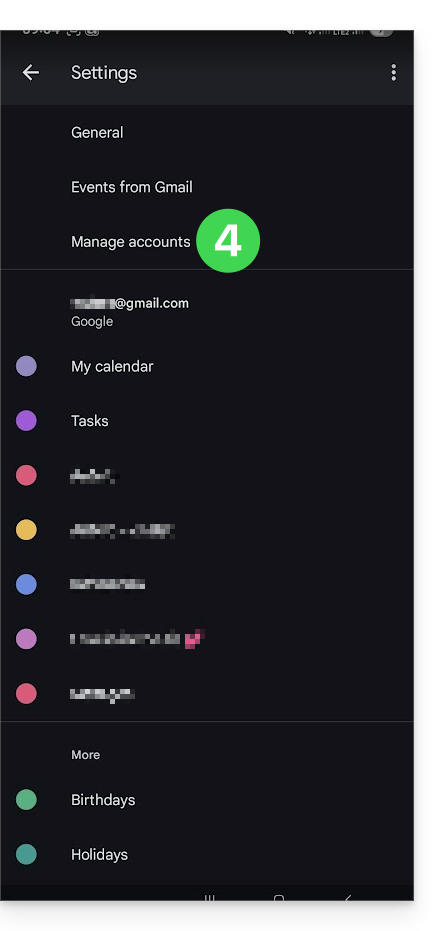
- Press Manage accounts:
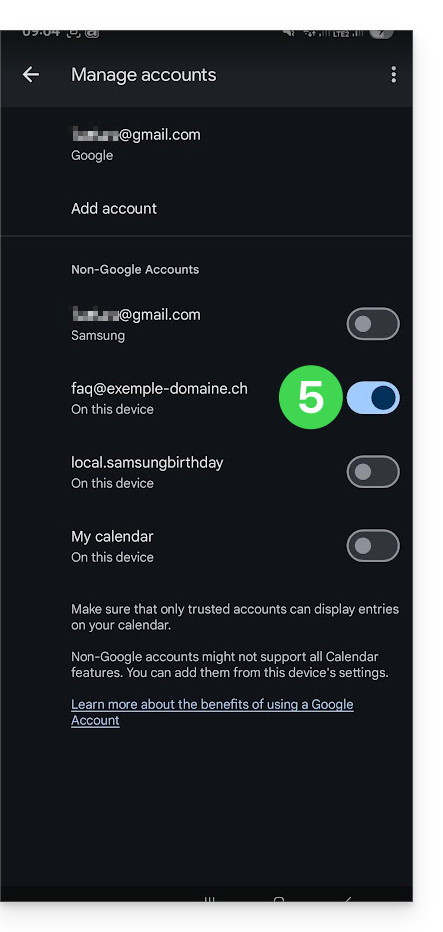
- Activate the account corresponding to your Infomaniak calendar:
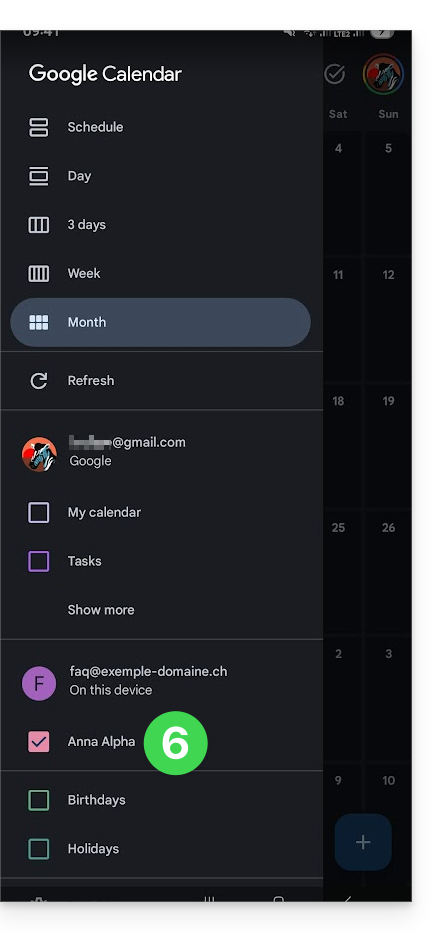
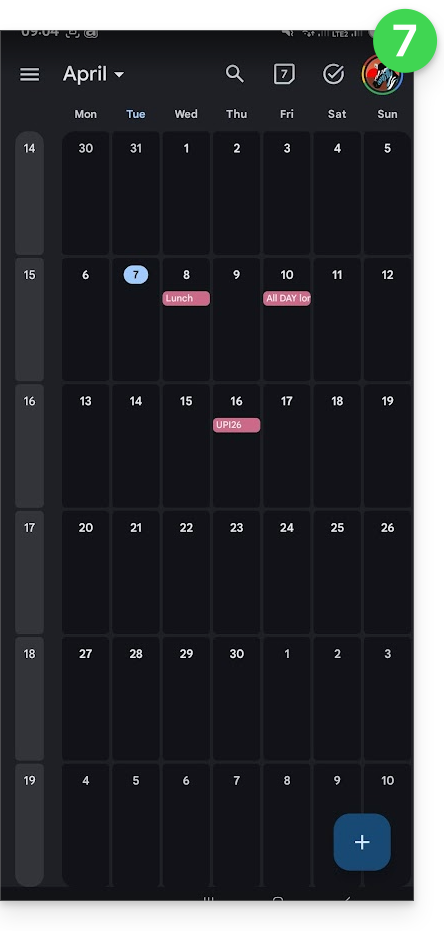
- Go back to the previous page and check that the Infomaniak calendar appears among the accounts and modify the color if necessary:
- That's it, Google Calendar is synchronized with the Infomaniak calendar, an event added and/or modified on one or the other of the interfaces will be automatically synchronized everywhere:
Link to this FAQ:
Has this FAQ been helpful?
This guide helps you understand the structure of your Infomaniak services, with the aim of familiarizing you with the terminology used and helping you easily manage your management interfaces, mainly when using my kSuite.
Preamble
- The Organization is the term that represents the grouping of Infomaniak services & users (you and potential collaborators, family members, etc.).
- To understand what an Organization really represents, this guide is structured around several possible situations currently:
- Any new registration for a free my ksuite address (ik.me / etik.com / ikmail.com).
- Any new registration for other Infomaniak services.
- Combined use of my kSuite and other services in the ecosystem:
- Sign up for my kSuite by specifying an existing Infomaniak account
- Purchase Infomaniak products with only a my kSuite account
1. my kSuite Registration (ik.me / etik.com / ikmail.com)
When registering on welcome.infomaniak.com/signup/myksuite, you chose the name of your email address, for example anna.a@ik.me and then entered a personal phone number: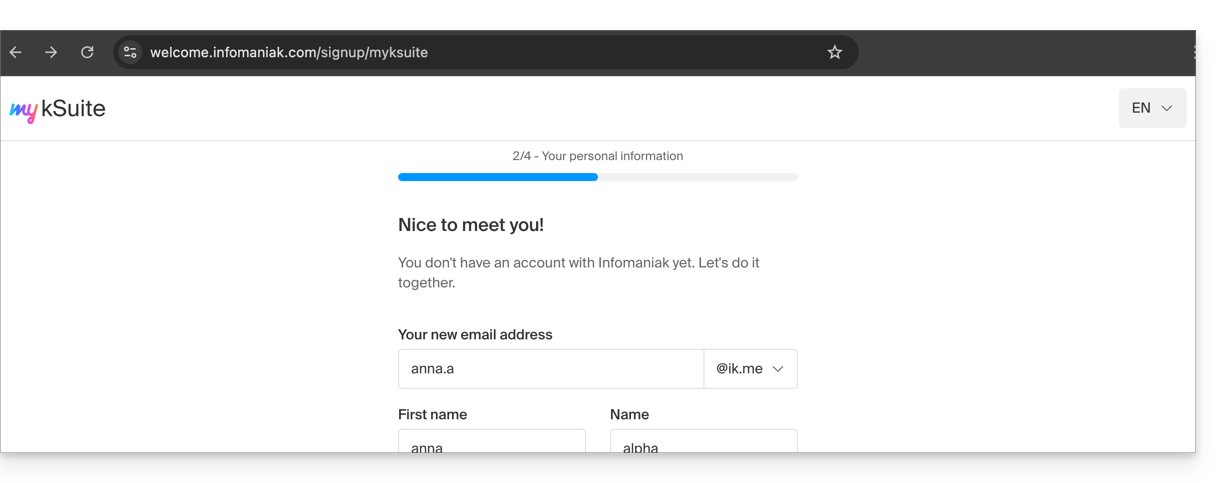
- Once the registration is validated, you access your email address anna.a@ik.me on the Web app Mail
ksuite.infomaniak.com/mail: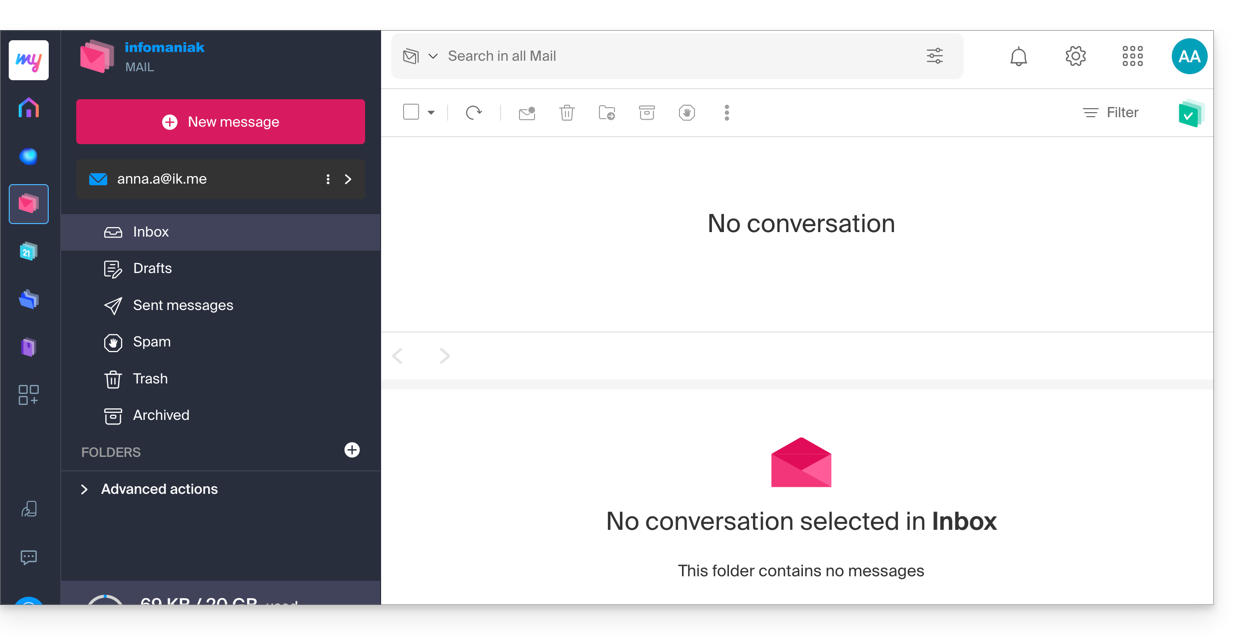
- You can distinguish:
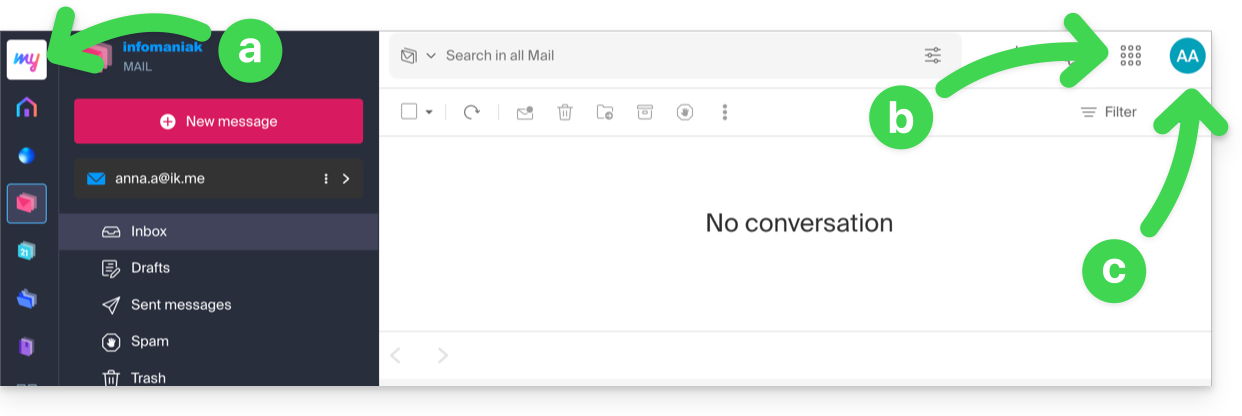
- The logo/type of your Organization, which in this case indicates that it is a my kSuite account.
- The button allows you to access the Manager
manager.infomaniak.comand other apps / other services related to my kSuite: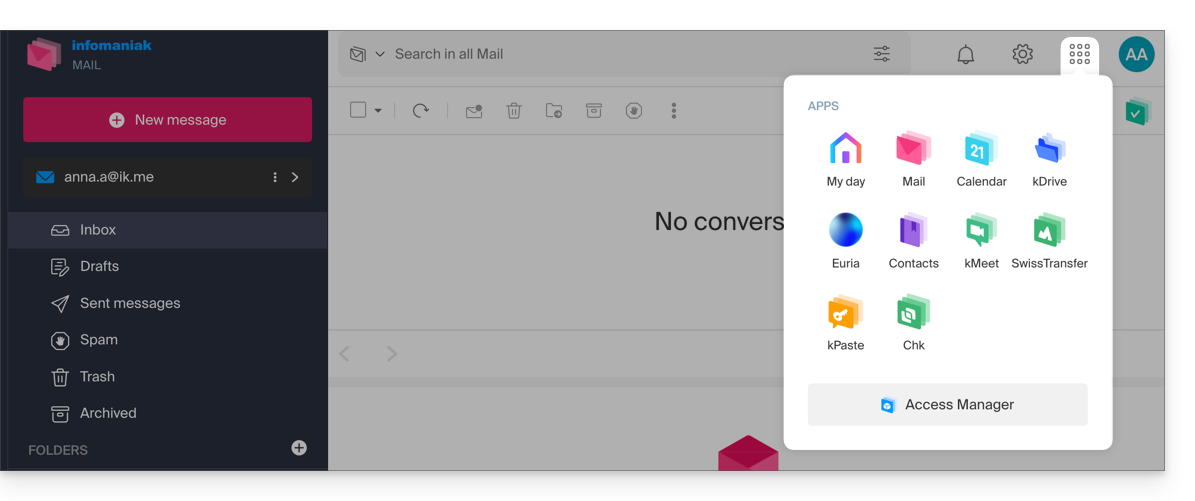
- The Manager in this case will contain nothing more than information about managing your my kSuite account:
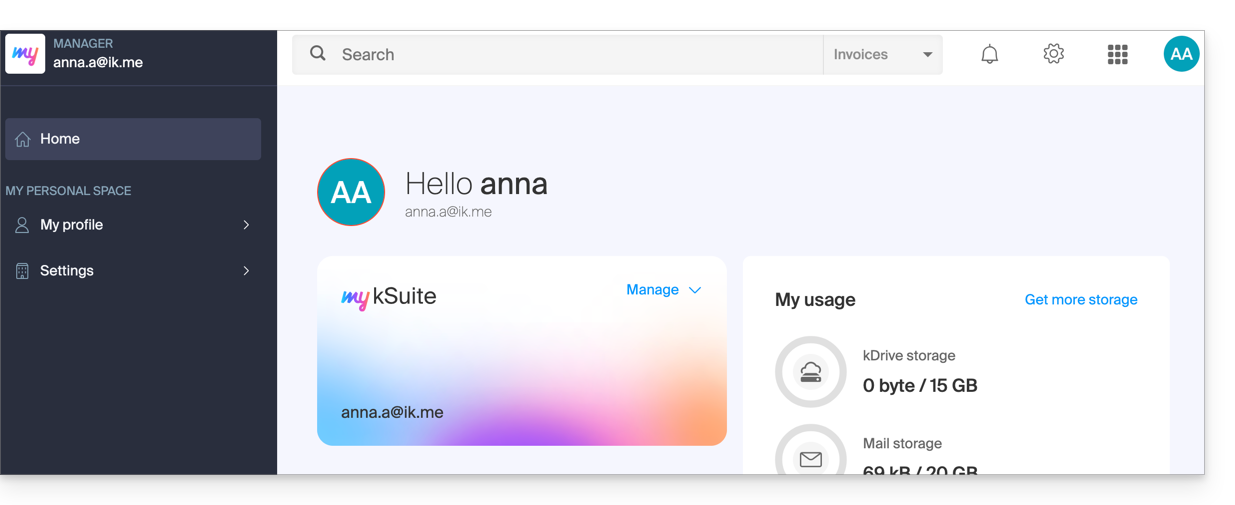
- The Manager in this case will contain nothing more than information about managing your my kSuite account:
- The initials are those of your Infomaniak account (first name / last name entered during registration):
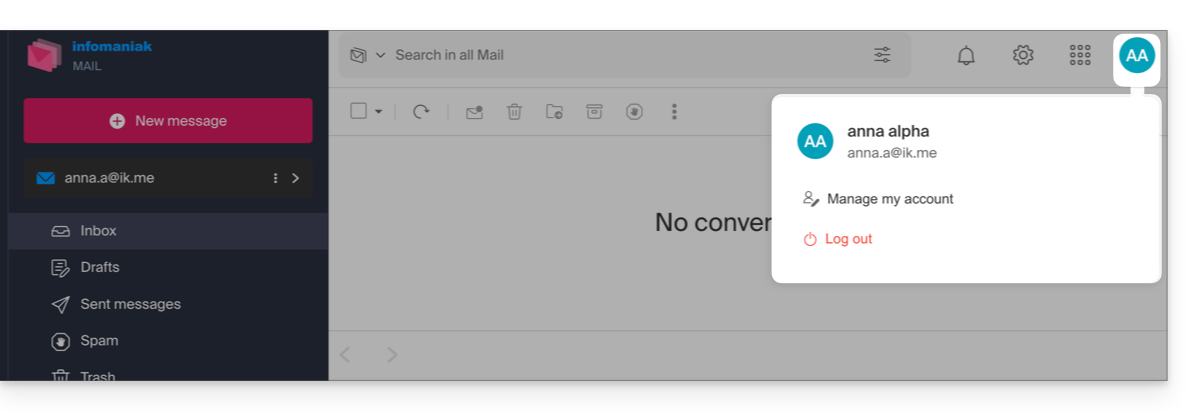
This account my kSuite will not be able to directly contain hosting products, or kSuite with a domain name, etc. The rest of this guide explains how to create a more comprehensive Organization if necessary.
Note that it is not possible to export your services my kSuite to another Organization.
To use your new my kSuite email address on the Web app Mail, refer to this other guide.
2. Registration and purchase of hosting, domain, etc.
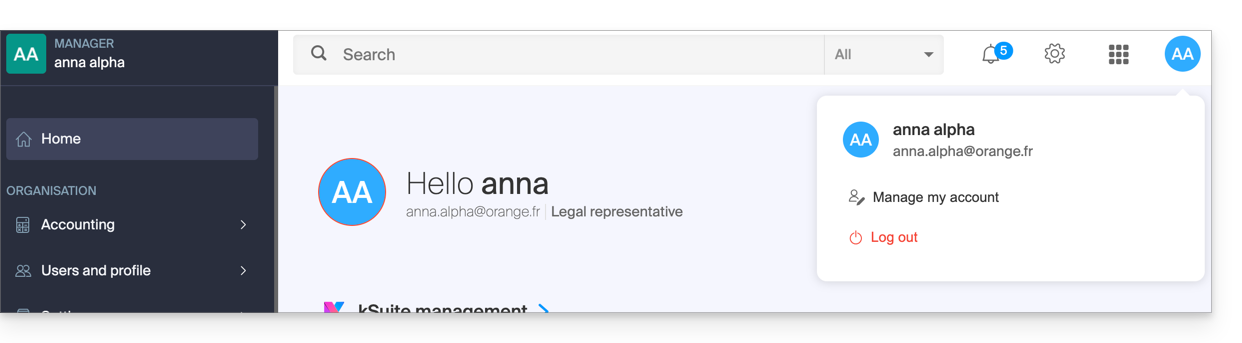
When registering on welcome.infomaniak.com/signup/, you chose your login identifier, in the form of a personal email address, for example anna.alpha@orange.fr :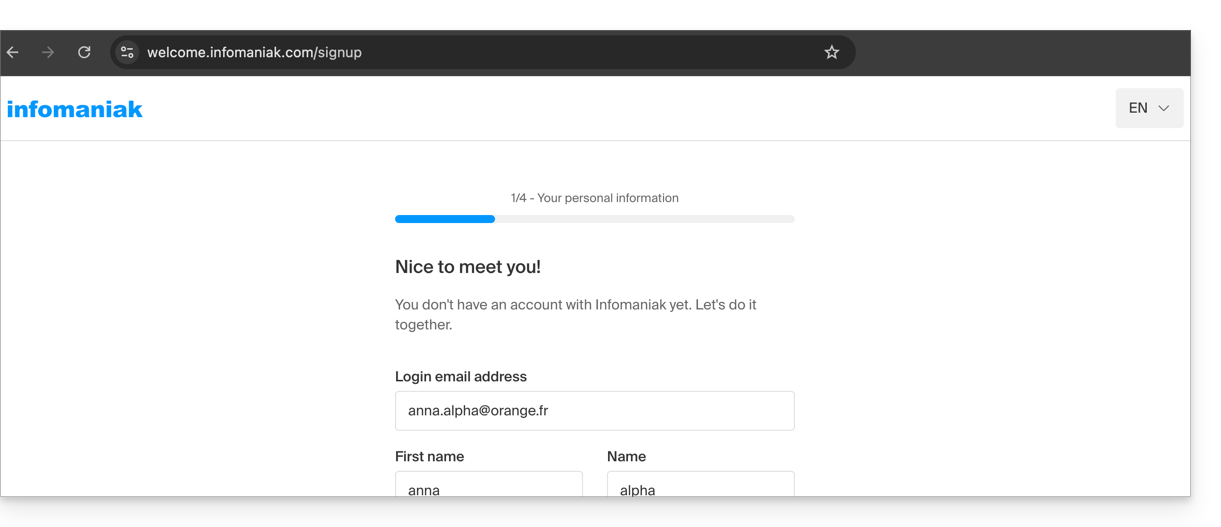
You then chose the type of Organization you wanted to create (personal, or for a company, association, etc.):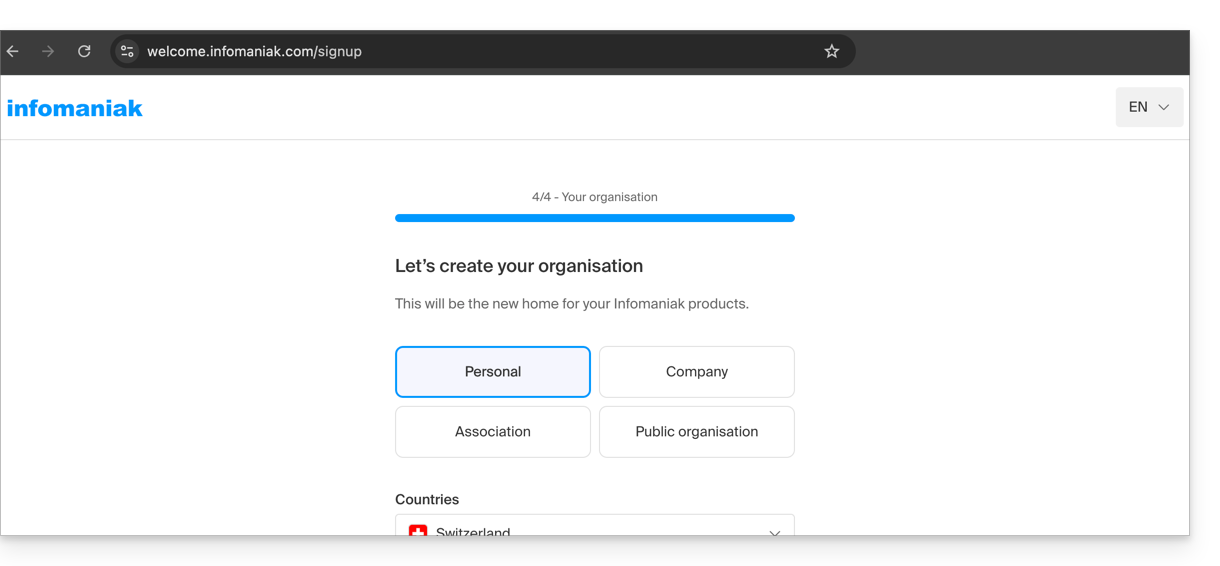
- Once registration is complete, you will access the Manager
manager.infomaniak.comand your Organization is still an “empty shell” of which you are currently the sole legal representative: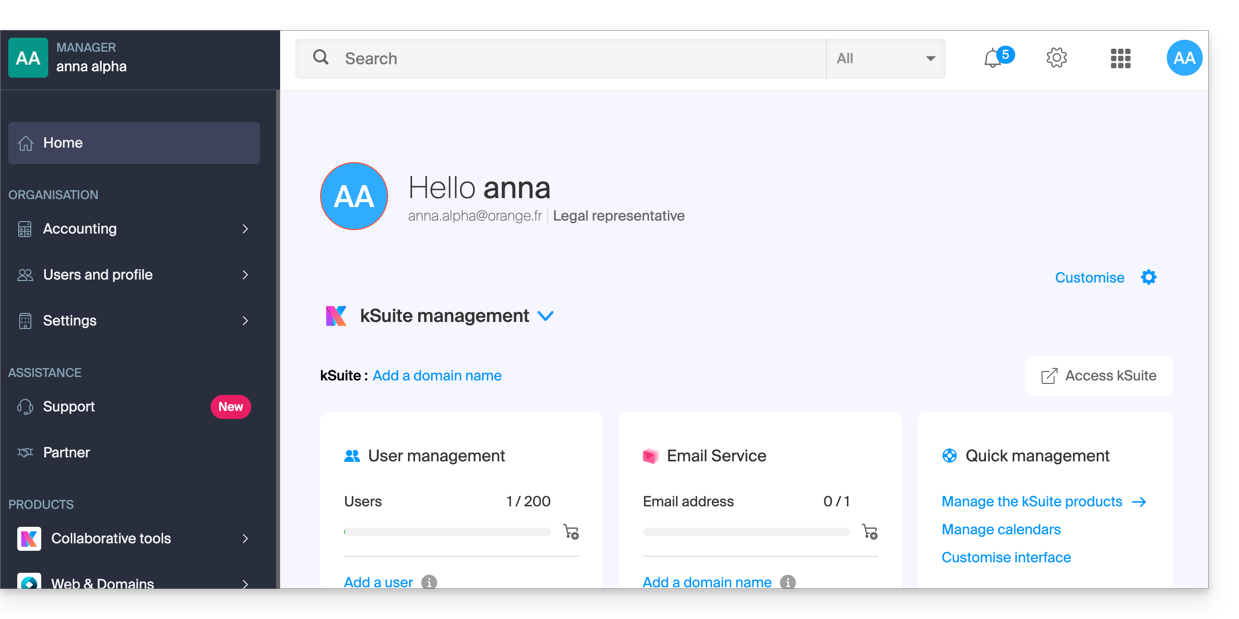
- You can distinguish:
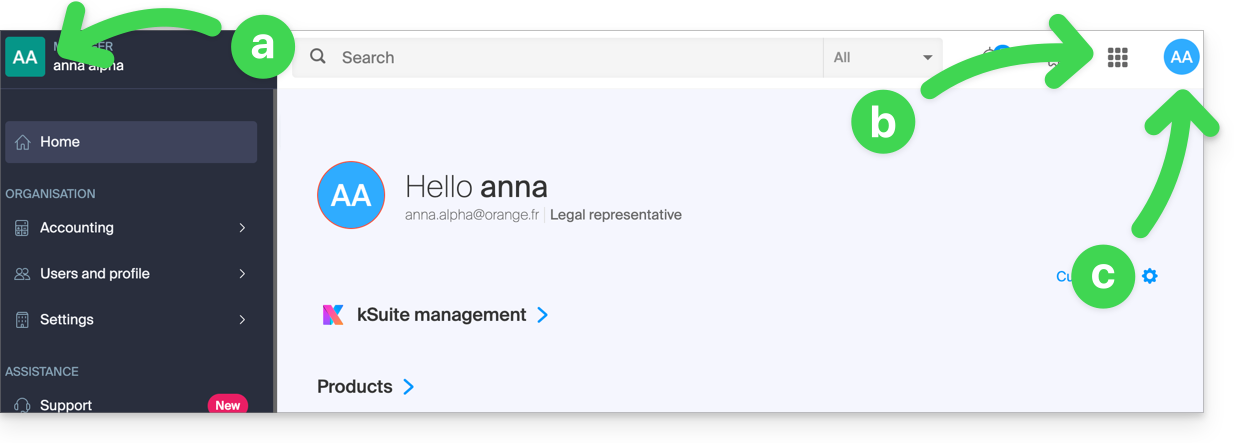
- The logo/type of your Organization, which in this case indicates that it is a personal Organization (automatically named upon creation via the first name/last name of the creator); this can be customized.
- The button allows you to access kSuite
ksuite.infomaniak.comand other apps / other services related to the free kSuite added to your new Organization: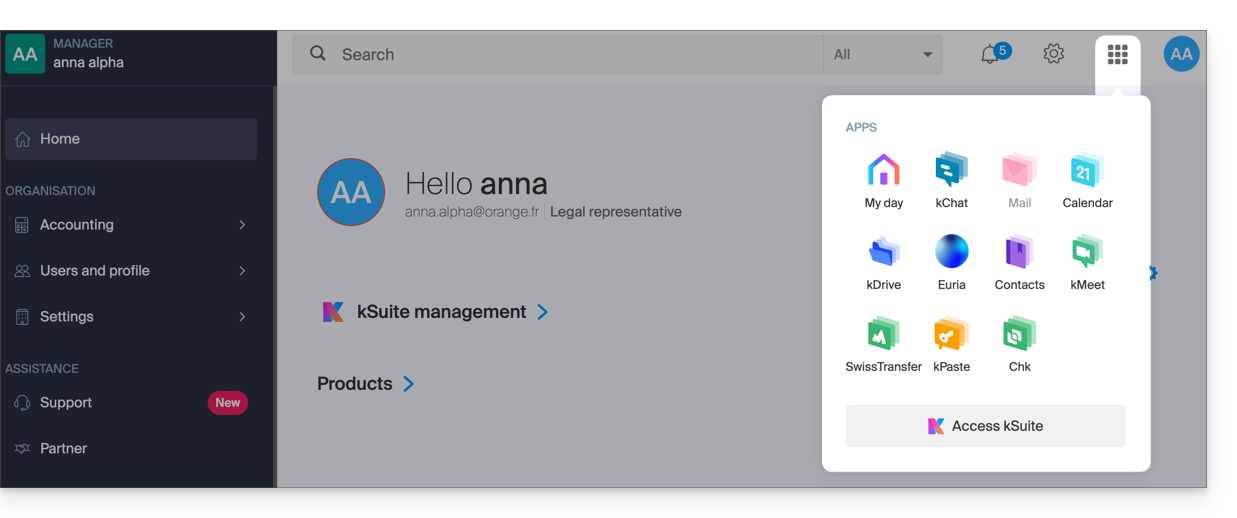
- The initials are those of your Infomaniak account (first name / last name provided during registration):
3. Combined use
What happens if you sign up for my kSuite by specifying an existing Infomaniak account that you already own for using hosting products?
Or how to proceed if you wish to acquire hosting products when you only have a my kSuite ?
Sign up for my kSuite by specifying an existing account
When signing up on welcome.infomaniak.com/signup/myksuite, you choose to log in with an existing account…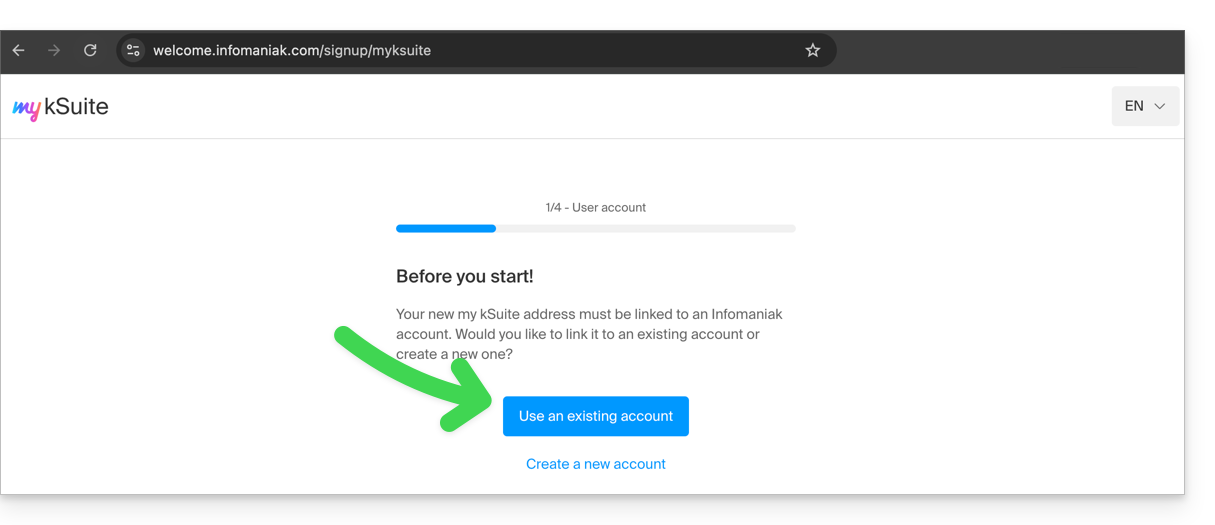
- Obviously, you should not specify a my kSuite account (
anna.a@ik.mefor example) as an existing account, as you cannot have multiple ik.me / etik.com / ikmail.com email addresses: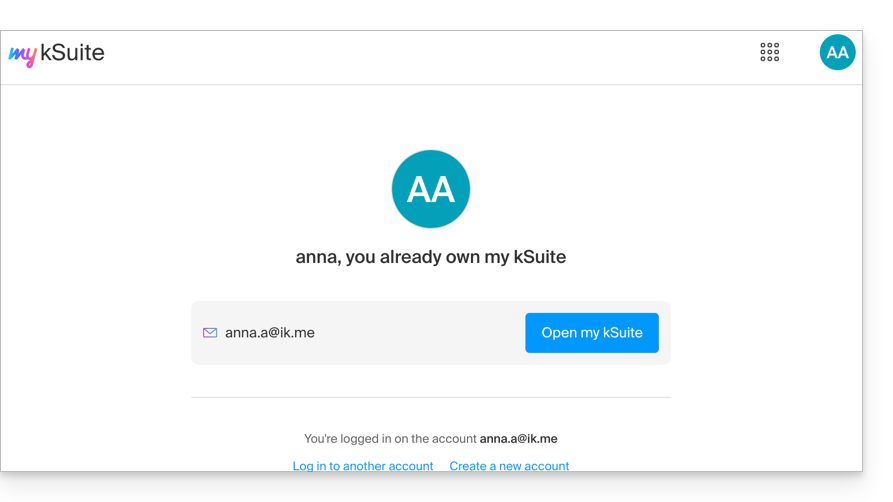
- Specify your existing Organization account,
anna.alpha@orange.fr: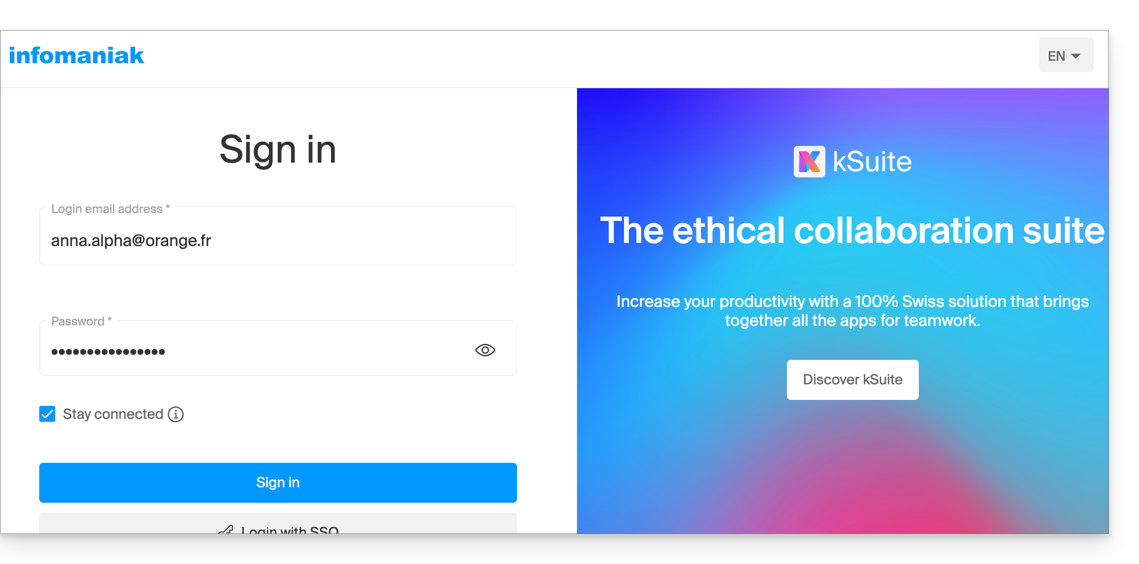
- Thus, the creation of a my kSuite account is proposed to you:
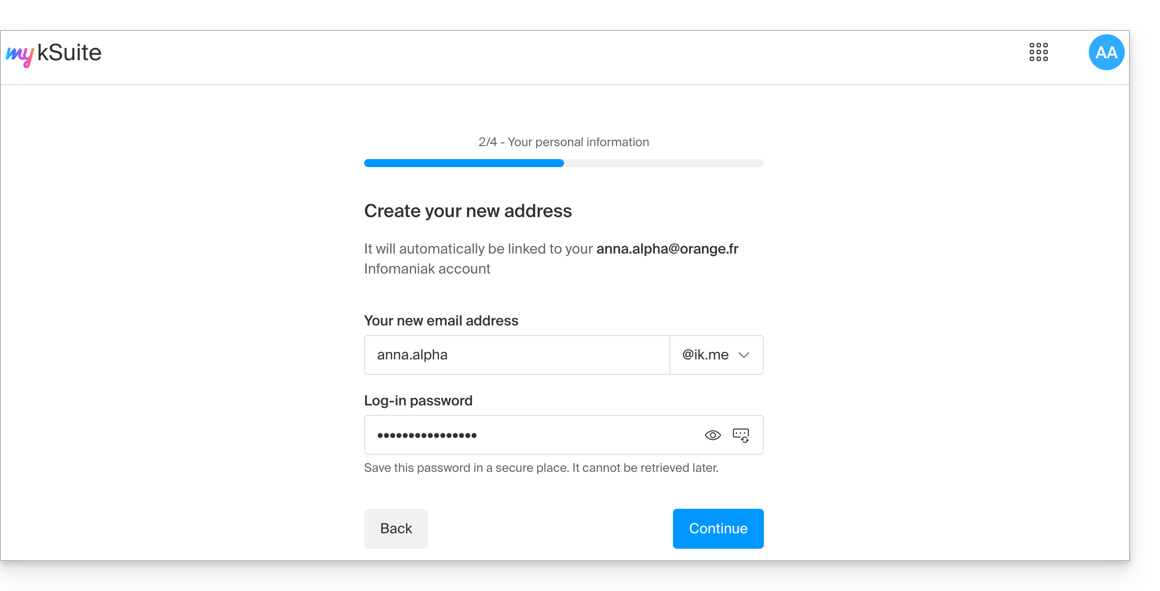
- Once registration is complete, you will access the Manager
manager.infomaniak.com:- your previous Organization is visible…
- separated from my kSuite currently selected:
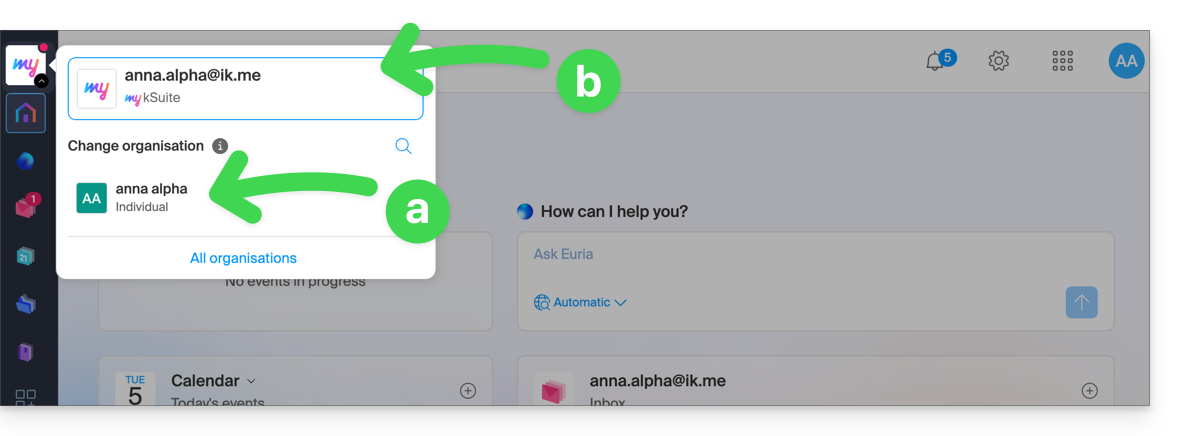
- Click on one or the other of the Organizations/my kSuite from this menu (always accessible permanently at the top left) to switch from one to the other.
Acquiring products with only one account my kSuite
Another situation: you wish to acquire on www.infomaniak.com one of the services offered by Infomaniak, for example a domain name for your future site / email: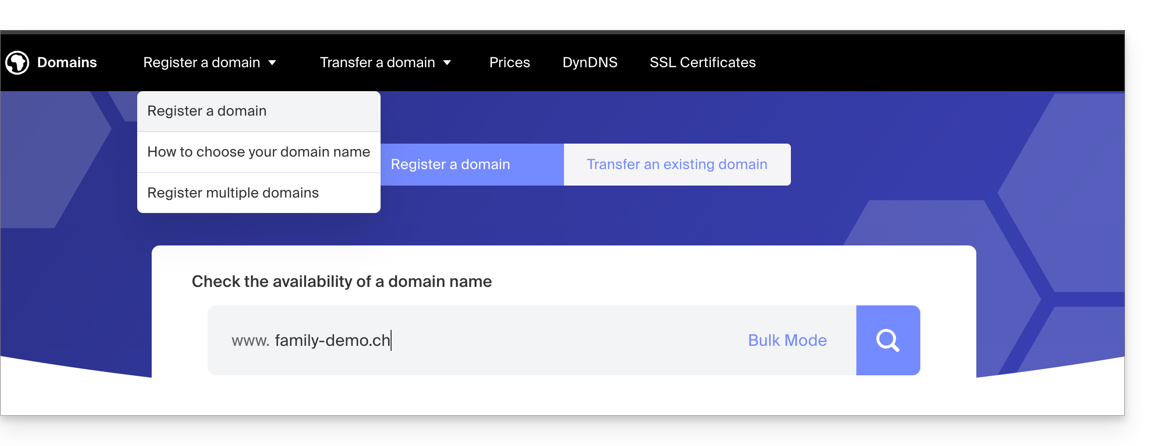
- You will be redirected to the Infomaniak Shop; proceed to the next step:
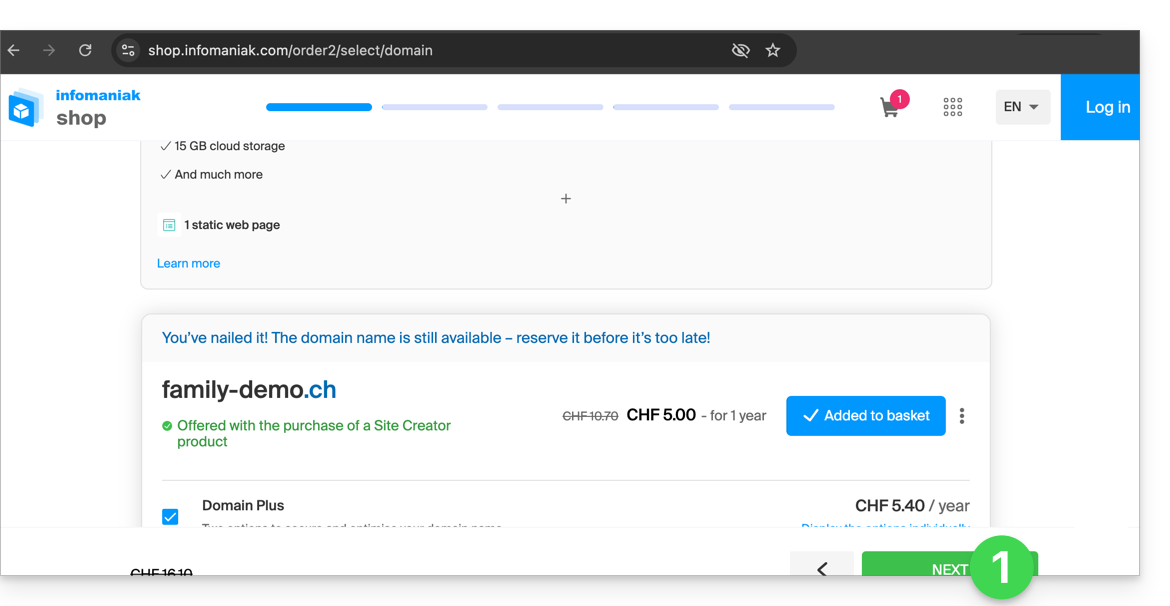
- At the step where you need to specify your existing Infomaniak identifier, if any, you enter your existing my kSuite account (
anna.alpha@ikmail.comin this example):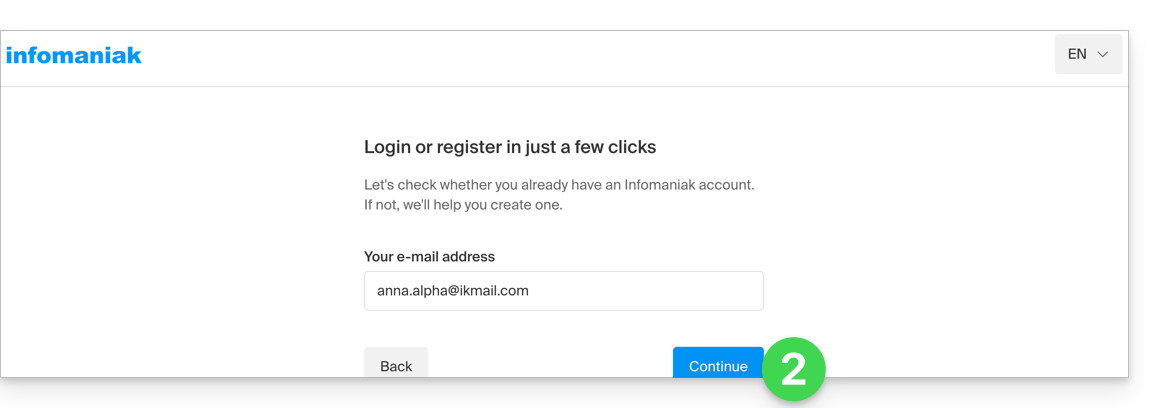
- Your existing identifier is recognized, you must authenticate:
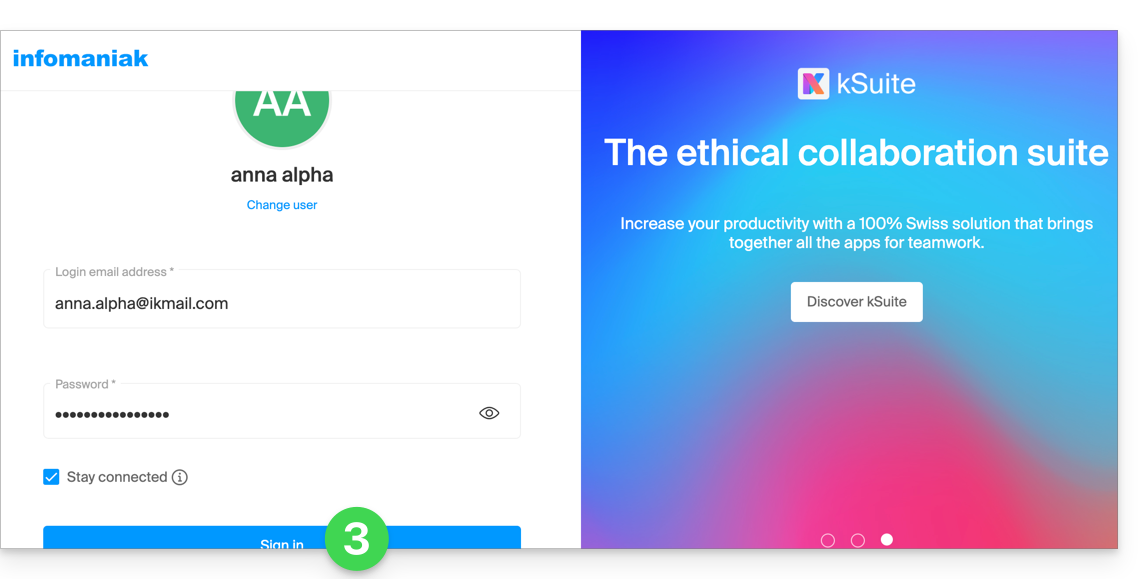
- Then you will necessarily go through the Organization creation step; choose the type of Organization you wish to create (personal, or for a company, association, etc.):
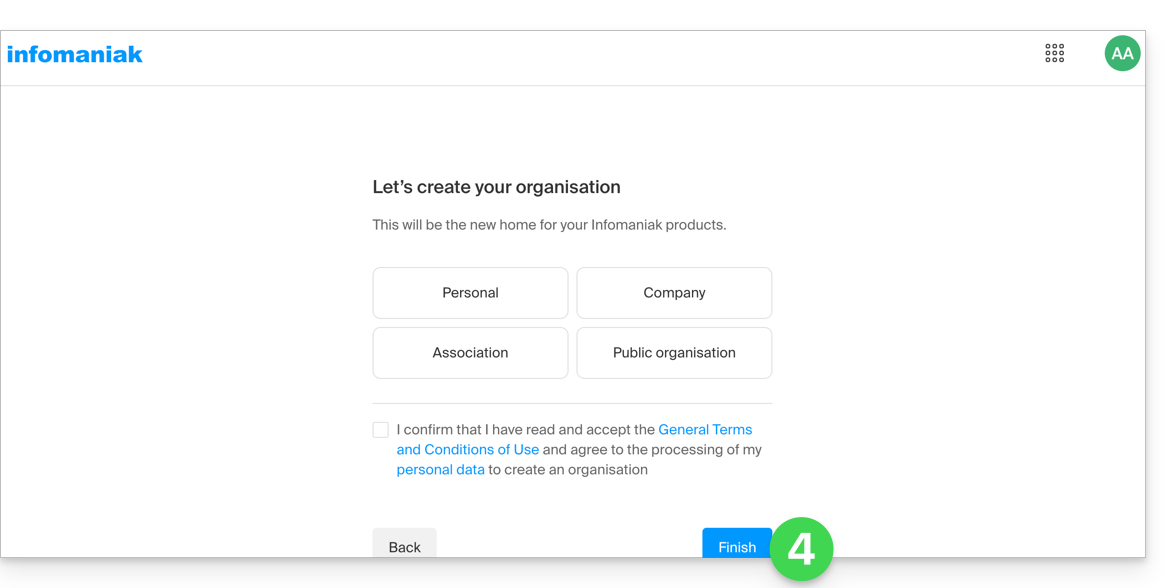
- To finalize the purchase, the details related to the Organization will be requested for billing (they are also used to generate a registrant for the ordered domain name); all you have to do is complete the order:
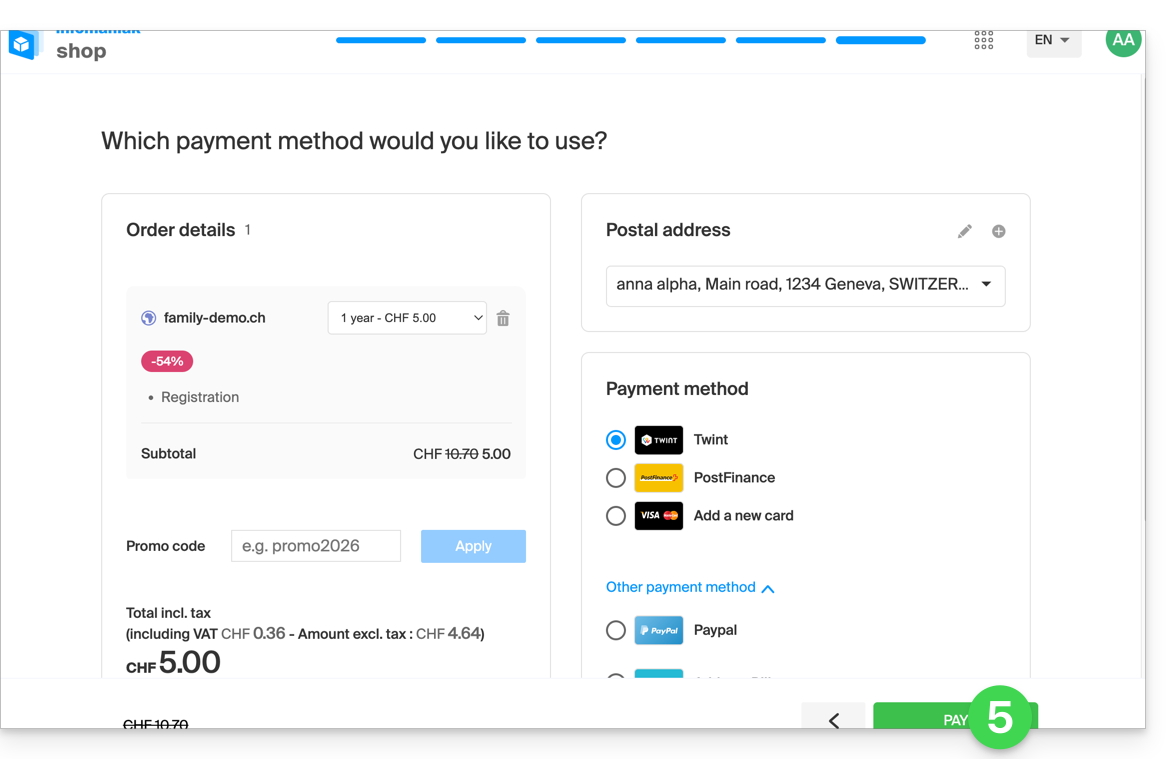
- Once the order is completed, you access the Manager
manager.infomaniak.com: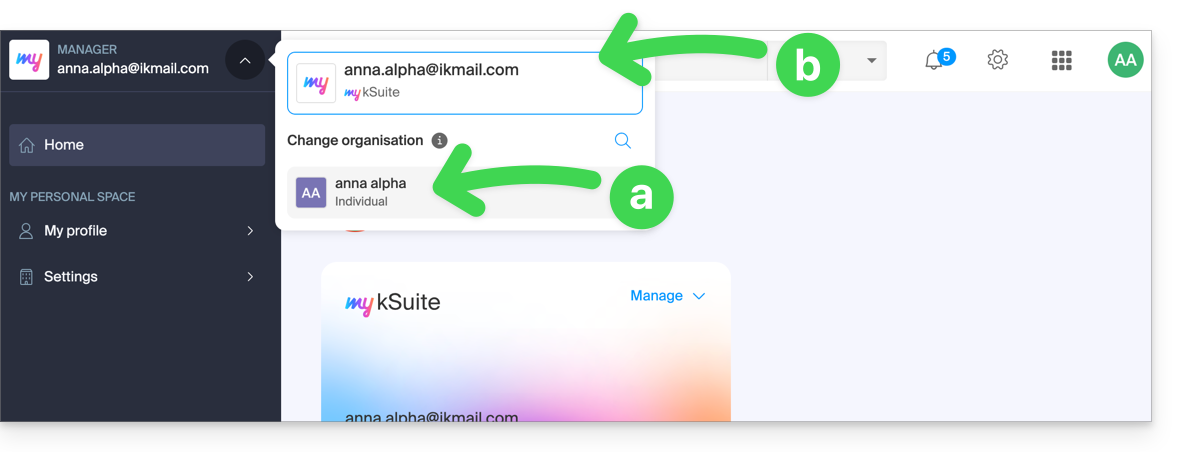
- your new Organization is visible…
- separated from my kSuite currently selected.
- Click on the new Organization to switch to it and manage your ordered products:
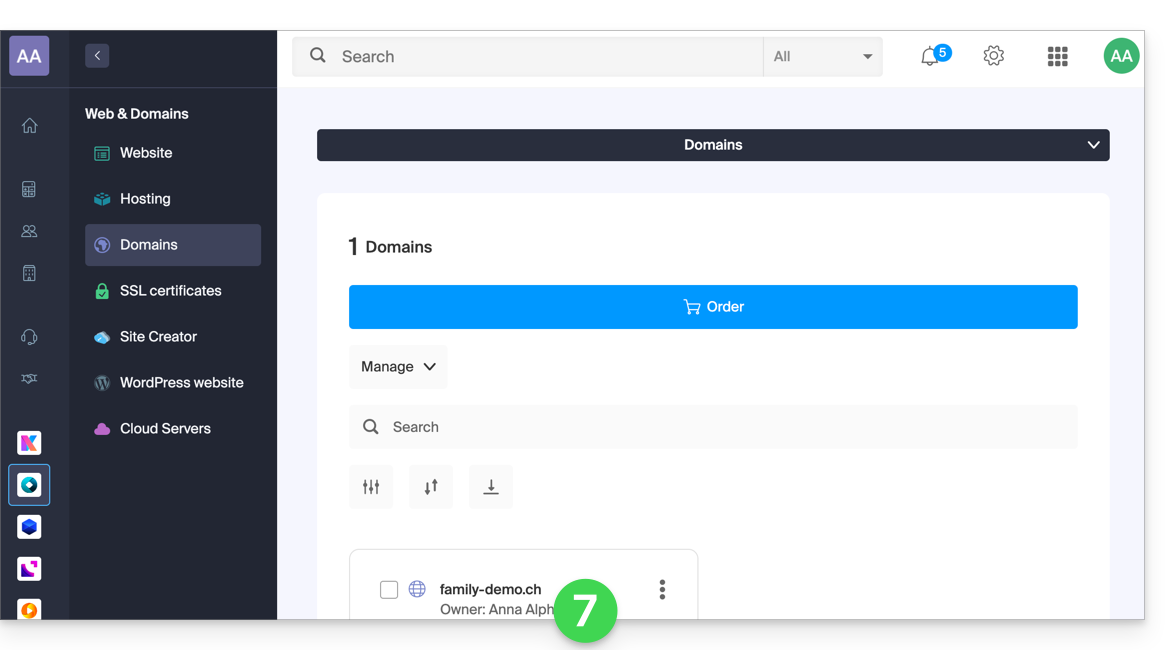
- To switch from one to the other of the Organizations/my kSuite click on this menu (always accessible permanently at the top left):
- A first time to arrive on the main page of the Manager,
- then on the chevron allowing the choice of the destination:
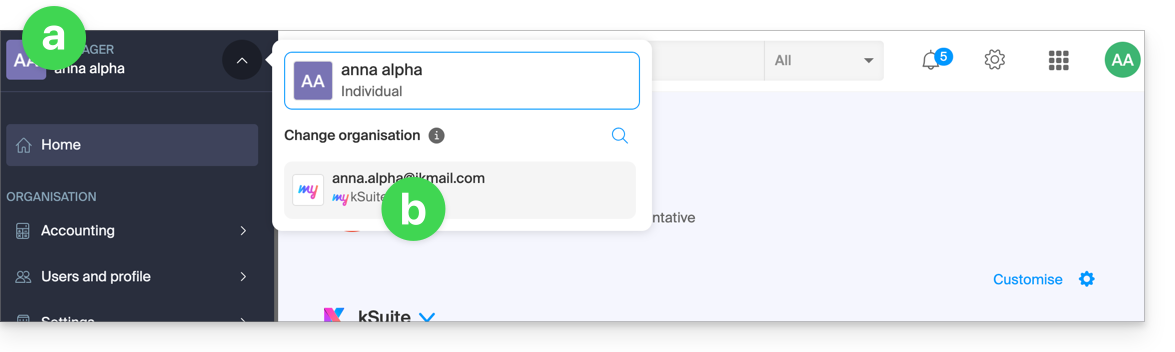
- You will find your email address my kSuite.
To understand the different "Suites" Infomaniak (kSuite, my kSuite...), refer to this other guide.
Link to this FAQ:
Has this FAQ been helpful?
The kSuite offer from Infomaniak simplifies the creation and use of various Infomaniak products (kDrive, Mail Service, kChat...) centered around a domain name.
Migrate to kSuite
If you subscribe to kSuite, you will receive products separate from your existing products.
However, if you already own a kDrive or a Mail Service, you can upgrade your products to kSuite:
- Refer to this guide to upgrade a kDrive to a kSuite…
- Refer to this other guide to upgrade a Mail Service to a kSuite…
To help you identify the most suitable kSuite offer for your needs, refer to this other guide.
What about the reverse?
You cannot separate kSuite products into distinct products from the offer.
If you wish to cancel a product from your kSuite, you must cancel kSuite in its entirety, having previously saved the information to keep, and then reorder the products corresponding to this information.
Link to this FAQ:
Has this FAQ been helpful?
This guide explains how to upgrade your my kSuite offer and switch to a paid offer my kSuite+ to, for example, increase your maximum storage size. You will keep the email address created when you subscribed to the free offer.
Preamble
- To help you identify the most suitable my kSuite / kSuite offer for your needs, refer to this other guide.
- Refer to this other guide regarding the limitations specific to the my kSuite offer and the advantages of the my kSuite+ offer.
- You are not required to switch to my kSuite+ to add services: refer to this other guide regarding Organizations.
Switch to my kSuite+
To access your current my kSuite offer and switch to a higher offer:
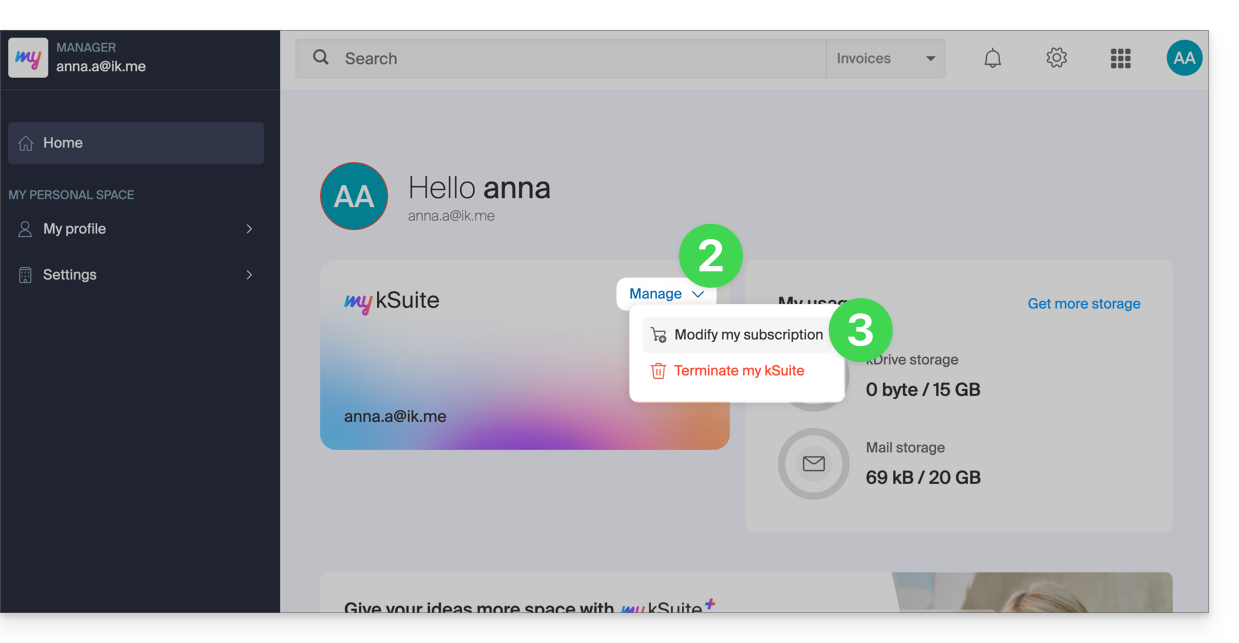
- Click here to access the Manager of your my kSuite offer.
- Click on the chevron to the right of Manage.
- Choose Modify my offer to convert the free offer to a paid and more comprehensive offer:
Order a new kDrive
There is no limit to the number of kDrive (paid) you can add to your Infomaniak account. Order a new kDrive if necessary.
Link to this FAQ:
Has this FAQ been helpful?
This guide is for you if you are looking for a complete email & collaborative data storage offer. It aims to help you better understand the different Infomaniak product suites when you are hesitant or do not know which one to choose…
If you are looking to host a website, refer to this other guide.
The different offers in summary
Here is a summary of the different formulas (excluding Web hosting offers):
| Free (or domain name to pay) | Paid |
|---|---|
my kSuite
| my kSuite+
|
Mail Starter Service
| Mail Premium Service
|
Free kSuite
| Standard kSuite / Business kSuite / Enterprise kSuite
|
Free or paid suites
Infomaniak offers several messaging solutions with or without additional collaborative tools:
- A Mail Service is the name given to the messaging service created by Infomaniak in Switzerland. You can order a Mail Service independently of kSuite.
- kSuite is a collection of Infomaniak services that includes, among other things, a Mail Service and revolves around a personal domain name.
- my kSuite and my kSuite+ are limited versions of kSuite, do not require a domain name, and can also perfectly meet your email needs.
Cost of simple email offers
This email can be…
- … free if you are content with an address with a generic domain name (what comes after the at sign
@), imagined by Infomaniak (etik.com,ik.me,ikmail.com) by taking my kSuite (my kSuite+ unlocks some limitations of my kSuite) - … at very low cost if you are content with one or two free email addresses on a domain name that you pay for (there are domain names for less than 5 CHF/€ per year, these will be your only expenses and this allows you to personalize your email addresses) by ordering:
- either the Starter offer (1 email address only)
- or the kSuite offer
Need a large number of email addresses?
If you need several email addresses on the same domain, then it is possible to order a Mail Service only (5 email addresses minimum) or kSuite which exists in 3 different versions:
- Standard
- Business
- Enterprise
The common point of all Mail offers is that you must have a user account with Infomaniak (a login identifier in the form of an email address, as well as a password) which will lead you to your Organization where your email will be found.
Additional tools (kDrive…)
If you choose a Suite (kSuite or my kSuite / my kSuite+), this user account will lead you to your Organization where the suite of tools will be found, therefore your email but also kDrive, kChat etc.
Click on the links to obtain the comparison tables detailed all the features available according to the formula:
- kDrive can be obtained by creating a my kSuite or my kSuite+ account.
- kDrive can be obtained independently in 3 different versions:
- Solo
- Team
- Pro
- kDrive can be obtained if you subscribe (free or by a paid subscription) to kSuite which exists in 3 different versions:
- Standard
- Business
- Enterprise
Do you want to join Infomaniak?
Refer to this other guide.
Link to this FAQ:
Has this FAQ been helpful?
This guide provides the most common IMAP server addresses. These can be used to perform the copy of the content of your old email addresses to your Infomaniak email address.
Important note: For Gmail, Yahoo, Outlook, and iCloud, you generally need to generate an "App Password" in the security settings of your original account to authorize the copy.
If necessary, do not hesitate to contact your previous email provider to ask for the exact mail server to enter.
IMAP Server Addresses
| Provider | IMAP Hostname / Server |
|---|---|
| 1&1 (IONOS) | imap.ionos.fr |
| 9 Business | imap.9business.fr |
| 9 Telecom / Neuf | imap.neuf.fr |
| Alice | imap.aliceadsl.fr |
| Altern.org | imap.altern.org |
| AOL | imap.aol.com |
| Apple (iCloud / me.com) | imap.mail.me.com |
| Bouygues Telecom (Bbox) | imap4.bbox.fr |
| Caramail / GMX | imap.gmx.com |
| Cegetel | imap.cegetel.net |
| Club Internet | imap.club-internet.fr |
| Free | imap.free.fr |
| Freesurf | imap.freesurf.fr |
| Gmail (Google) | imap.gmail.com |
| Hotmail / Outlook / MSN | outlook.office365.com |
| La Poste | imap.laposte.net |
| Mailo (ex-NetCourrier) | imap.mailo.com |
| Noos | imap.noos.fr |
| Numericable | imap.numericable.fr |
| o2switch | nom-du-serveur.o2switch.net (consult your welcome email) |
| Online.net | imap.online.net |
| Orange / Wanadoo | imap.orange.fr |
| OVH (Shared) | ssl0.ovh.net |
| OVH (Pro / Exchange) | pro1.mail.ovh.net (or ex.mail.ovh.net) |
| Proton Mail | direct copy is not possible |
| SFR | imap.sfr.fr |
| Skynet (Belgacom / Proximus) | imap.proximus.be |
| Tele2 | imap.tele2.com |
| Telenet | imap.telenet.be |
| Videotron | imap.videotron.ca |
| Yahoo Mail | imap.mail.yahoo.com |
Link to this FAQ:
Has this FAQ been helpful?
This guide explains how to reply to an email visible on the Mail Infomaniak web app (online service ksuite.infomaniak.com/mail) by sending the reply directly in the kChat web app (online service ksuite.infomaniak.com/kchat) or the desktop app, in the form of a private message to the email sender.
Preamble
- This feature allows you to reply to an email directly in kChat, with a reminder of the original message to facilitate understanding.
- It aims to streamline collaboration by allowing you to react quickly to an email without leaving the kSuite environment.
- It reduces the back and forth between classic messaging and the collaborative workspace.
Send a reply to an email via kChat
Prerequisites
- The button providing access to the feature will only appear in the case of an email received from a sender linked to the kSuite, and this within the same Organization as the user who wishes to reply.
- To display a shortcut to this feature as in the first point 3 below, refer to this other guide.
When you have received an email from a colleague and you want to reply directly on kChat:
- Click here to access the Mail Infomaniak web app (online service ksuite.infomaniak.com/mail).
- Open the message to be replied to by kChat.
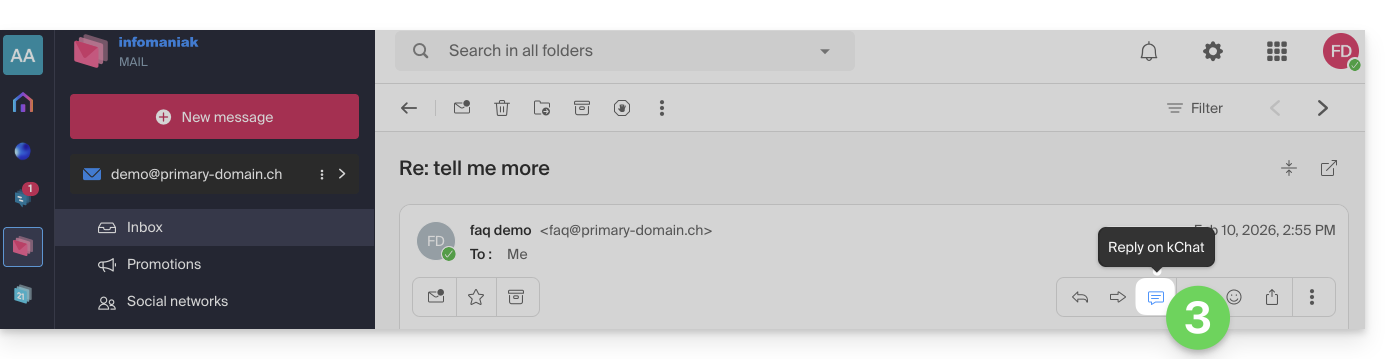
- Click on the kChat icon in the email toolbar:
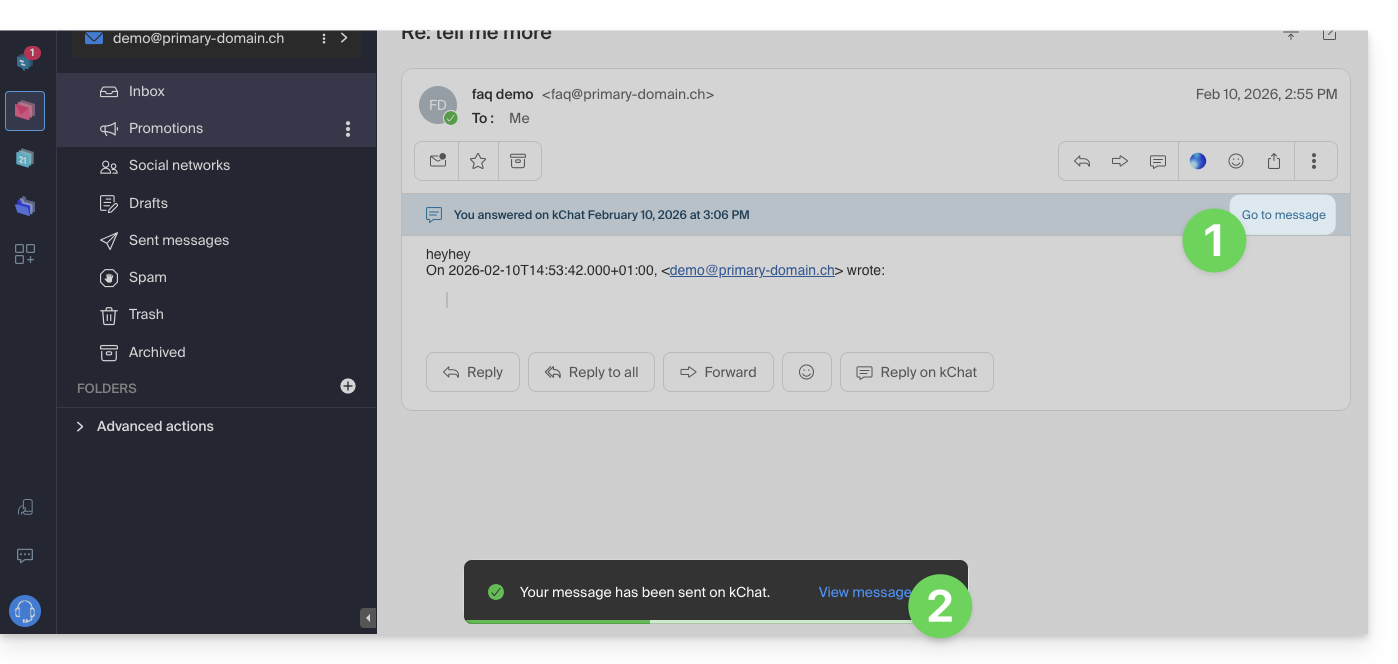
- It is also possible to click on a button below the message:
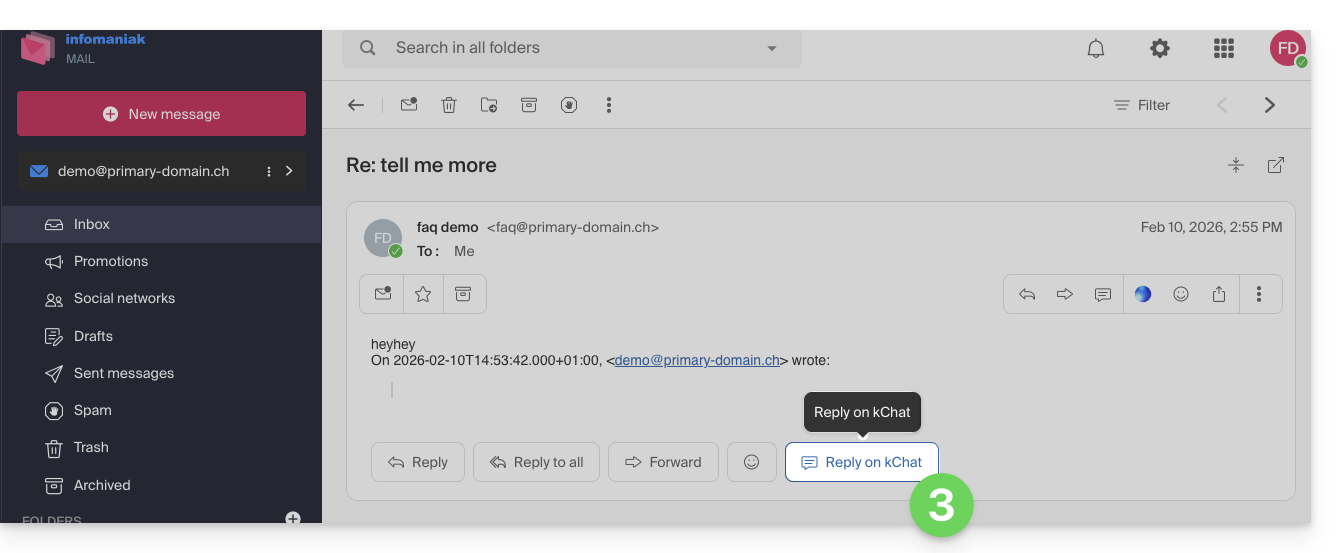
- It is also possible to click on a button below the message:
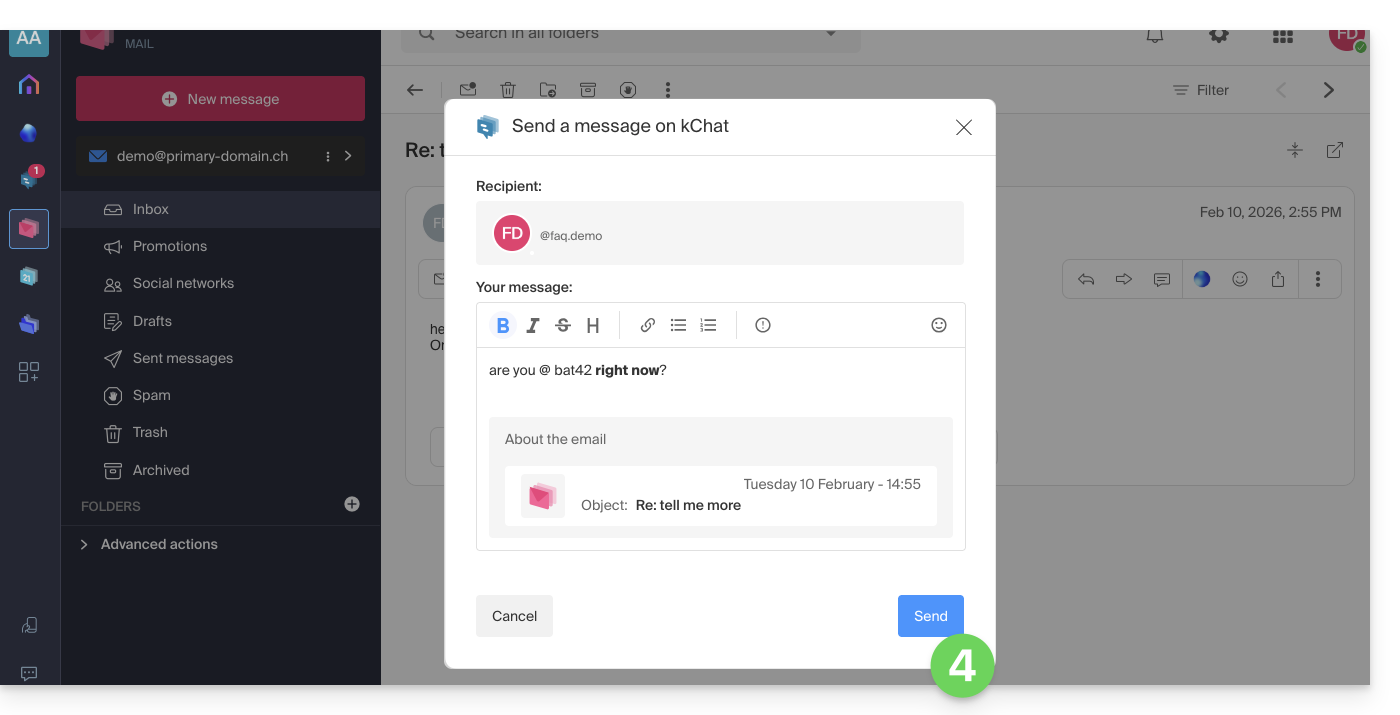
- Compose your kChat message, format it if necessary, and click on the Send button at the bottom right:
- Your correspondent receives the message on kChat accompanied by a box representing the original email (date & time, subject):
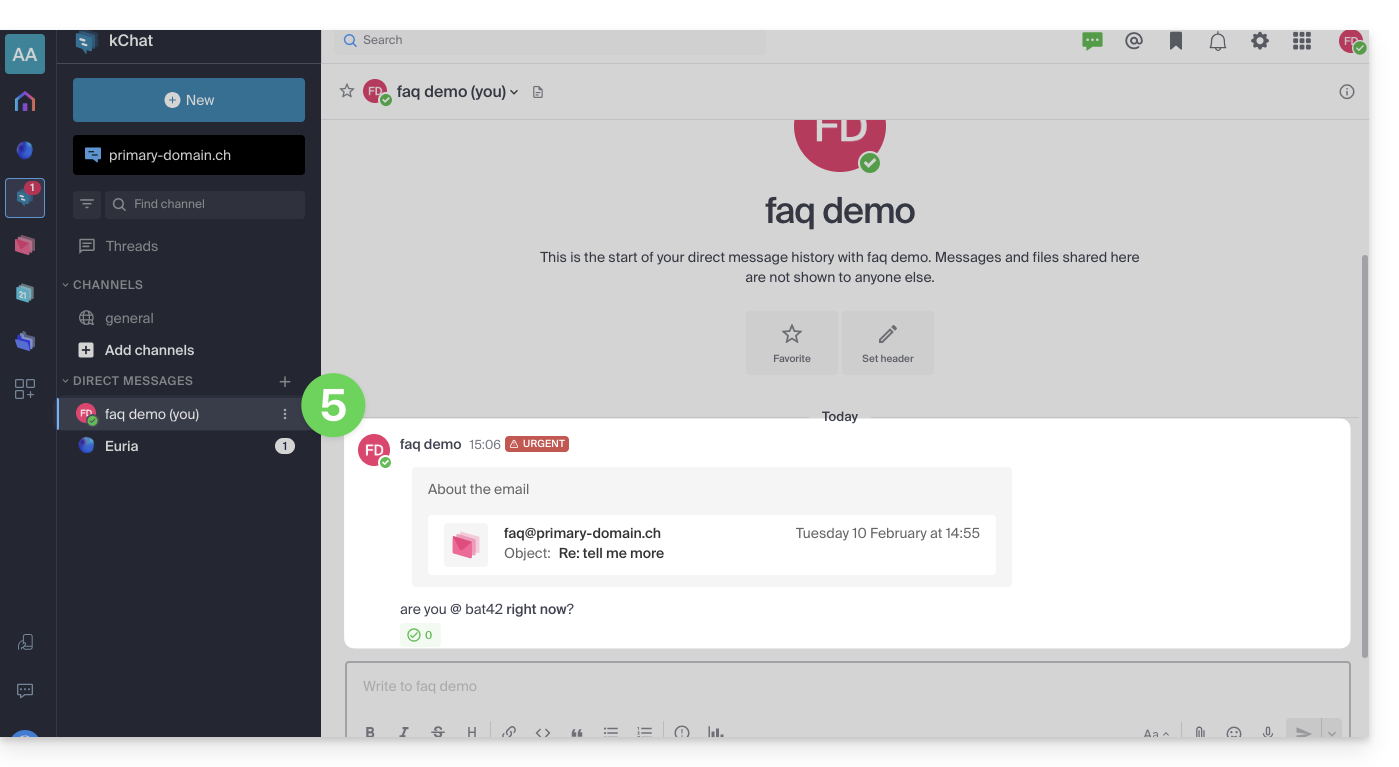
You can access this message on kChat (in the thread of private messages exchanged with your correspondent as above) but also:
- in an information banner on the email conversation,
- in the send confirmation message:
Link to this FAQ:
Has this FAQ been helpful?
This guide explains how to create, save, and edit an Office file (text, spreadsheet, presentation...) on the Web app kDrive (online service ksuite.infomaniak.com/kdrive) and on the mobile app kDrive (application for iOS / Android smartphone or tablet).
Note to LibreOffice file users: to avoid display or formatting bugs on kDrive, always convert your LibreOffice files (ODF: .ods, .odt, .odp) to their Microsoft Office XML equivalents (.xlsx, .docx, .pptx) before online editing.
Use the native editor
kDrive natively integrates the Docs, Grids and Points applications which allow you to create, modify and collaborate online on documents of type Word .docx, Excel .xlsx and PowerPoint .ppsx. You will thus be able to work with:
- text document
- spreadsheet (worksheet)
- presentation
- notebook
- document draw.io for diagrams, schematics and wireframes
A feature allows you to add a bookmark (shortcut to a favorite passage in your document or the equivalent of a web page anchor) that you can easily share with your contacts. You will also be able to easily notify a user of your Organization directly on the document.
Refer to the guide on this subject.
Use Microsoft Office Online
Another editing solution is available to you (kDrive Pro or kSuite Business / Enterprise required): the Microsoft Office Online editor.
Refer to the guide on this subject.
Set the default editor
✘ UNAVAILABLE with
Free kSuite / kSuite Standard
my kSuite / my kSuite+ (ik.me, etik.com, ikmail.com)
kDrive Solo / kDrive Team / kDrive Pro
To specify in detail which editor to always use by default to open your collaborative Office files (text, spreadsheet, presentation...) among the 2 options presented above:
- Click here to access the Infomaniak Web app kDrive (online service ksuite.infomaniak.com/kdrive).
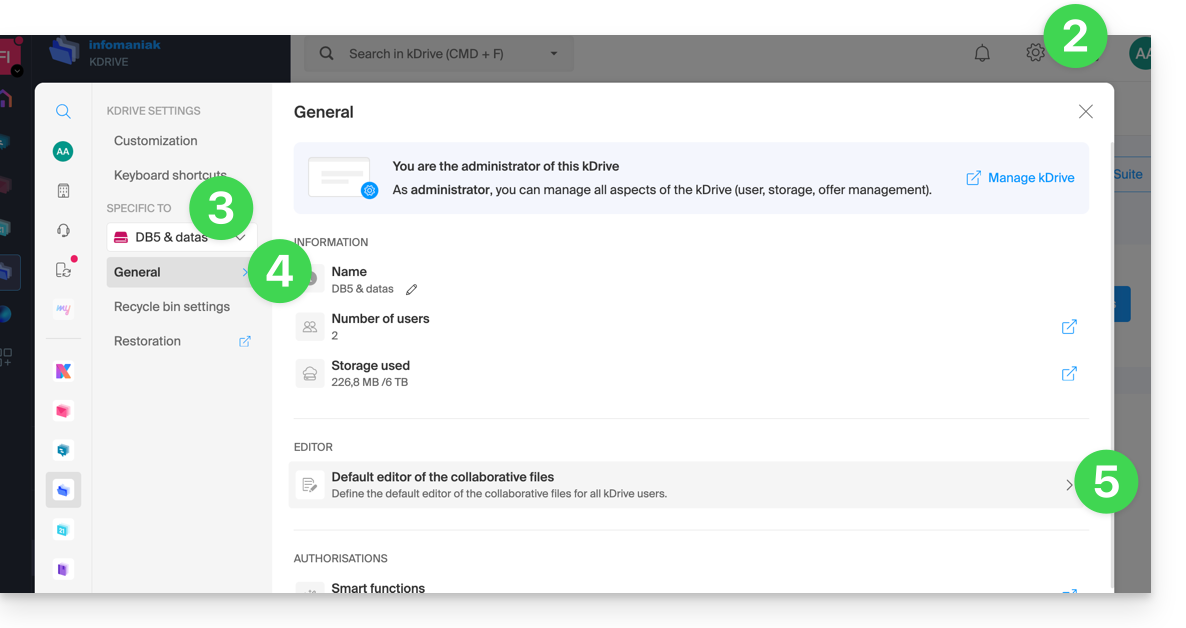
- Click on the Settings icon at the top right.
- Check or select the relevant kDrive from the dropdown menu in the left sidebar.
- Click on General in the left sidebar.
- Click on Default editor:
- Choose the default editor for files:
.docx/.doc.xlsx/.xls.pptx/.ppt
Link to this FAQ:
Has this FAQ been helpful?