Knowledge base
1000 FAQs, 500 tutorials and instructional videos. Here, there are only solutions!
Ticketing: configure pass request validation
This guide explains how to set up a validation system for passes or subscriptions (as part of the Infomaniak ticketing system).
Preamble
- This option allows you to create passes for which visitors must register, which you can validate before they can be used.
- This feature will be useful for any restricted access or where validation of the request must be done by the organizer.
- This can include accreditation requests, registrations for specialized courses requiring verification of certain documents, access to certain areas or events, etc.
Setting up the pass to validate
To do this:
- Click here to access the management of your product on the Infomaniak Manager (need help?).
- Click directly on the name assigned to the ticketing concerned by the event.
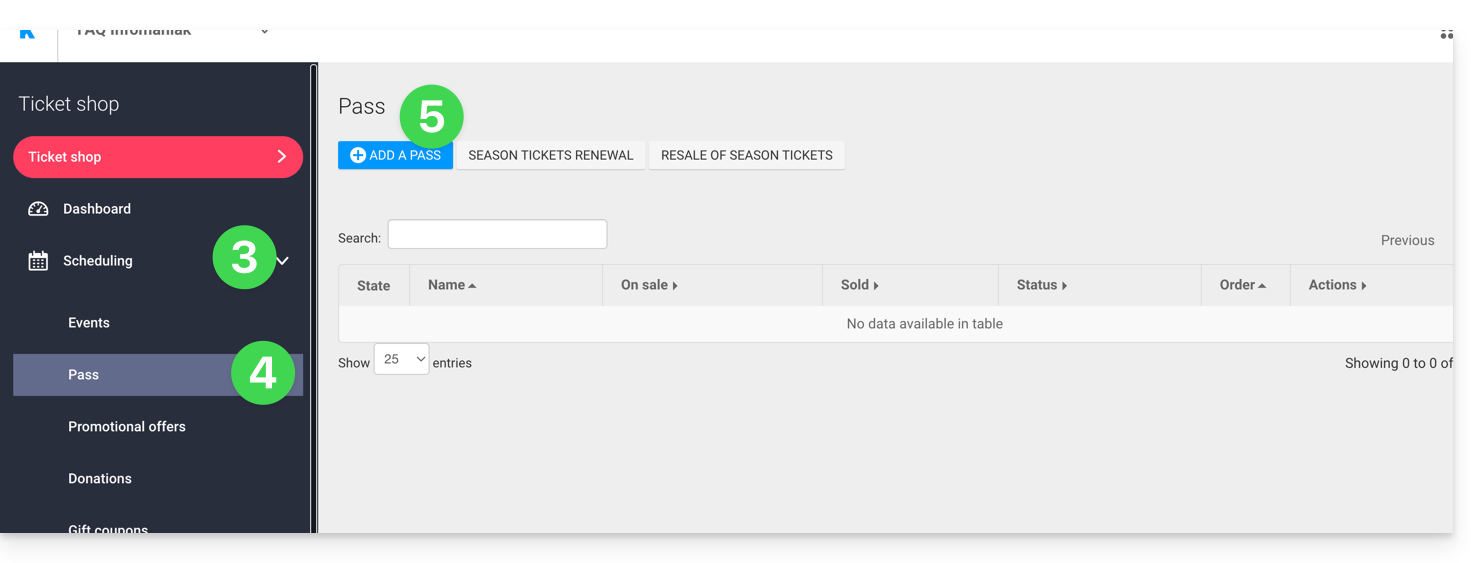
- Click on Programming in the left sidebar menu.
- Click on Passes in the left sidebar menu.
- Click on Add a pass:
- During the pass creation procedure, activate the Pass validity by setting Yes:
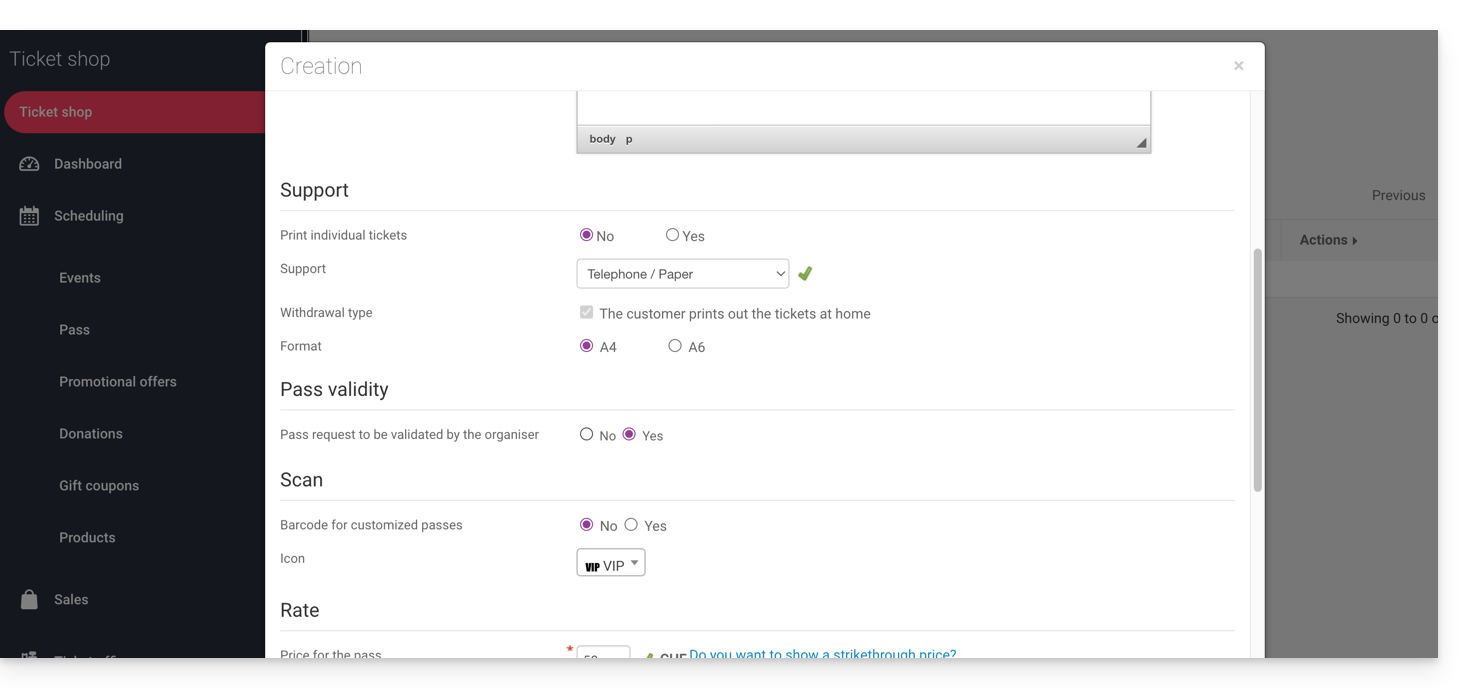
- This action will automatically set the necessary options for this feature, i.e., a free custom type pass with a minimum of 0 tickets.
Once the pass is created, click on it to set the information requested from the visitor: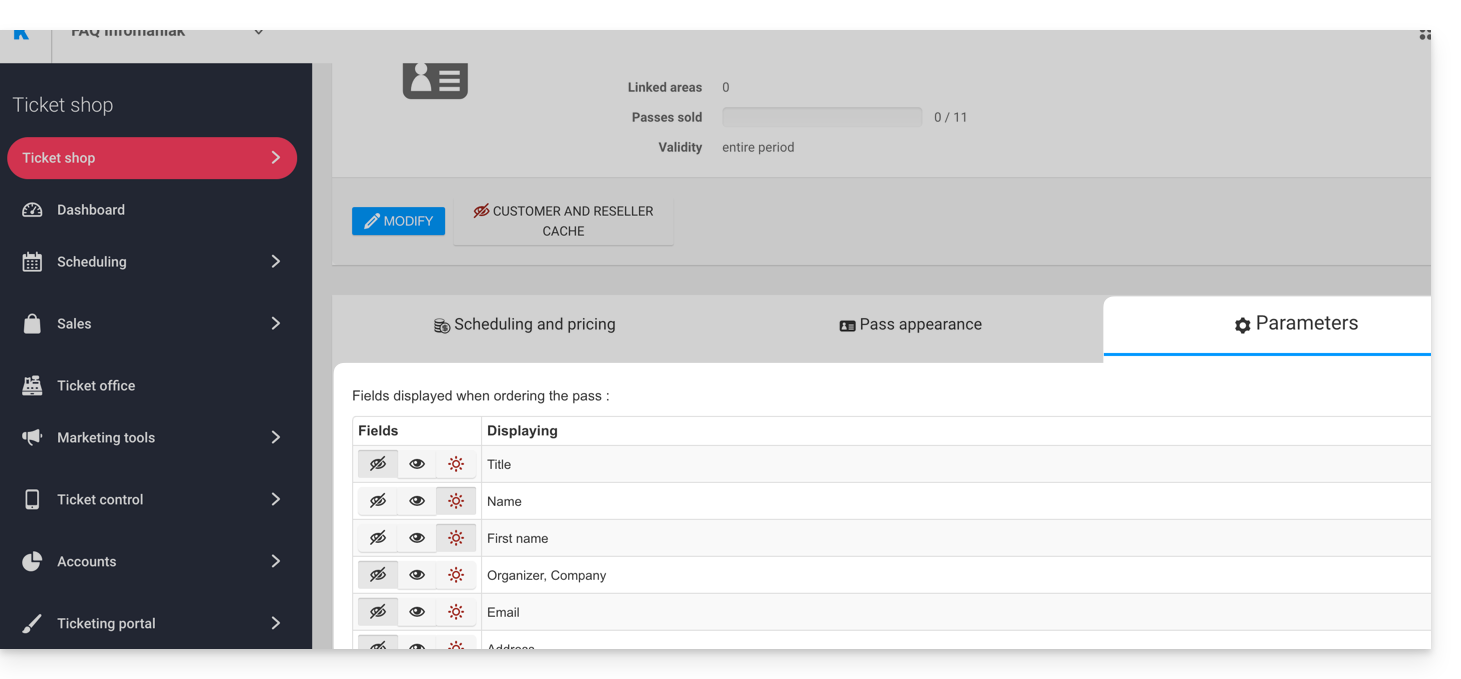
It is possible to make each field hidden , visible
, or mandatory
...
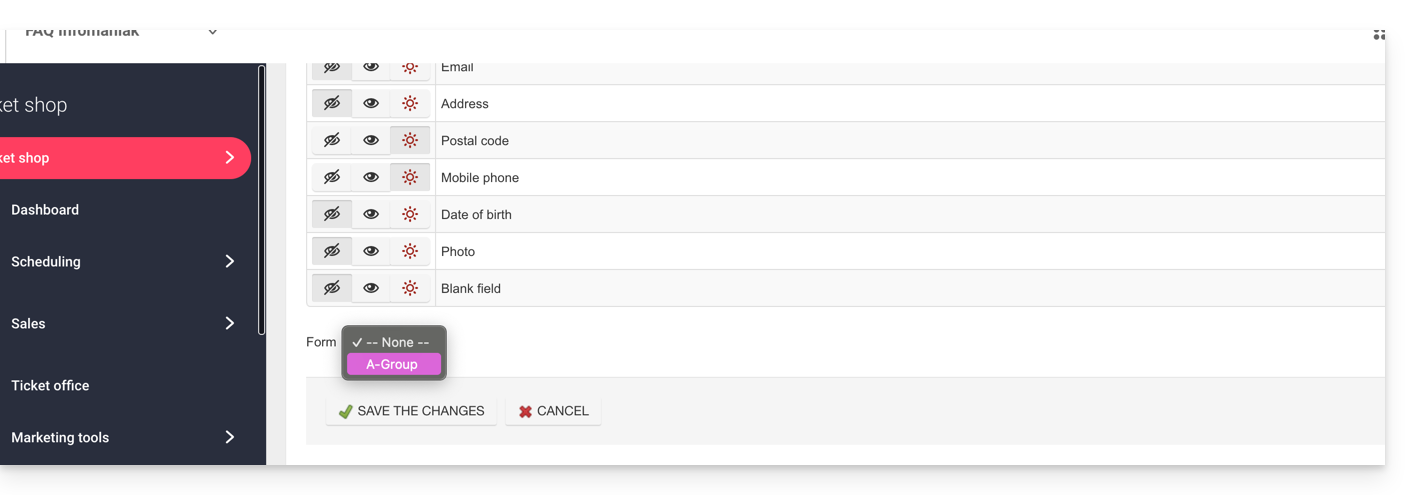
If more information or supporting documents are required, they can be added using the form function:
- Create a form per rate with the information requested from the visitor.
- Associate the form per rate with the pass:
Procedure for requesting a pass to validate
The visitor can order the pass like any other ordering procedure. Note a few differences:
- The terms used during the online procedure will mention validation requests instead of order.
- The visitor will receive a first e-mail confirming that their request has been taken into account and that they will receive news when their request is validated.
- The visitor will receive the pass in a confirmation e-mail when the pass is validated.
Procedure for validating a request
To validate a pass validation request from a visitor, you will need to go to the list of passes:
- Click here to access the management of your product on the Infomaniak Manager (need help?).
- Click directly on the name assigned to the ticketing concerned by the event.
- Click on Sales in the left sidebar menu.
- Click on Pass in the left sidebar menu.
If necessary, use the filter to display only the passes to validate and choose the desired pass category: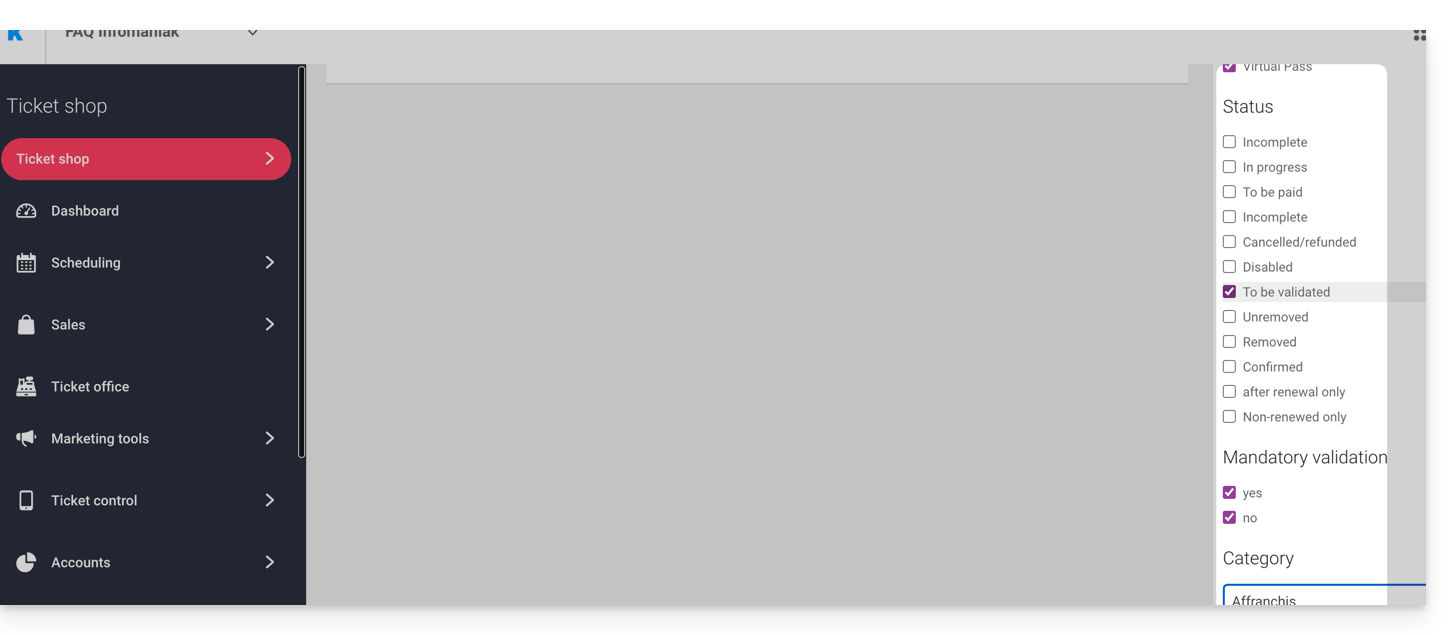
Verification before validation
Click on the passes to verify. All the information is on the pass page.
If additional fields have been added via a form, they will be in the Modify information section: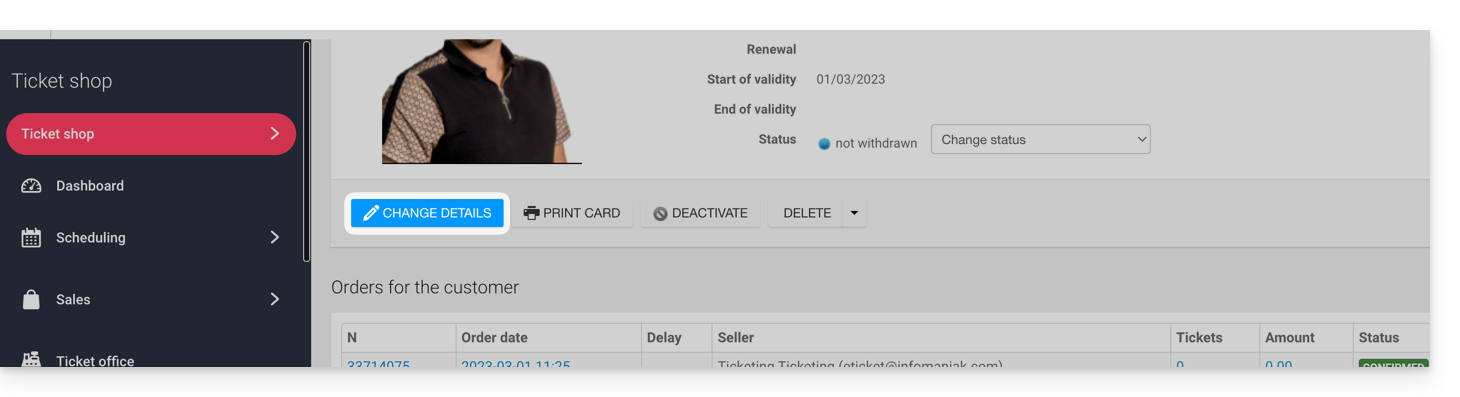
Example with files that the user has uploaded: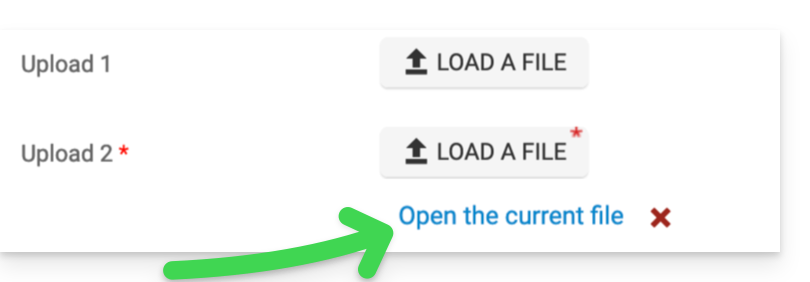
Modify the status
Change the status to Validated and Withdrawn or no, so that the pass is valid:
An e-mail will be automatically sent to the visitor with the information to fill out their pass with the tickets to be added.
In the case of a refusal, it is possible to send an e-mail to the visitor to invite them to change the information.
It is also possible to do this on the upstream page via a multiple selection, for example: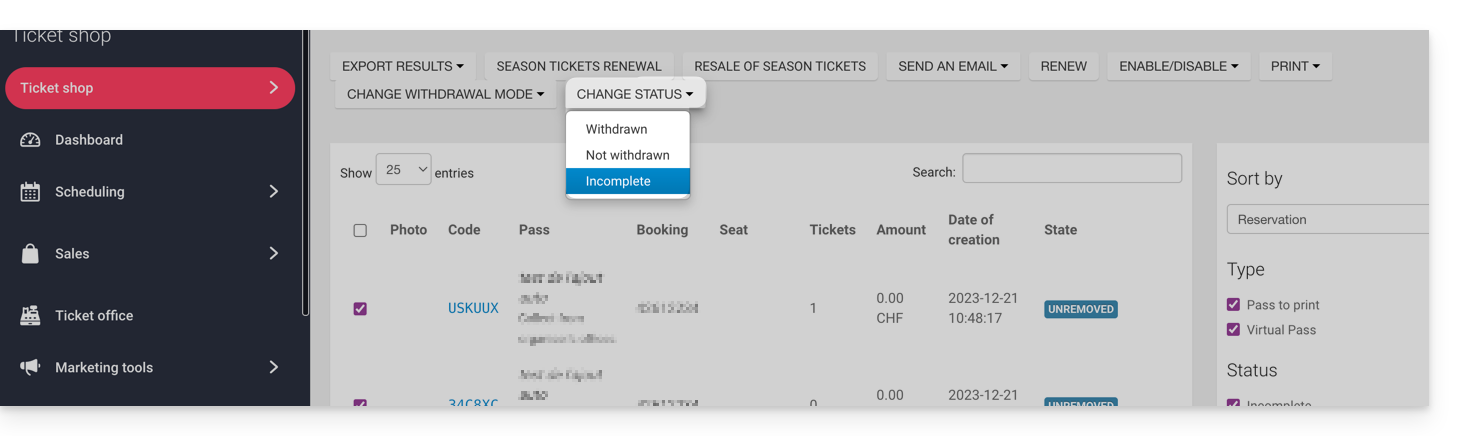
Link to this FAQ:
Has this FAQ been helpful?