Knowledge base
1000 FAQs, 500 tutorials and instructional videos. Here, there are only solutions!
Manage kDrive storage my kSuite
This guide explains how to control the storage space used on your free cloud offer and how to free up space.
Preamble
- The free cloud offer my kSuite includes a maximum storage of 15 GB.
Check the free storage space
To access the offer my kSuitecurrent and check the storage space used:
- Click here to access the Infomaniak kDrive web app (online service ksuite.infomaniak.com/kdrive).
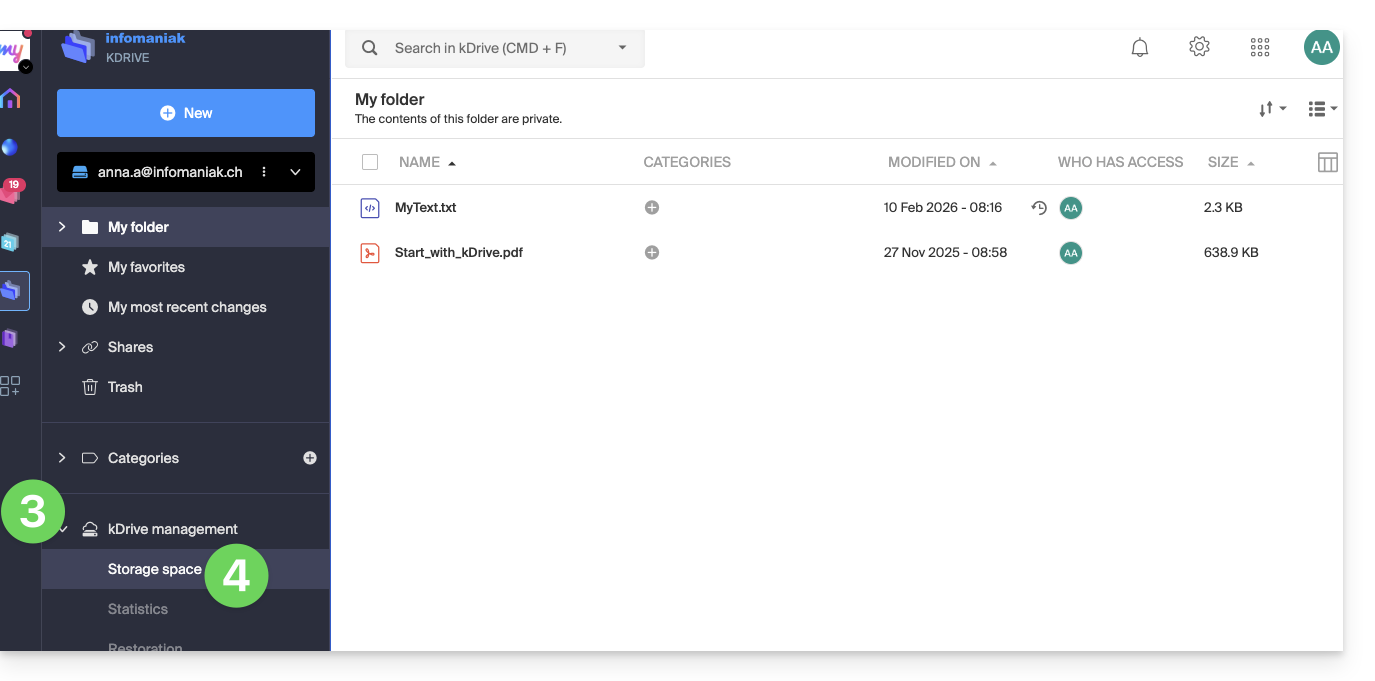
- The storage space used is displayed at the bottom of the left sidebar menu.
- Click on the chevron to expand the kDrive Management section in the left sidebar menu.
- Click on Storage Space in the left sidebar menu for a more detailed overview:
Free up storage space
To free up space on your free kDrive, simply deleting large files (videos...) is not enough because files still take up space once they are in the trash. They remain there for a certain time.
Empty the kDrive trash
You need to manually empty the trash to permanently delete the files in it:
- Click here to access the Infomaniak kDrive web app (online service ksuite.infomaniak.com/kdrive).
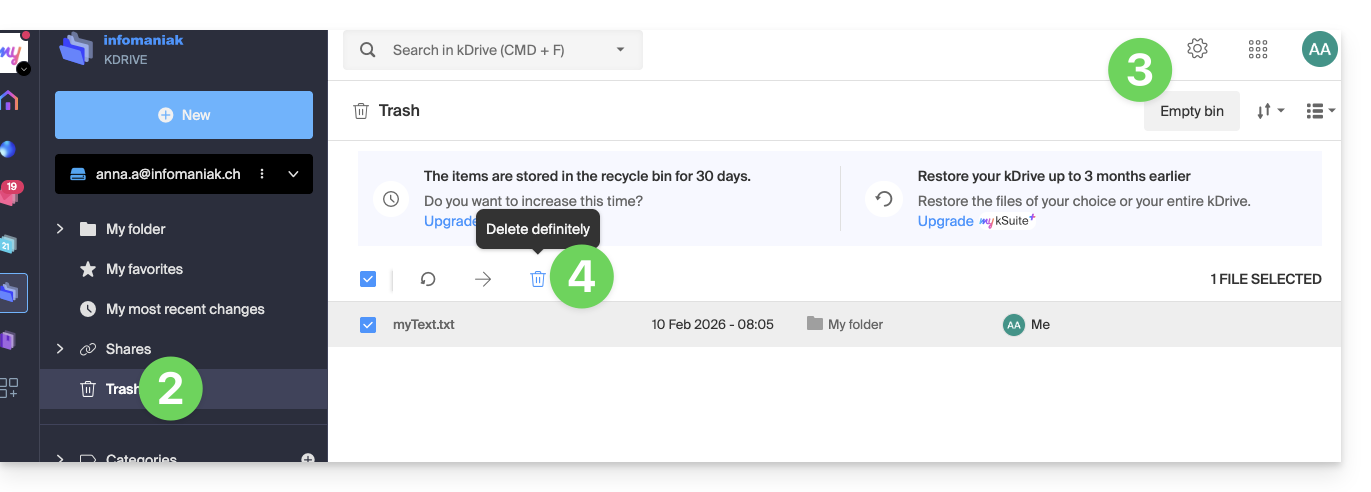
- Click on the trash in the left sidebar menu.
- Click on the Empty Trash button to delete all files from the trash…
- … or select files one by one and then click on the trash icon above the table:
Note also: once a modification is made to one of your files, kDrive (my kSuite) saves up to 30 versions for 30 days. This allows you to navigate between multiple versions of a file and restore an older version if needed.
It is possible to delete all versions of the document by clicking on the button Delete all versions or to delete versions one by one, by clicking on the icon ⋮ then clicking on Delete, but this does not particularly free up space because this versioning is not counted in your kDrive storage space: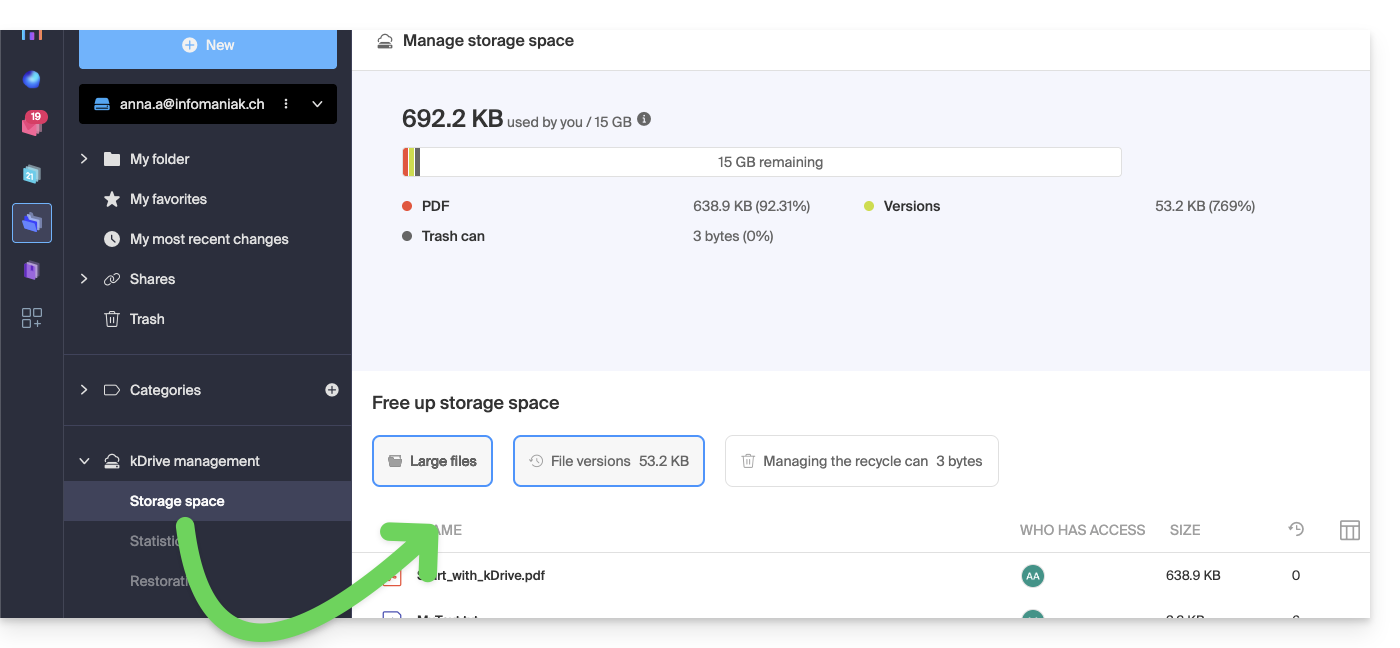
Link to this FAQ:
Has this FAQ been helpful?