Knowledge base
1000 FAQs, 500 tutorials and instructional videos. Here, there are only solutions!
Redirect web traffic to a specific port
This guide covers redirecting web traffic to a specific port, including when using a dedicated IP and a specific web application (such as Node or Varnish, for example).
Prerequisites
- Add a site to your hosting.
- Install
HAProxyon the Cloud Server.
Redirect web traffic to a specific port
By default, on the Cloud Server, web traffic is sent to Apache. To send requests to a Node script or another service (provided it "listens" on a port between 4000 and 4009), you need to go through HAProxy.
This applies in particular to Express, Socket.IO, Meteor.js, Nuxt.js, Django, Flask, Ruby on Rails, even possibly Java (J2E), etc.
To do this, you need to ensure that the service is listening on a port between 4000 and 4009 (especially with server.listen(4000) for Express or a basic HTTP Node server, but depending on the type of project by other means, a configuration file, in the code or otherwise) and on all interfaces (0.0.0.0).
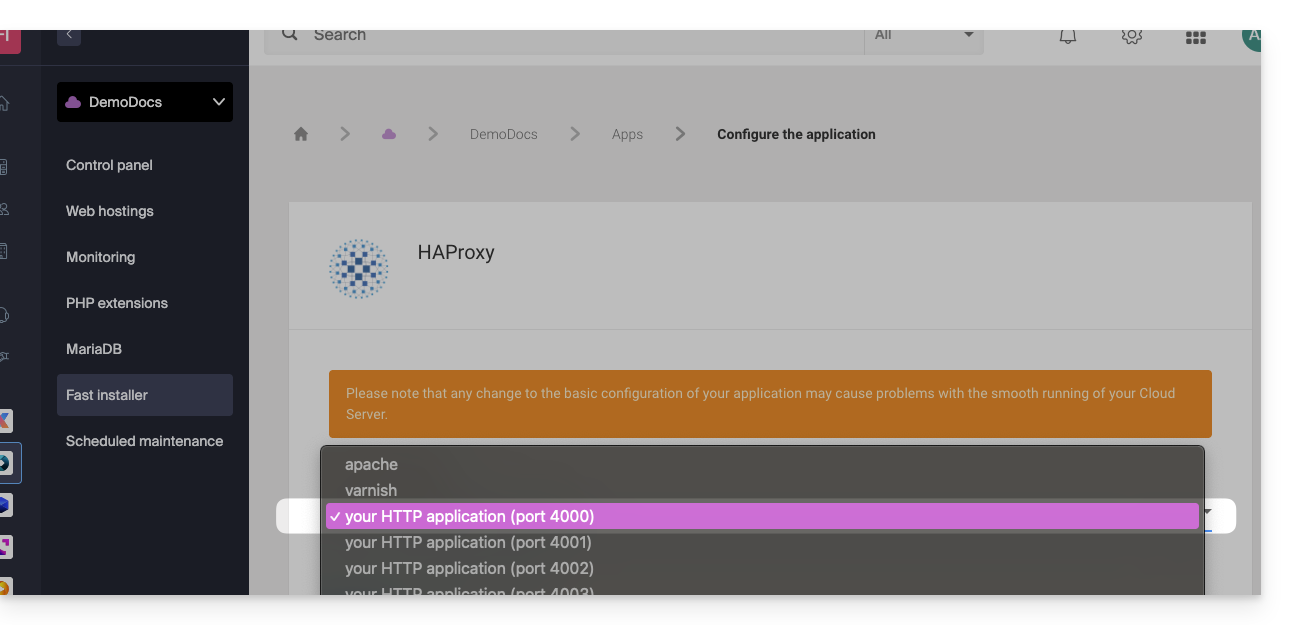
It will also be necessary to configure HAProxy as in the example below:
- Click here to access the management of your Cloud Server on the Infomaniak Manager (need help?).
- Click directly on the name assigned to the Cloud Server concerned.
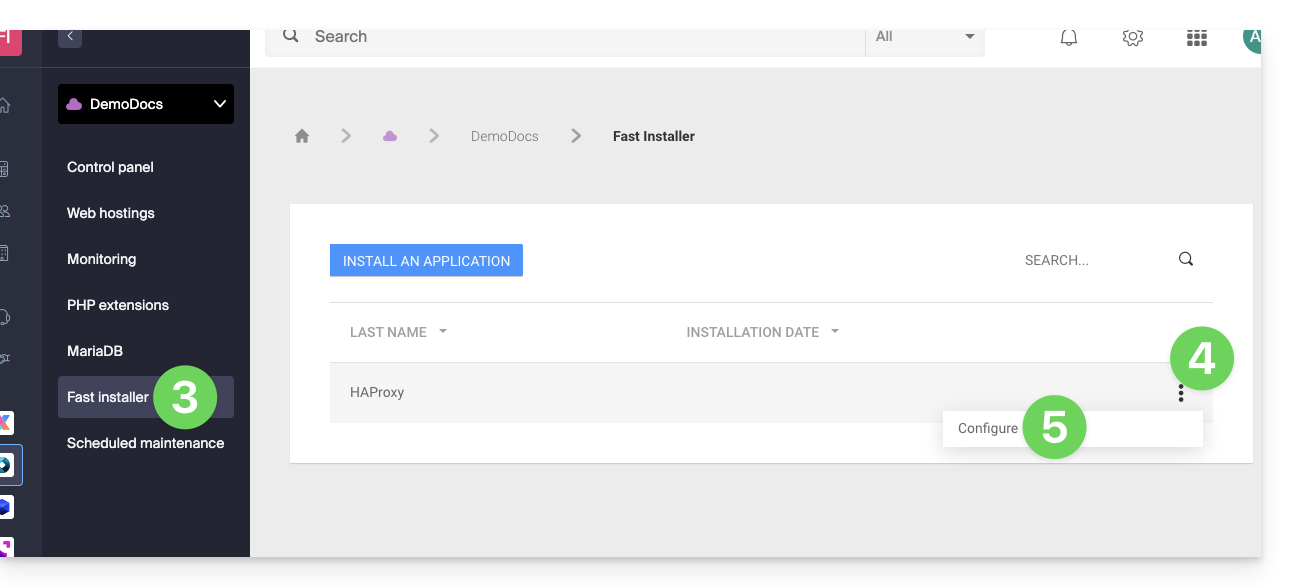
- Click on Fast installer in the left sidebar.
- Click on the action menu ⋮ located to the right of
HAProxy. - Click on Configure:
- Choose the desired information and save:
Special case of aliases and wildcards
Configuring HAProxy via the Fast Installer applies exclusively to the main domain of the hosting.
Currently, domain aliases (whether specific or of the wildcard type like *.domain.xyz) are not natively supported by this tool.
To redirect traffic from an alias to your application (listening, for example, on port 4000), you must manually configure a "proxy" type rule in the .htaccess file located at the root of your site:
# Redirect all traffic to the application (e.g., Node.js on port 4000)
RewriteEngine On
RewriteRule ^(.*)$ http://localhost:4000/$1 [P,L]
Without this manual directive, all requests corresponding to your aliases or wildcards will be directed by default to Apache instead of your specific application.
Retrieving the source IP of a request
When you redirect Web traffic to your Web application, request processing changes and the request is first received by a reverse proxy (local to the server) which then forwards the request to the chosen port. Thus, due to the request transfer, the methods usually used to retrieve the visitor's IP will give the IP of the reverse proxy instead of the visitor's.
Thus, to retrieve the real source IP of the visitor in these cases, you need to consult an HTTP header named X-Forwarded-For, which will contain the source IPs accumulated during each redirection. This header will therefore contain last the original IP address of the client, allowing the real visitor to be identified.
Warning: it is important to note that HTTP headers can be tampered with, which presents security risks. To minimize these risks, it is recommended to verify that the request comes from a trusted server before trusting the content of the header X-Forwarded-For. This verification may involve ensuring that the request was transmitted by a trusted intermediate server, identified by a pre-established list of IP addresses. In the case where the site uses a dedicated IP, the trusted servers are:
- 83.166.133.15
- 83.166.133.17
- 83.166.133.16
- 84.16.92.5
- 84.16.92.43
- 10.2.32.255
- 10.2.34.164
Link to this FAQ:
Has this FAQ been helpful?