Knowledge base
1000 FAQs, 500 tutorials and instructional videos. Here, there are only solutions!
Manage Web Mail app notifications
Update 04/30/2026
This guide explains how to be notified of new emails with the Infomaniak Web app Mail (online service ksuite.infomaniak.com/mail).
Preamble
- The Infomaniak Web app Mail is compatible with web browsers (Chrome, Firefox, etc.) that offer visual alerts for incoming messages in the background.
- The mobile app Infomaniak Mail (iOS / Android) also offers to use the notification possibilities of your mobile device.
Display a notification in the browser
To activate browser notifications when a new incoming message arrives:
- Click here to access the Infomaniak Web app Mail (online service ksuite.infomaniak.com/mail).
- Click on the Settings icon at the top right.
- Click on Browser in the left sidebar menu.
- Enable the toggle switch to Show a notification when new emails are received:
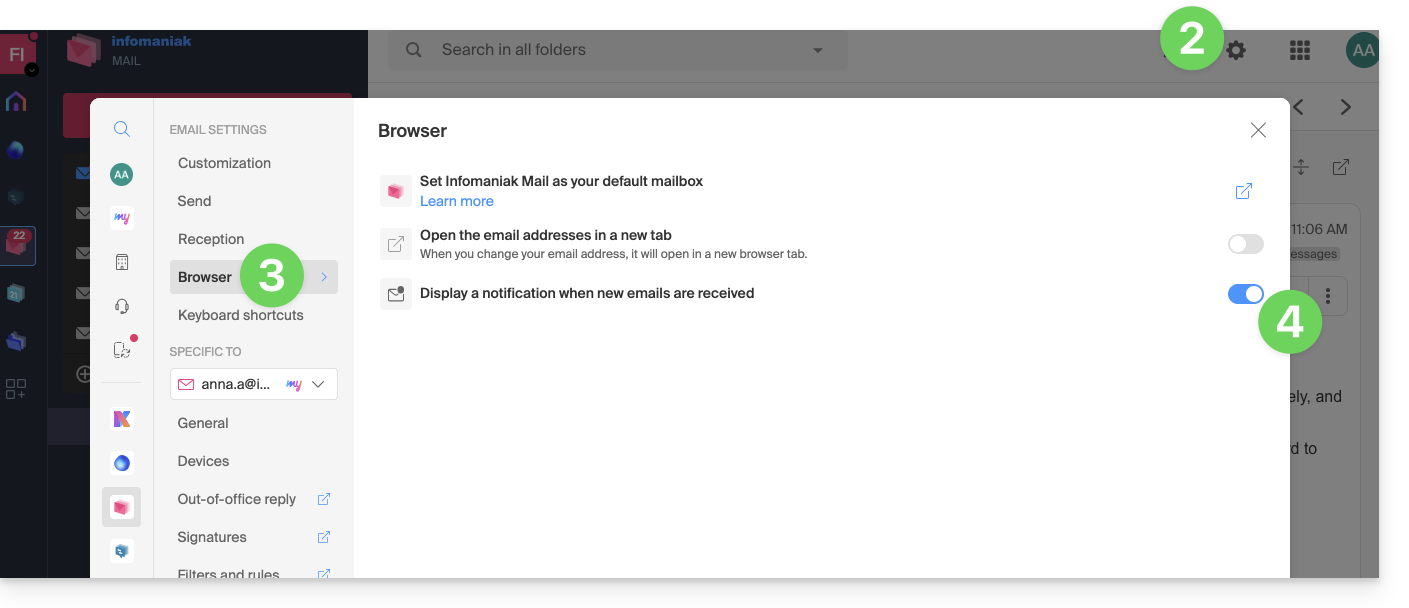
To remove this feature, deactivate the toggle button. You will also need to remove the notification permission in the browser directly (see the documentation of its editor).
Allow browser notifications…
… on Safari
- Open Safari.
- Click on Preferences and select Websites then Notifications.
- Search for the site ksuite.infomaniak.com/mail and select Allow.
For more information, refer to the Apple documentation.
… on Firefox
- Open Firefox.
- Go to the main menu in Preferences or Settings.
- Go to Privacy and Security in the left panel.
- Scroll down to the Permissions section.
- Click the Settings button to the right of Notifications.
- Search for the site ksuite.infomaniak.com/mail and select Allow.
For more information, refer to the Firefox documentation.
… on Google Chrome
- Open Google Chrome.
- Click on the More menu ⋮ in the top right corner > Settings.
- Go to Privacy and Security, then click on Site Settings.
- Click on Notifications and choose to allow notifications:
- Allow a site: next to the Allow option, click Add. Enter the URL: https://ksuite.infomaniak.com/mail, then click Add.
For more information, refer to the Google Chrome documentation.
… on Microsoft Edge
- Open Microsoft Edge.
- Click on the menu in the top right corner, then click on Settings.
- Go to the Cookies and site permissions menu.
- Click on Notifications:
- Allow a site: next to the Allow option, click Add. Enter the URL: https://ksuite.infomaniak.com/mail, then click Add.
Link to this FAQ:
Has this FAQ been helpful?